> ## Documentation Index
> Fetch the complete documentation index at: https://captions.ai/llms.txt
> Use this file to discover all available pages before exploring further.
# Censor
> Automatically bleep curse words in your videos with Captions' AI Censor. Apply to all profanity at once or censor individual words manually on iOS.
## Overview
If you'd like to make your content available for all audiences, Captions can easily censor some or all curse words.
## How It Works
### Censor All Curse Words
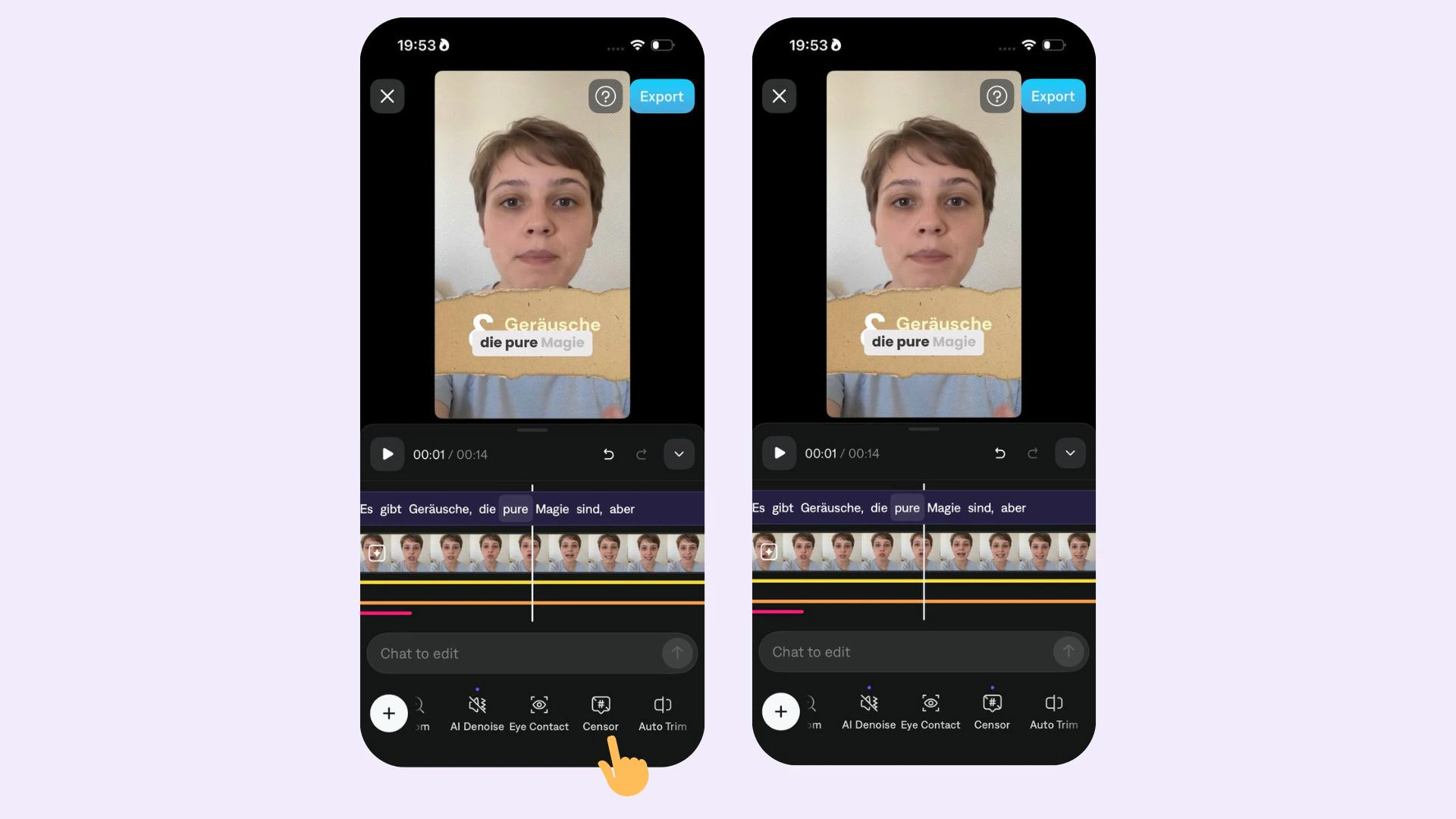
To automatically censor words, simply select **Censor**on the bottom navigation.
 ### Censor Individual Words
To manually censor a word:
1. Tap on a word to [edit the spelling](/help/docs/captions/edit-spelling)
2. Add 2 asterisks `**` anywhere in the word
3. Ensure **Censor** is enabled. If it's not working, disable and reenable AI Censor.
## Frequently Asked Questions
Some of the Captions templates automatically have censor applied. It is easy to disable by simply tapping **Censor** on the bottom navigation of the app.
### Censor Individual Words
To manually censor a word:
1. Tap on a word to [edit the spelling](/help/docs/captions/edit-spelling)
2. Add 2 asterisks `**` anywhere in the word
3. Ensure **Censor** is enabled. If it's not working, disable and reenable AI Censor.
## Frequently Asked Questions
Some of the Captions templates automatically have censor applied. It is easy to disable by simply tapping **Censor** on the bottom navigation of the app.