> ## Documentation Index
> Fetch the complete documentation index at: https://captions.ai/llms.txt
> Use this file to discover all available pages before exploring further.
# Voiceover
> Generate AI voiceovers, import audio, or create a voice clone for your videos in Captions. Choose from ElevenLabs, Cartesia, PlayHT, and OpenAI models.
# Create AI Voiceovers and Voice Clones for Videos
## Overview
Benefits of adding a voiceover to your video:
* **Adds personality** – Your voice helps make content feel authentic and human.
* **Improves clarity** – Voiceover makes it easy to explain complex ideas or context.
* **Guides the viewer** – You can direct attention and narrate what’s happening on screen.
* **Saves time** – You don’t need to be on camera the whole time to deliver value.
* **Enhances storytelling** – Voiceover lets you build a stronger narrative arc.
* **Boosts accessibility** – Combines with [captions](/help/docs/captions/add-captions) to help more people engage.
* **Feels more intimate** – A spoken voice can create a closer connection with your audience.
## How It Works
### Generate a Voiceover
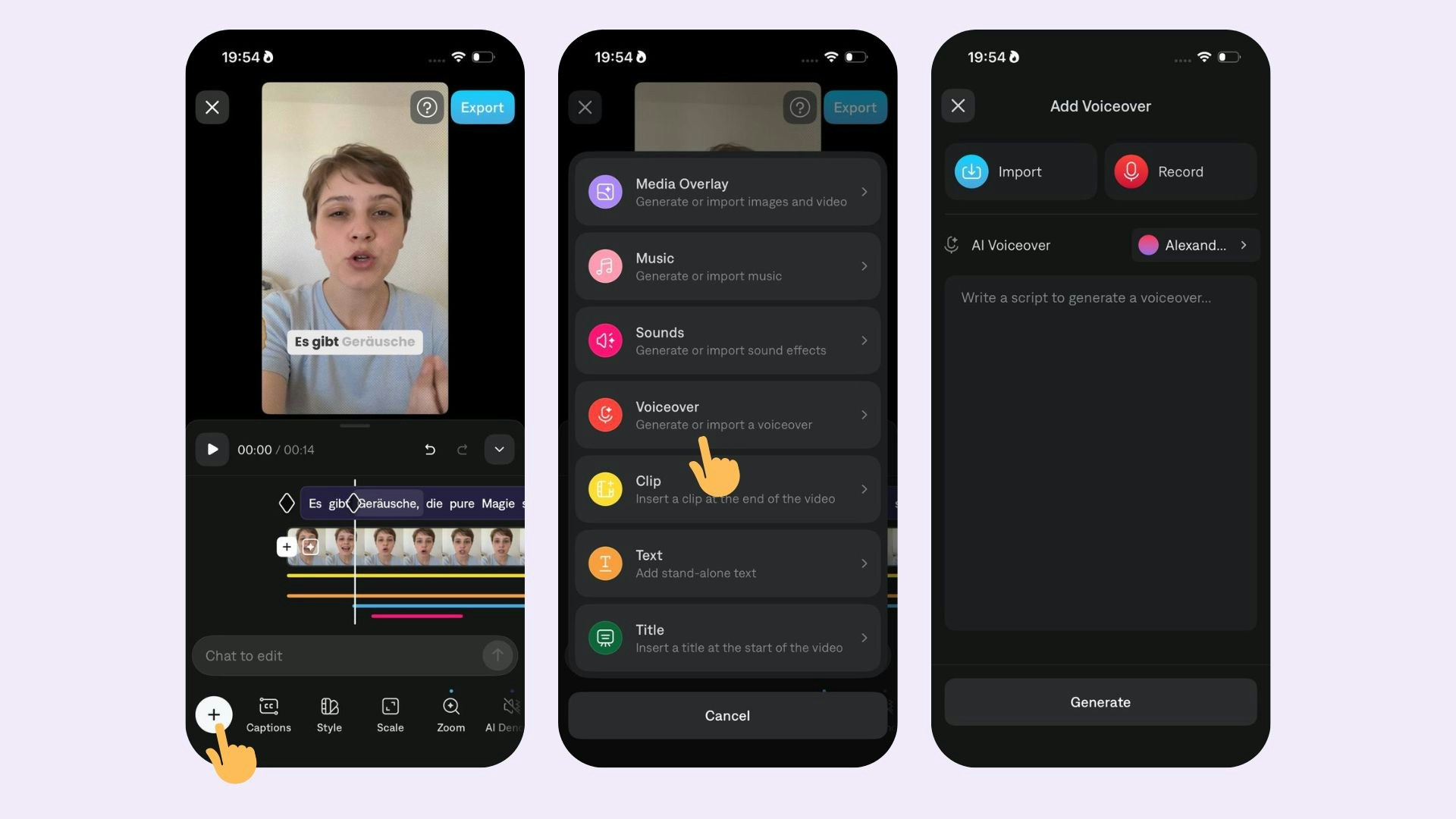
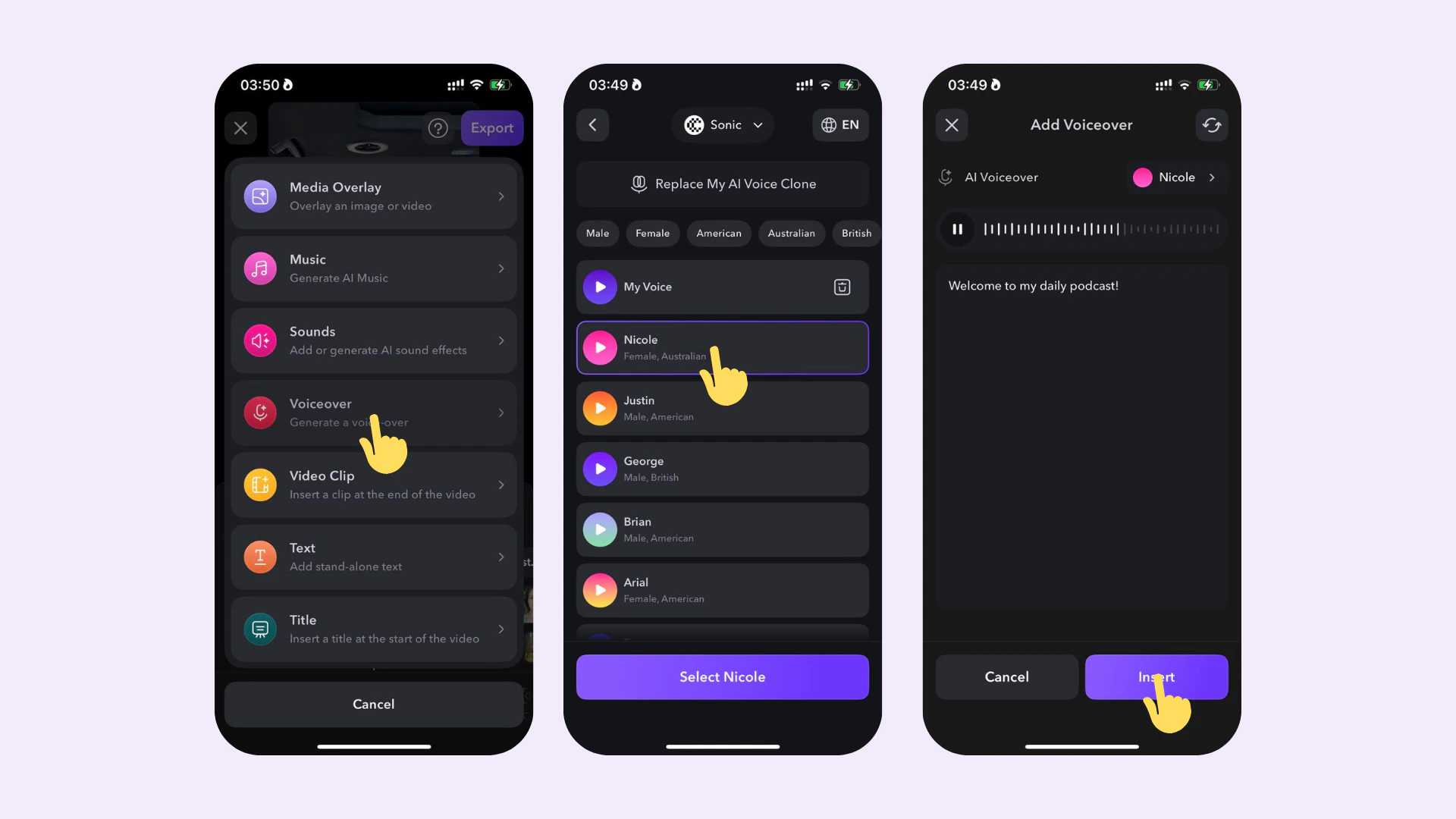
To generate a voiceover:
1. Import your video and add captions (optional, [hide your captions](/help/docs/captions/hide-and-delete))
2. Tap **Voiceover**
3. Preview and choose your AI voice
4. Type or paste your text
5. Preview or change your AI voice
Once you insert a voiceover track, you can:
* Edit the generated voiceover
* Adjust its volume
* [Generate captions for it](/help/docs/captions/add-captions)
* Split it into separate parts
 ## Import a Voiceover
To import a voiceover:
1. Import your video and add captions (Optional: [hide your captions](/help/docs/captions/hide-and-delete))
2. Tap **Voiceover**
3. Tap **Import**
Choose between importing a voiceover from files and importing a voiceover from an existing Captions project.
## Import a Voiceover
To import a voiceover:
1. Import your video and add captions (Optional: [hide your captions](/help/docs/captions/hide-and-delete))
2. Tap **Voiceover**
3. Tap **Import**
Choose between importing a voiceover from files and importing a voiceover from an existing Captions project.
 ## Create a Voice Clone
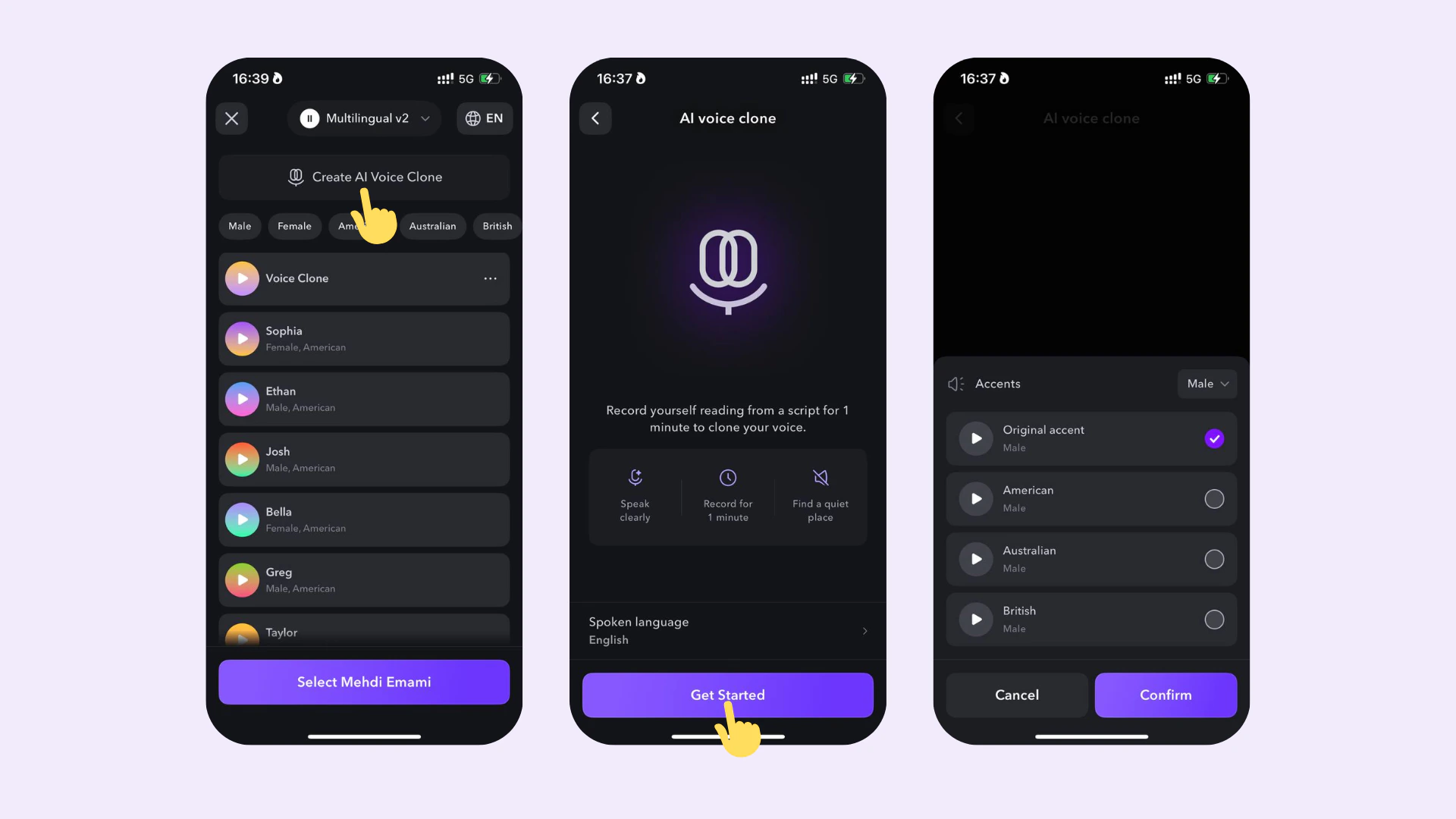
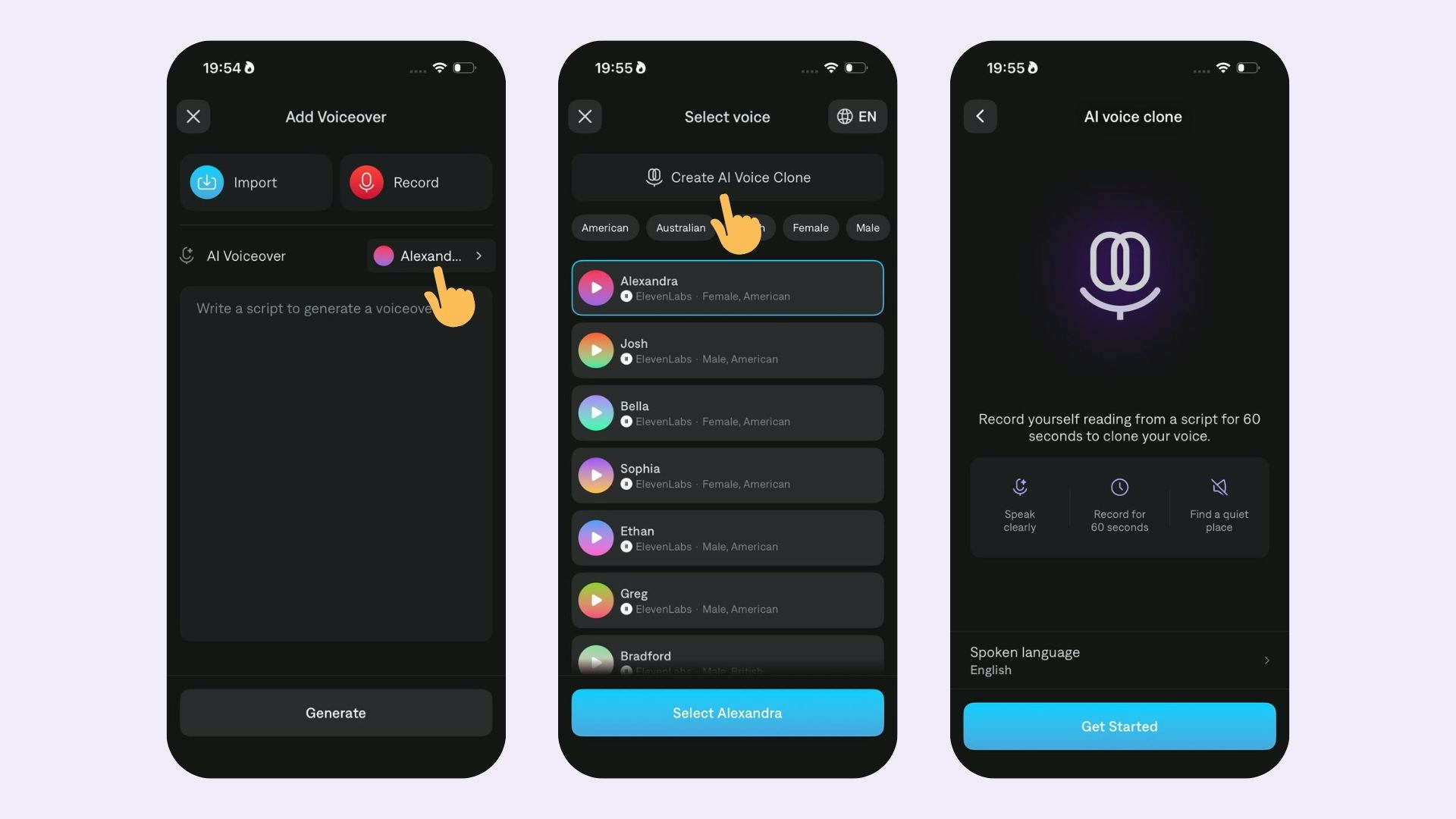 To create an AI voice clone:
1. Tap **Voiceover**
2. Tap **[Create AI Voice Clone](/help/guides/advanced/voice-clone)**
3. Read the 1-minute script to add your voice clone
4. Select an accent for your generated voice clone
To delete your voice clone, simply tap Delete
To create an AI voice clone:
1. Tap **Voiceover**
2. Tap **[Create AI Voice Clone](/help/guides/advanced/voice-clone)**
3. Read the 1-minute script to add your voice clone
4. Select an accent for your generated voice clone
To delete your voice clone, simply tap Delete
 ## Frequently Asked Questions
Yes. You can tap on the primary track on the timeline and select \*\*Extract audio. \*\*Once it is on another track, you can change the volume or mute it.
For generating voiceover tracks, Captions supports 6 integrations with different AI models:
* Sonic 2 (Cartesia)
* 4o-mini (OpenAI)
* PlayDialog (PlayHT)
* Multilingual v2 (ElevenLabs)
* Flash v2.5 (ElevenLabs)
## Frequently Asked Questions
Yes. You can tap on the primary track on the timeline and select \*\*Extract audio. \*\*Once it is on another track, you can change the volume or mute it.
For generating voiceover tracks, Captions supports 6 integrations with different AI models:
* Sonic 2 (Cartesia)
* 4o-mini (OpenAI)
* PlayDialog (PlayHT)
* Multilingual v2 (ElevenLabs)
* Flash v2.5 (ElevenLabs)