> ## Documentation Index
> Fetch the complete documentation index at: https://captions.ai/llms.txt
> Use this file to discover all available pages before exploring further.
# AI Creator Video Generator Guide
> Generate videos in any language without a camera using AI Creator. Write a script, select an avatar, and create high-quality videos instantly with AI Echo and AI Twin features.
Use AI Creator to generate a video based on a script.
Use AI Echo to create a customized video narrated in your own voice, allowing you to adjust the narrator's pace, tone, and pronunciation.
AI Twin allows you to create a digital clone of yourself for use with AI Creator. Once you generate your AI Twin, you can use it as an avatar in any of the AI Creator modes.
# Generate Videos Without a Camera Using AI Creator
## Generate a Video
* Prompt to video: Use your own script, enter a prompt, or use [AI Echo](/help/docs/project/ai-creator#ai-echo)
* [AI Ads](/help/docs/project/ai-ads): Automatically generate a UGC-style ad from a website
* Write or paste your own script
* Enter a prompt and we'll generate a script for you
* Use [AI Echo](/help/docs/project/ai-creator) to record your voice. The avatar you choose will The exact tone, intonation, and pronunciation will be imprinted on the creator you choose.
* Choose from our list of community avatars
* Record an [AI Twin](/help/docs/project/ai-twin) so you can generate videos of yourself over and over again without ever using a camera.
After your video has been generated, you can edit and export your video
## AI Echo
AI Echo allows you to generate AI Creator videos with extreme precision. Rather than typing or pasting your script, simply record your script how you like, and the avatar you choose will have the exact tone, intonation, and pronunciation as your original recording.
To generate an [AI Creator](/help/docs/project/ai-creator) with AI Echo:
1. Navigate to "AI Creator"
2. Rather than pasting a script, choose "AI Echo"
3. Choose your language
4. Record your script in the way you'd like it to be read by the avatar or upload a voice memo.
## AI Twin
To generate a new AI Twin, open the Captions app:
1. Navigate to "AI Creator" and select "Create an AI Twin"
2. Record or upload your training video
3. Name your AI Twin
4. Wait a few minutes, and your AI Twin will be available for use only for you
### Generating Videos With Your AI Twin
Once your AI Twin has been generated, your AI Twin will look and sound exactly like you and you can use it with any [AI Creator](/help/docs/project/ai-creator) feature. Your AI Twin will also be available for use on other platforms which means if you recorded your AI Twin on your iPhone, you can generate AI Creator videos using your AI Twin on Desktop and Android.
## Supported Languages
You can generate videos in the following languages: Arabic, Chinese (simplifed), Chinese (traditional), Czech, Danish, Dutch, English, Finnish, French, German, Greek, Hebrew, Hindi, Hinglish, Indonesian, Italian, Japanese, Korean, Malay, Polish, Portuguese, Romanian, Russian, Slovak, Spanish, Swedish, Tamil, Turkish, and Ukrainian.
## Frequently Asked Questions
Yes, all videos made using AI Creator can be used for commercial use. Please read more in our [Terms and Conditions](http://captions.ai/legal/terms).
AI Creator scripts are limited to 1 minute and your script must be between 10 and 800 characters. Each space and line break counts as one character.
You can create AI videos in the following languages: Arabic, Chinese (simplified), Chinese (traditional), Czech, Danish, Dutch, English, Filipino (Tagalog), Finnish, French, German, Greek, Hindi, Hinglish, Indonesian, Italian, Japanese, Korean, Malay, Polish, Portuguese, Romanian, Russian, Slovak, Spanish, Swedish, Tamil, Turkish, Ukrainian.
You can generate up to 2 AI Twins on Basic, and 30 AI Twins on Max/Scale
Yes. Tap or click on your AI Twin and select "Delete creator."
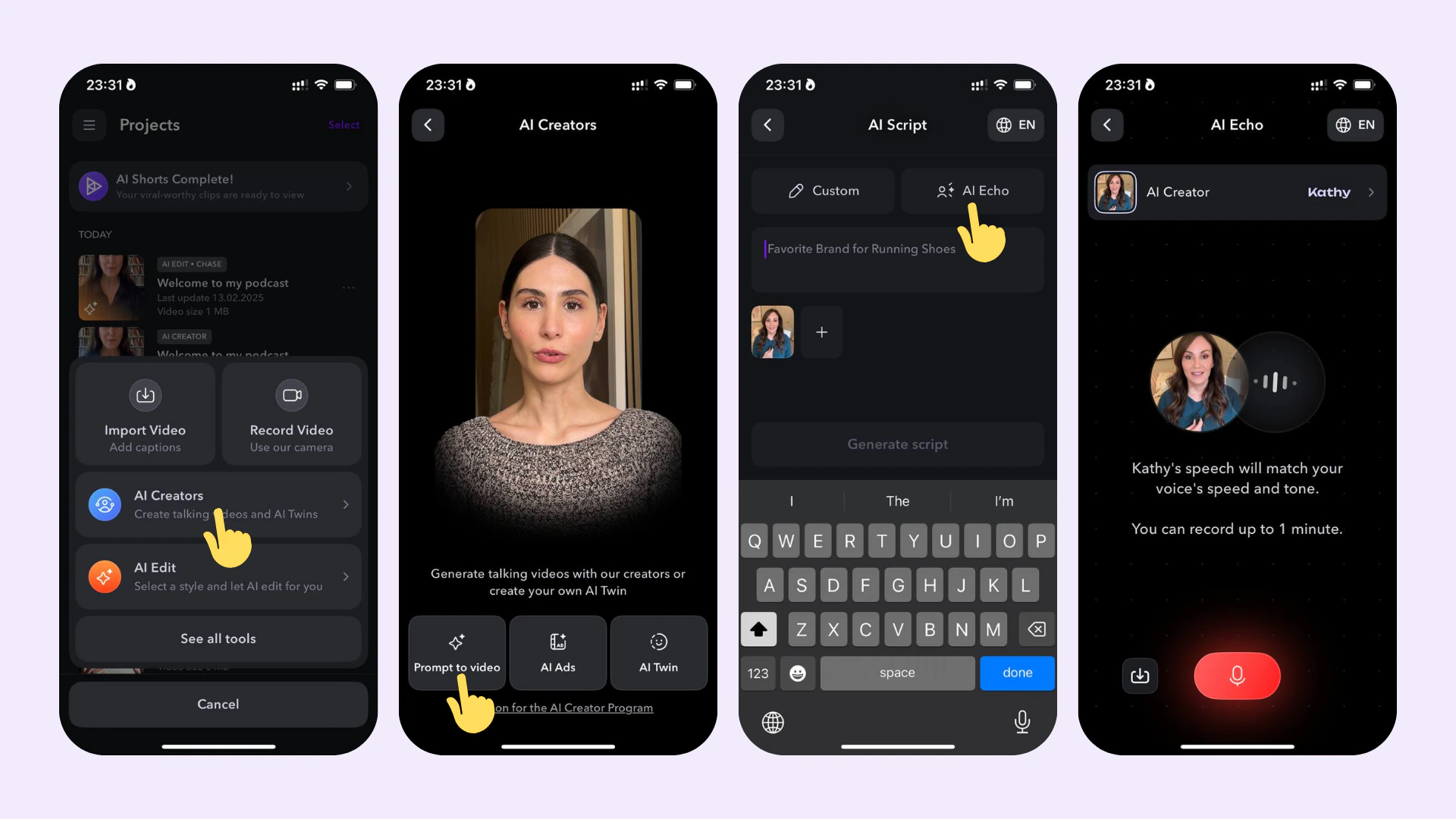 To generate an [AI Creator](/help/docs/project/ai-creator) with AI Echo:
1. Navigate to "AI Creator"
2. Rather than pasting a script, choose "AI Echo"
3. Choose your language
4. Record your script in the way you'd like it to be read by the avatar or upload a voice memo.
## AI Twin
To generate an [AI Creator](/help/docs/project/ai-creator) with AI Echo:
1. Navigate to "AI Creator"
2. Rather than pasting a script, choose "AI Echo"
3. Choose your language
4. Record your script in the way you'd like it to be read by the avatar or upload a voice memo.
## AI Twin
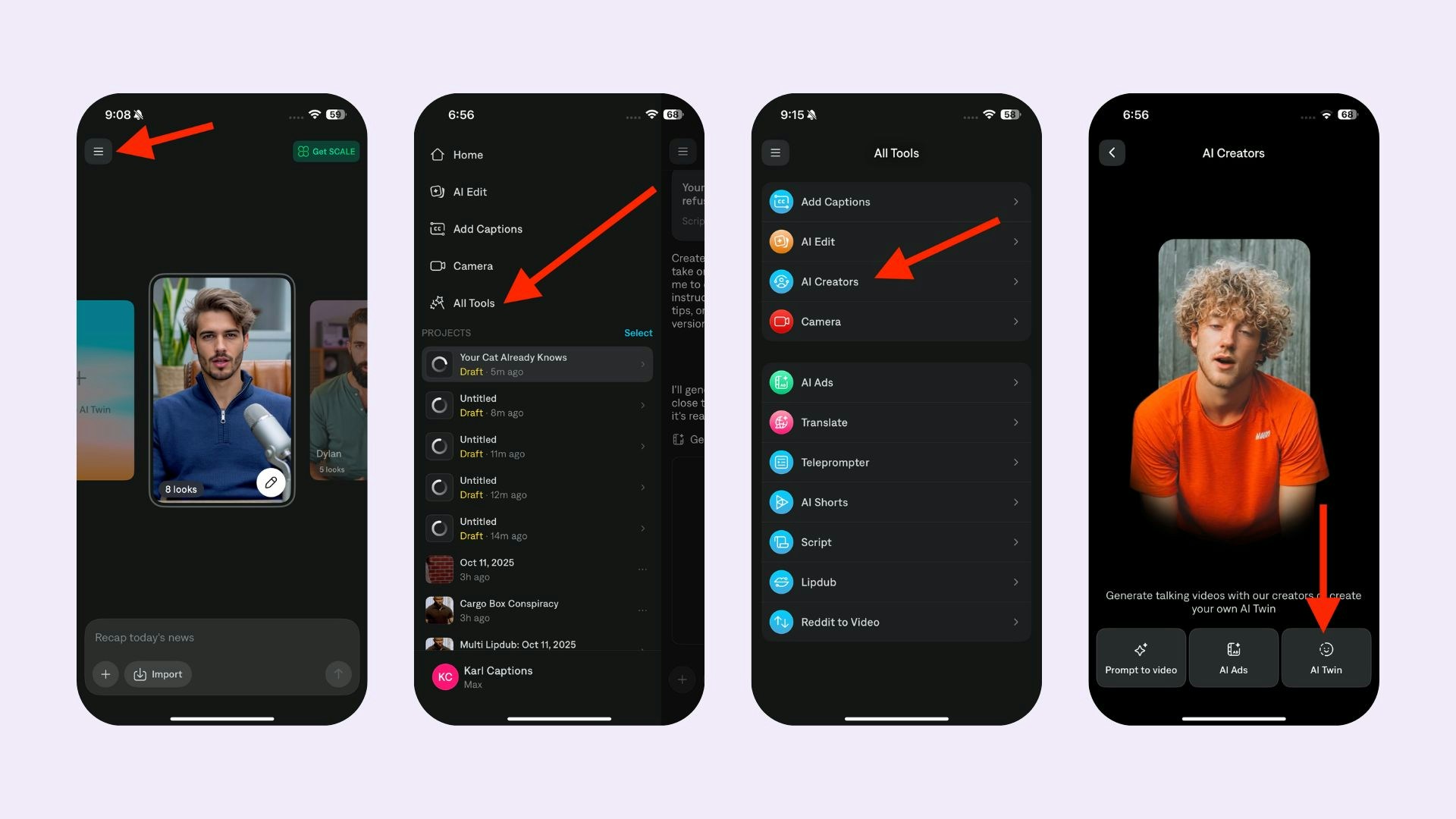 To generate a new AI Twin, open the Captions app:
1. Navigate to "AI Creator" and select "Create an AI Twin"
2. Record or upload your training video
3. Name your AI Twin
4. Wait a few minutes, and your AI Twin will be available for use only for you
### Generating Videos With Your AI Twin
Once your AI Twin has been generated, your AI Twin will look and sound exactly like you and you can use it with any [AI Creator](/help/docs/project/ai-creator) feature. Your AI Twin will also be available for use on other platforms which means if you recorded your AI Twin on your iPhone, you can generate AI Creator videos using your AI Twin on Desktop and Android.
## Supported Languages
You can generate videos in the following languages: Arabic, Chinese (simplifed), Chinese (traditional), Czech, Danish, Dutch, English, Finnish, French, German, Greek, Hebrew, Hindi, Hinglish, Indonesian, Italian, Japanese, Korean, Malay, Polish, Portuguese, Romanian, Russian, Slovak, Spanish, Swedish, Tamil, Turkish, and Ukrainian.
## Frequently Asked Questions
To generate a new AI Twin, open the Captions app:
1. Navigate to "AI Creator" and select "Create an AI Twin"
2. Record or upload your training video
3. Name your AI Twin
4. Wait a few minutes, and your AI Twin will be available for use only for you
### Generating Videos With Your AI Twin
Once your AI Twin has been generated, your AI Twin will look and sound exactly like you and you can use it with any [AI Creator](/help/docs/project/ai-creator) feature. Your AI Twin will also be available for use on other platforms which means if you recorded your AI Twin on your iPhone, you can generate AI Creator videos using your AI Twin on Desktop and Android.
## Supported Languages
You can generate videos in the following languages: Arabic, Chinese (simplifed), Chinese (traditional), Czech, Danish, Dutch, English, Finnish, French, German, Greek, Hebrew, Hindi, Hinglish, Indonesian, Italian, Japanese, Korean, Malay, Polish, Portuguese, Romanian, Russian, Slovak, Spanish, Swedish, Tamil, Turkish, and Ukrainian.
## Frequently Asked Questions