> ## Documentation Index
> Fetch the complete documentation index at: https://captions.ai/llms.txt
> Use this file to discover all available pages before exploring further.
# AI Twin Digital Clone for Mirage
> Create your AI Twin digital clone in Captions to use as a Mirage avatar. Generate talking videos from your face and voice on iOS, Android, and web.
# Create Your Digital Clone with AI Twin
## How It Works
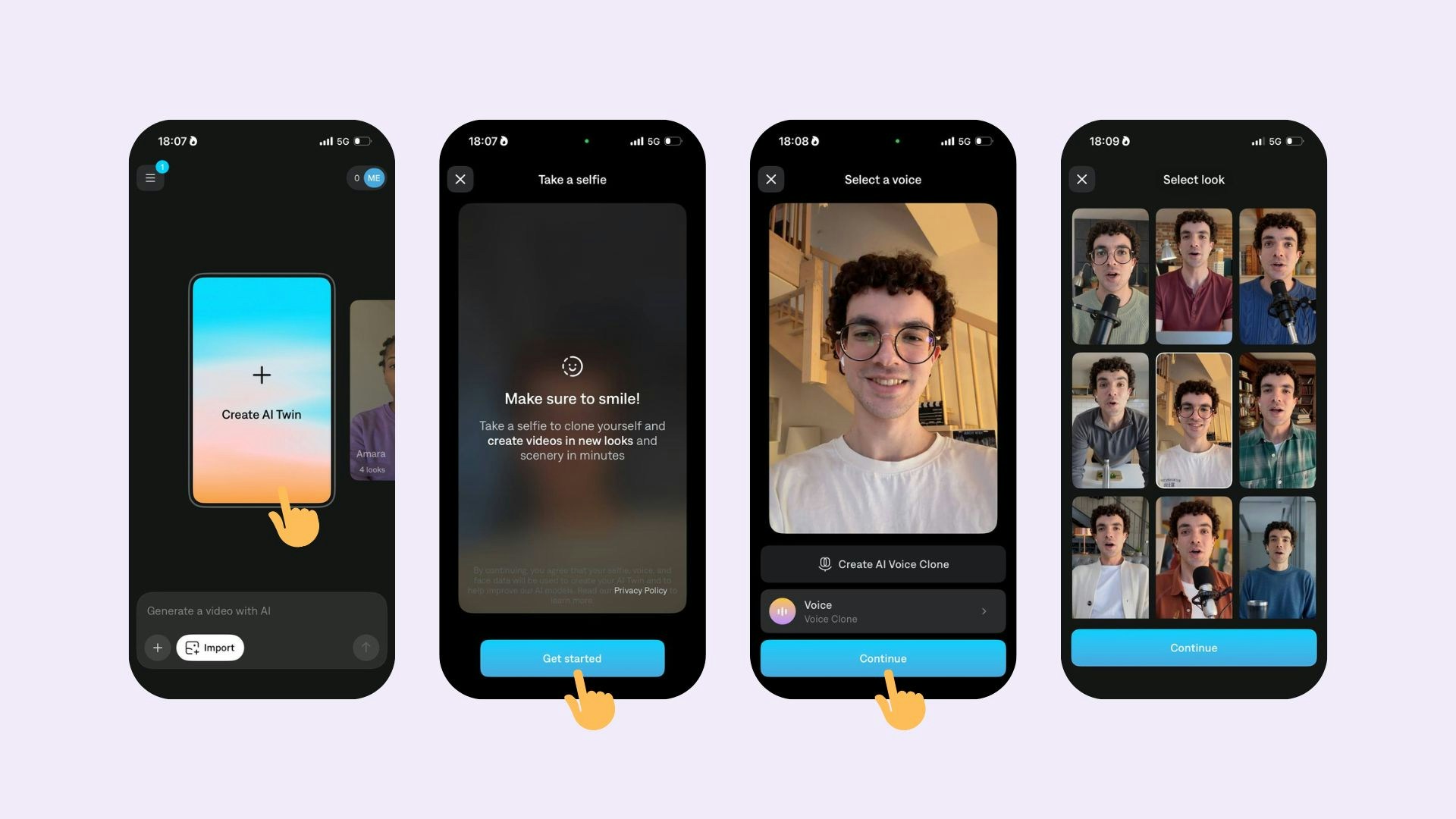 To generate a new AI Twin, open the Captions app:
1. Slide the carousel to **Create AI Twin** and tap on it
2. Tap **Get started**
3. Take a photo of yourself while smiling (with your teeth showing)
4. Choose a voice for your AI Twin (you can also create a [voice clone](/help/guides/advanced/voice-clone))
5. Captions will generate different variants of your AI Twin. Choose the one you like best and tap **Continue**
## Frequently Asked Questions
You can generate up to 30 AI Twins.
Yes. Tap on the edit icon on your AI Twin, then select the three dot icon and select **Delete actor**.
In order to record your AI Twin, you'll need to allow camera and microphone permission to your Web, iPhone, Android device.
Granting camera and microphone permissions will depend on which browser you are using.
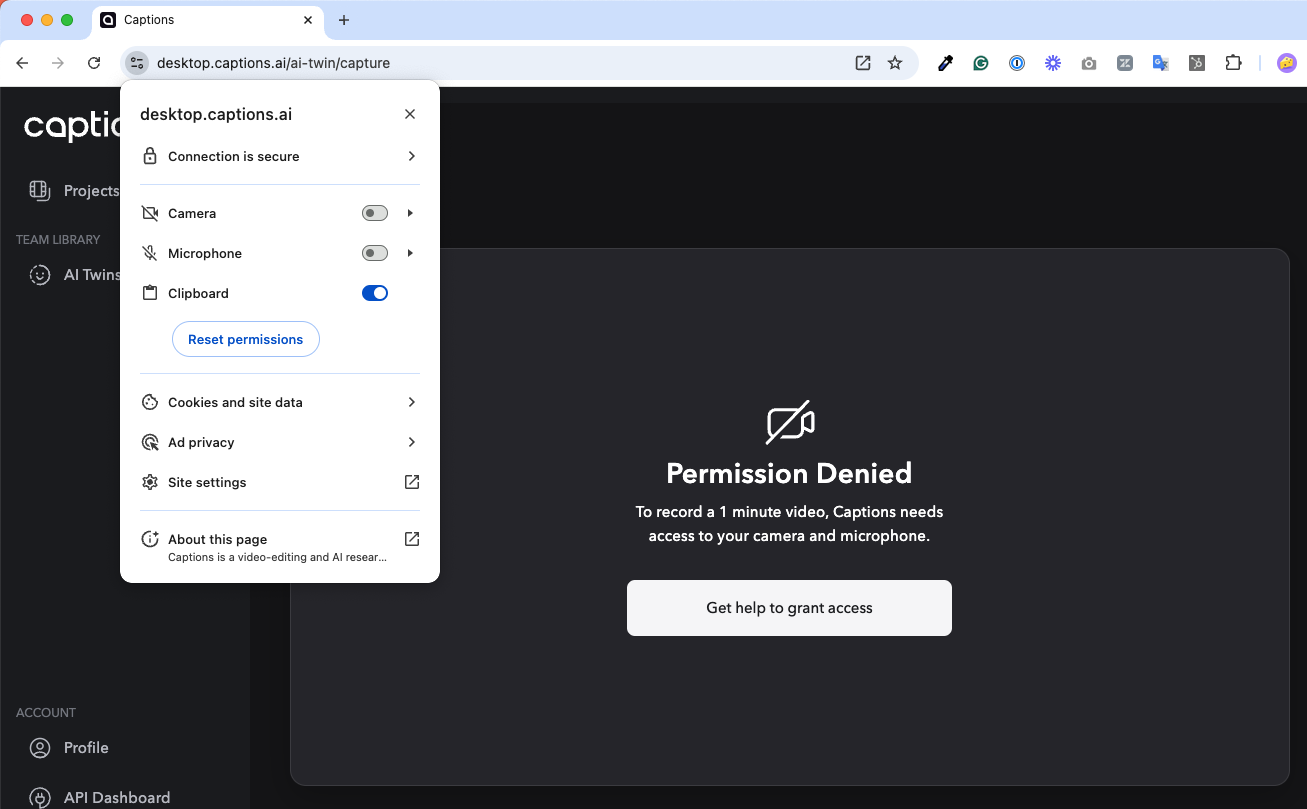
**Chrome**
1. Click on the settings icon to the left of `captions.ai` in the address bar
2. Toggle on **Camera** & **Microphone**
You can learn more [here](https://support.google.com/chrome/answer/2693767)
**Safari**
1. Open Settings
2. Click **Websites**
3. Enable **Camera** & **Microphone**
You can learn more [here](https://support.apple.com/guide/safari/websites-ibrwe2159f50/mac)
**Firefox**
1. Click on the settings icon to the left of `captions.ai` in the address bar
2. Toggle on **Camera** & **Microphone**
You can learn more [here](https://support.mozilla.org/en-US/kb/how-manage-your-camera-and-microphone-permissions)
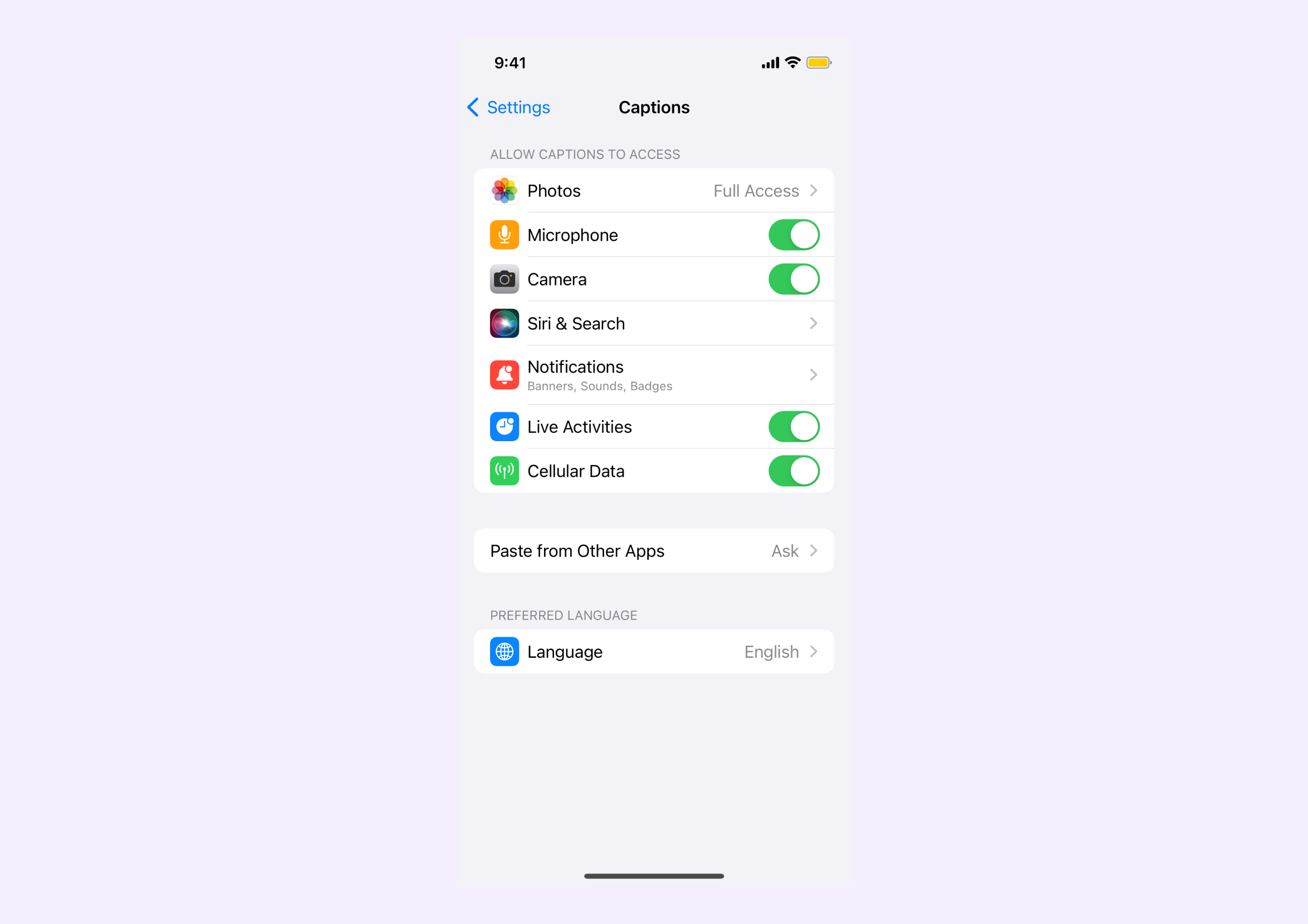
To grant camera and microphone permissions on your iPhone:
1. Open the Settings App
2. Tap **Captions**
3. Enable **Microphone** & **Camera**
You can also learn more [here](https://support.apple.com/guide/iphone/control-access-to-hardware-features-iph168c4bbd5/ios)
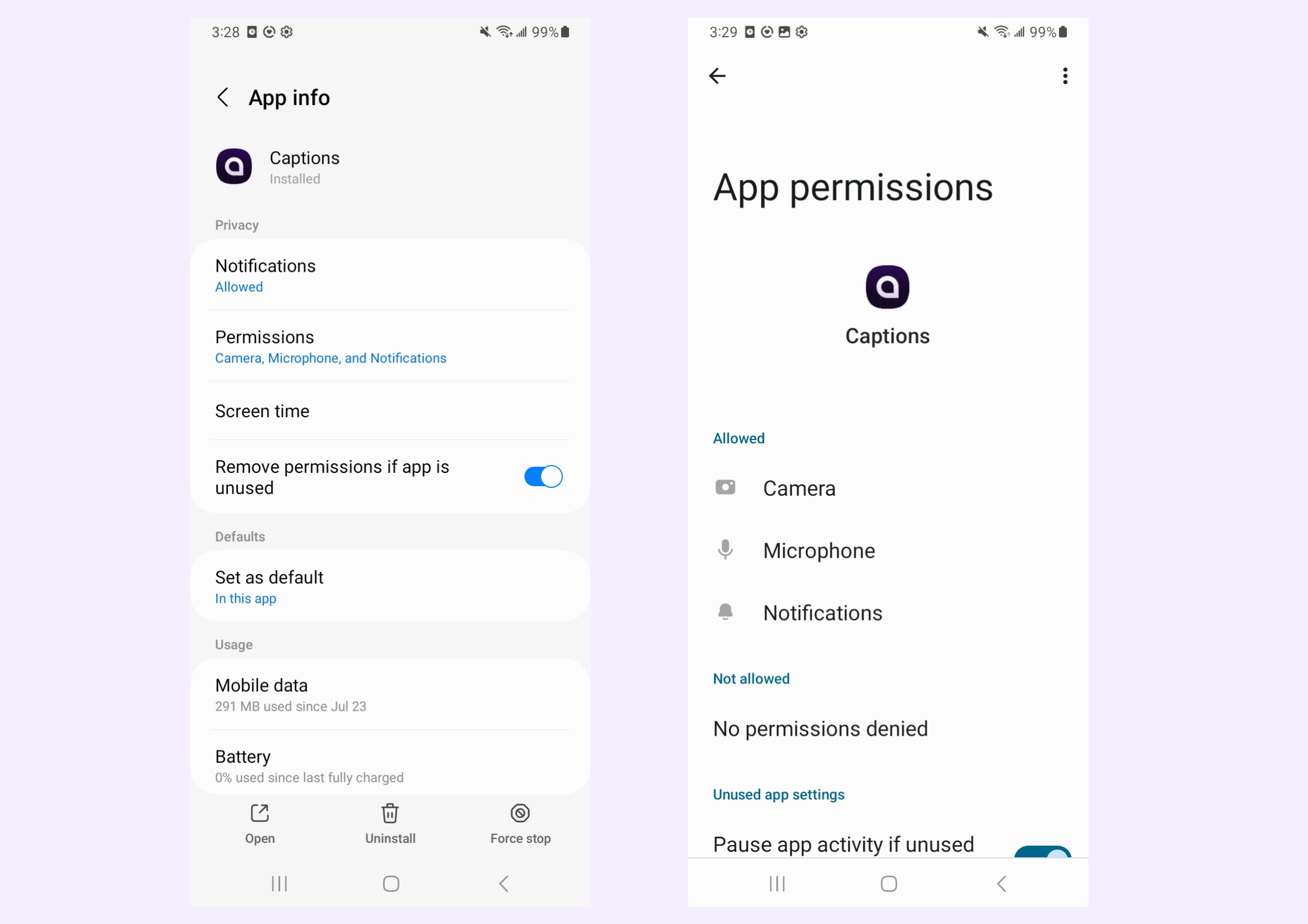
To grant camera and microphone permissions on your Android:
1. Open the Settings App.
2. Tap **Apps** > **Captions** > **Permissions**
3. Ensure **Camera** and **Microphone** are set to "Allow only while using the app"
You can also learn more [here](https://support.google.com/android/answer/9431959)
To generate a new AI Twin, open the Captions app:
1. Slide the carousel to **Create AI Twin** and tap on it
2. Tap **Get started**
3. Take a photo of yourself while smiling (with your teeth showing)
4. Choose a voice for your AI Twin (you can also create a [voice clone](/help/guides/advanced/voice-clone))
5. Captions will generate different variants of your AI Twin. Choose the one you like best and tap **Continue**
## Frequently Asked Questions
You can generate up to 30 AI Twins.
Yes. Tap on the edit icon on your AI Twin, then select the three dot icon and select **Delete actor**.
In order to record your AI Twin, you'll need to allow camera and microphone permission to your Web, iPhone, Android device.
Granting camera and microphone permissions will depend on which browser you are using.

**Chrome**
1. Click on the settings icon to the left of `captions.ai` in the address bar
2. Toggle on **Camera** & **Microphone**
You can learn more [here](https://support.google.com/chrome/answer/2693767)
**Safari**
1. Open Settings
2. Click **Websites**
3. Enable **Camera** & **Microphone**
You can learn more [here](https://support.apple.com/guide/safari/websites-ibrwe2159f50/mac)
**Firefox**
1. Click on the settings icon to the left of `captions.ai` in the address bar
2. Toggle on **Camera** & **Microphone**
You can learn more [here](https://support.mozilla.org/en-US/kb/how-manage-your-camera-and-microphone-permissions)
To grant camera and microphone permissions on your iPhone:
1. Open the Settings App
2. Tap **Captions**
3. Enable **Microphone** & **Camera**
You can also learn more [here](https://support.apple.com/guide/iphone/control-access-to-hardware-features-iph168c4bbd5/ios)

To grant camera and microphone permissions on your Android:
1. Open the Settings App.
2. Tap **Apps** > **Captions** > **Permissions**
3. Ensure **Camera** and **Microphone** are set to "Allow only while using the app"
You can also learn more [here](https://support.google.com/android/answer/9431959)
