> ## Documentation Index
> Fetch the complete documentation index at: https://captions.ai/llms.txt
> Use this file to discover all available pages before exploring further.
# Camera & Teleprompter
> Record videos in Captions with the built-in camera and teleprompter on iOS. Adjust flash, timer, HD or 4K quality, and read scripts hands-free.
# Record Videos with Built-In Camera and Teleprompter
## Camera Options
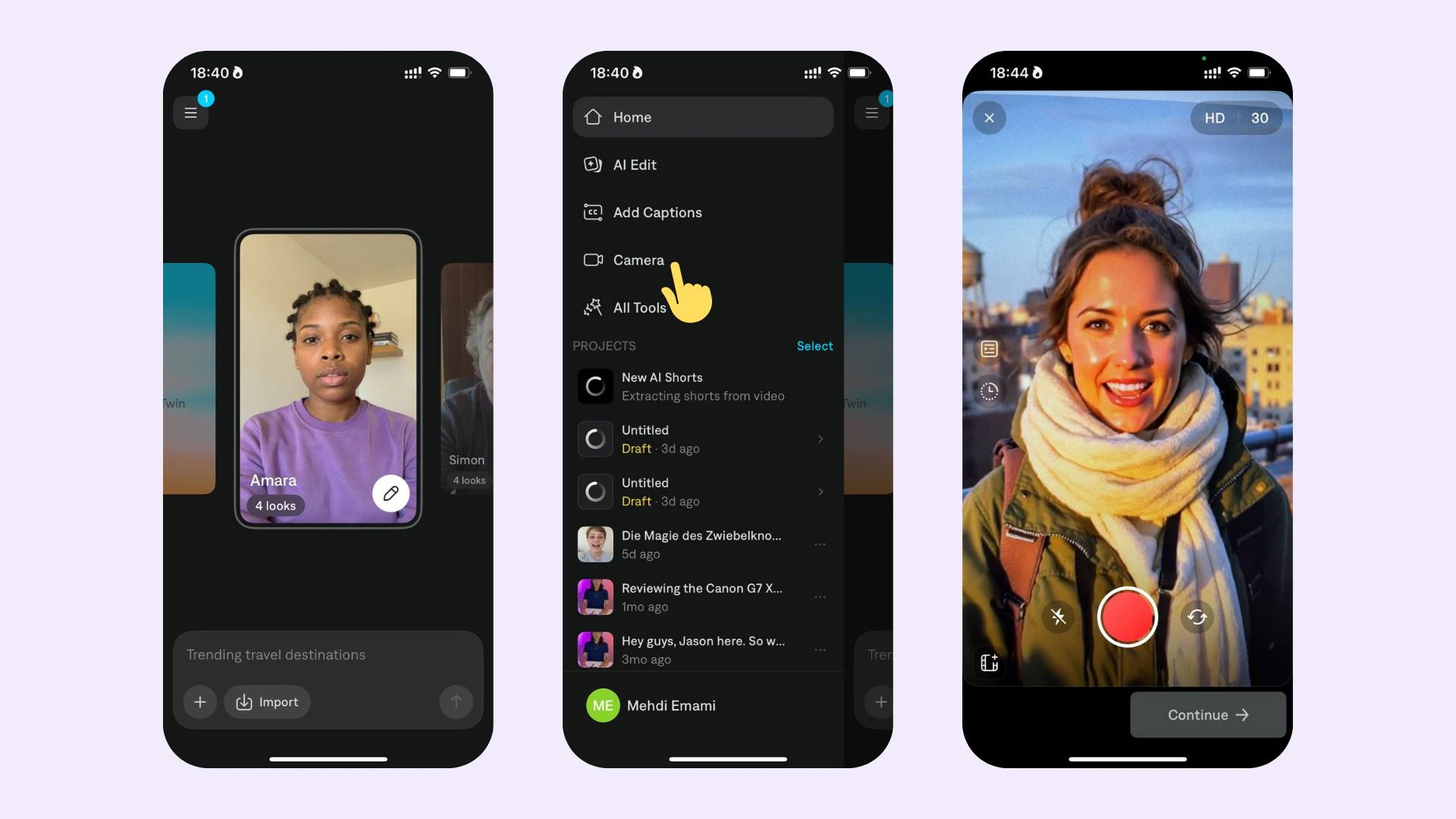 The Captions camera has the following options:
* **Countdown**: Tap the timer to choose a timer to let you know how much time you have left. You can choose intervals of 15, 30, 60, or 90.
* **Flash**: Turn the flash on or off. This feature applies to both the front and back-facing cameras.
* **Flip**: Flip to switch between the front and back-facing cameras. You can also double-tap to flip camera
* **Quality**: Tap to change between HD/4K, and 30 FPS / 60 FPS
## Teleprompter Options
The Captions Teleprompter has the following options:
* **Your script**: If you already know what you want to say, you can paste your script directly. Or, enter a prompt and let our [Script](/help/docs/project/script) tool help you generate one.
* **How you'd like to view your text**: You can choose to have the text scroll continuously or scene by scene.
* **Where you'd like to see the text on screen**: You can choose to have the teleprompter appear in the Captions app, or via the iOS push notifications.
* **Undo**: At any time, you can undo your last segment to retry your lines.
The Captions camera has the following options:
* **Countdown**: Tap the timer to choose a timer to let you know how much time you have left. You can choose intervals of 15, 30, 60, or 90.
* **Flash**: Turn the flash on or off. This feature applies to both the front and back-facing cameras.
* **Flip**: Flip to switch between the front and back-facing cameras. You can also double-tap to flip camera
* **Quality**: Tap to change between HD/4K, and 30 FPS / 60 FPS
## Teleprompter Options
The Captions Teleprompter has the following options:
* **Your script**: If you already know what you want to say, you can paste your script directly. Or, enter a prompt and let our [Script](/help/docs/project/script) tool help you generate one.
* **How you'd like to view your text**: You can choose to have the text scroll continuously or scene by scene.
* **Where you'd like to see the text on screen**: You can choose to have the teleprompter appear in the Captions app, or via the iOS push notifications.
* **Undo**: At any time, you can undo your last segment to retry your lines.