> ## Documentation Index
> Fetch the complete documentation index at: https://captions.ai/llms.txt
> Use this file to discover all available pages before exploring further.
# Prompt to Video: Create Talking Videos from Text Prompts
> Create professional talking videos instantly using AI. Turn any text prompt into high-quality videos with AI actors, automatic editing, and professional touches. Perfect for content creators, marketers, and businesses who want to generate engaging video content quickly and easily.
## Overview
Go from 0 to video with just a prompt — enabling anyone to go from idea to edited talking video, featuring actors that don't exist. With this first-of-its-kind tool, it's never been easier to turn text into professional-quality videos or ads. Prompt to Video is powered by [Mirage](/help/mirage/mirage), our groundbreaking video generation model.
## What edits are applied to the video?
All elements of professional video storytelling are seamlessly combined into one cohesive experience:
* **A-Roll**: A [Mirage](https://www.captions.ai/blog-post/mirage-worlds-first-foundation-model-for-ugc-video)-generated actor addresses the camera directly, delivering your message with natural expression and movement.
* **[B-Roll](/help/docs/visual/media)**: Contextual images and videos are generated and thoughtfully incorporated to enhance your video and message.
* **Professional editing**: Our model will then analyze the content and apply choice transitions, sound effects, music, zooms, cuts, and other edits.
The result is a fully produced and fully AI-generated talking video that's engaging and polished — all from a single prompt.
***
## How It Works
1. On the **Home** screen, open the menu and choose **Avatar**.
2. Pick **one actor** from the actors library.
3. **(Optional)** Add an [AI Edit](/help/docs/project/ai-edit) style. AI Edit styles let Captions automatically edit the video to match a look you choose. Selecting an AI Edit style uses more credits.
4. Write your **prompt** and describe what the video should be about.
5. After you enter the prompt, Captions prepares a plan you can review and change:
* **Edit the prompt:** Any edit to the prompt creates a completely new video plan.
* **Voiceover only:** Turn this on if you do not want the AI actor's face to appear in the video.
* **Outline and recommended cuts:** Captions can detect pauses such as filler sounds (for example, "um" and "hmm") and remove them from the audio and outline. Review the suggested cuts. To keep the original audio and outline, tap **Restore original**, or tap **Revert** on each cut you want to undo. Then tap **Save**.
* **Apply edit style**
* **Style:** Change the overall editing style of the AI video.
* **Edit intensity:** Adjust how often edits and effects appear.
* **Color:** Adjust color branding for edits and [captions](/help/docs/captions/styles).
* **Insert media**
* **Custom media:** Import your own images and B-roll to use in the edit.
* **Generate media:** Lets Captions generate B-roll and images for you. Turning this on uses more credits.
When you are done, continue through generation. After the video finishes, you can open it in the Captions editor to adjust shot styles and fine-tune the edit before you [export](/help/docs/settings/export).
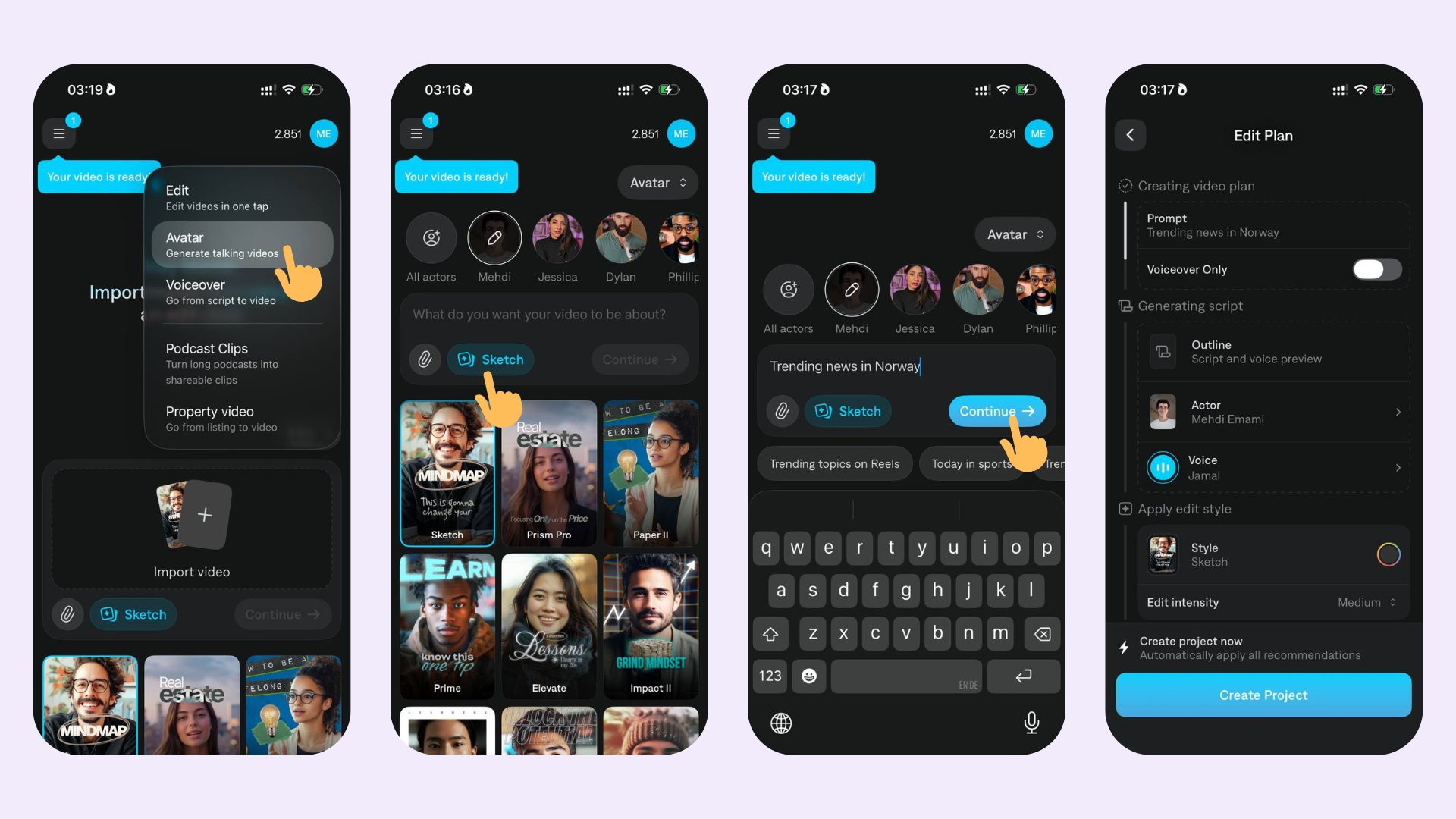 1. On the **Home** page, open the dropdown and choose **Avatar**.
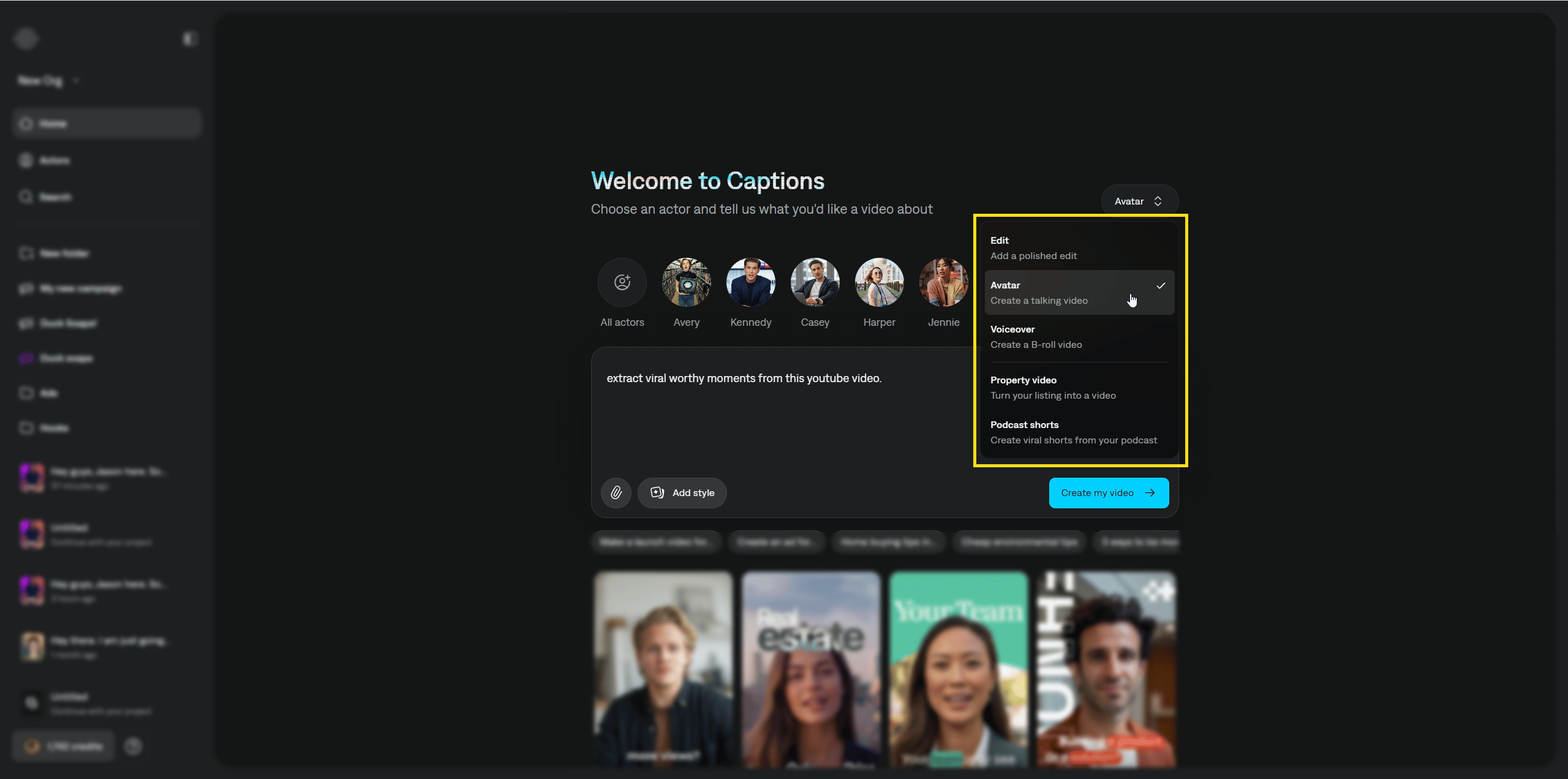 2. Write a **prompt** that describes what the video should be about.
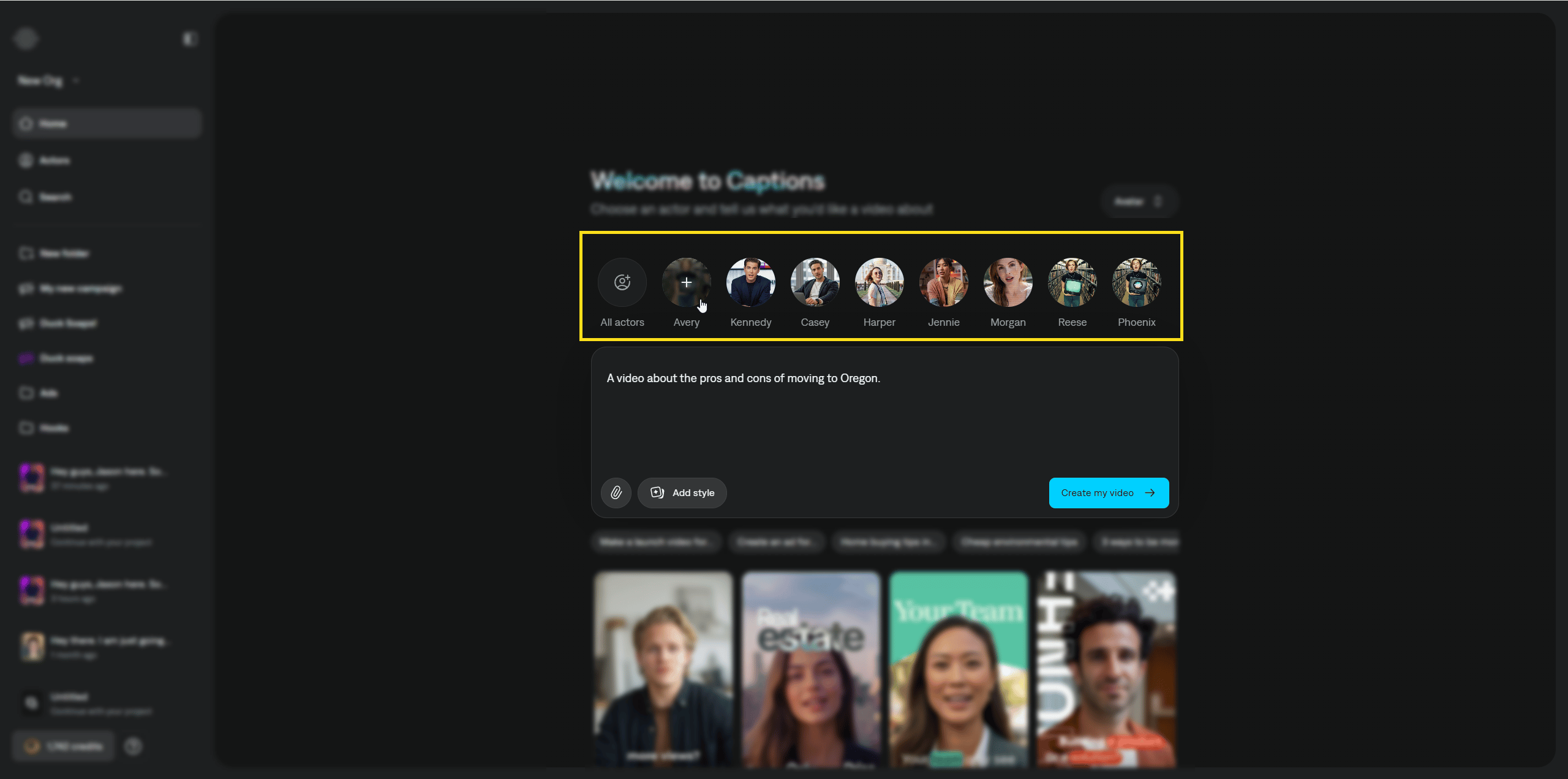
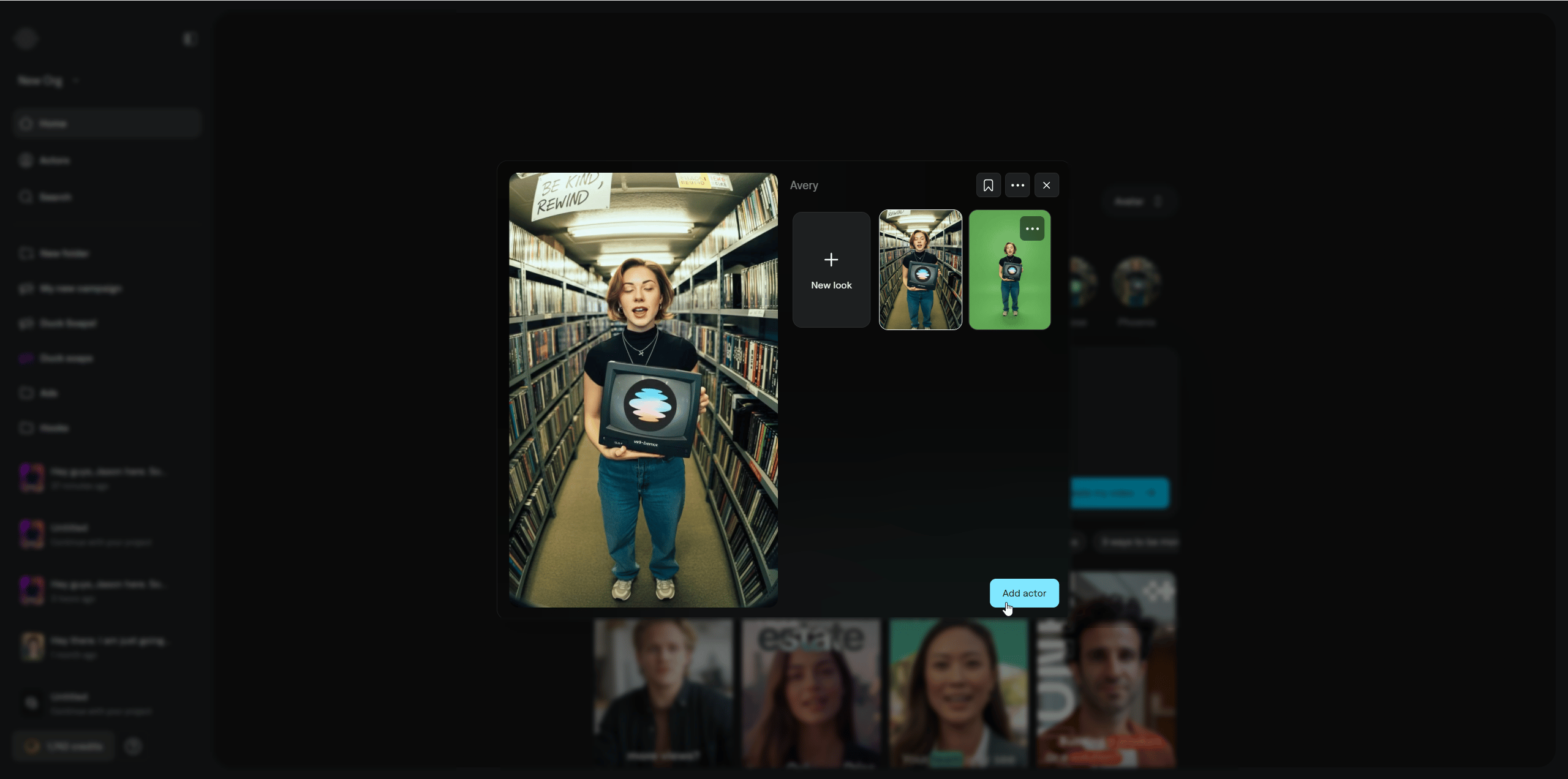
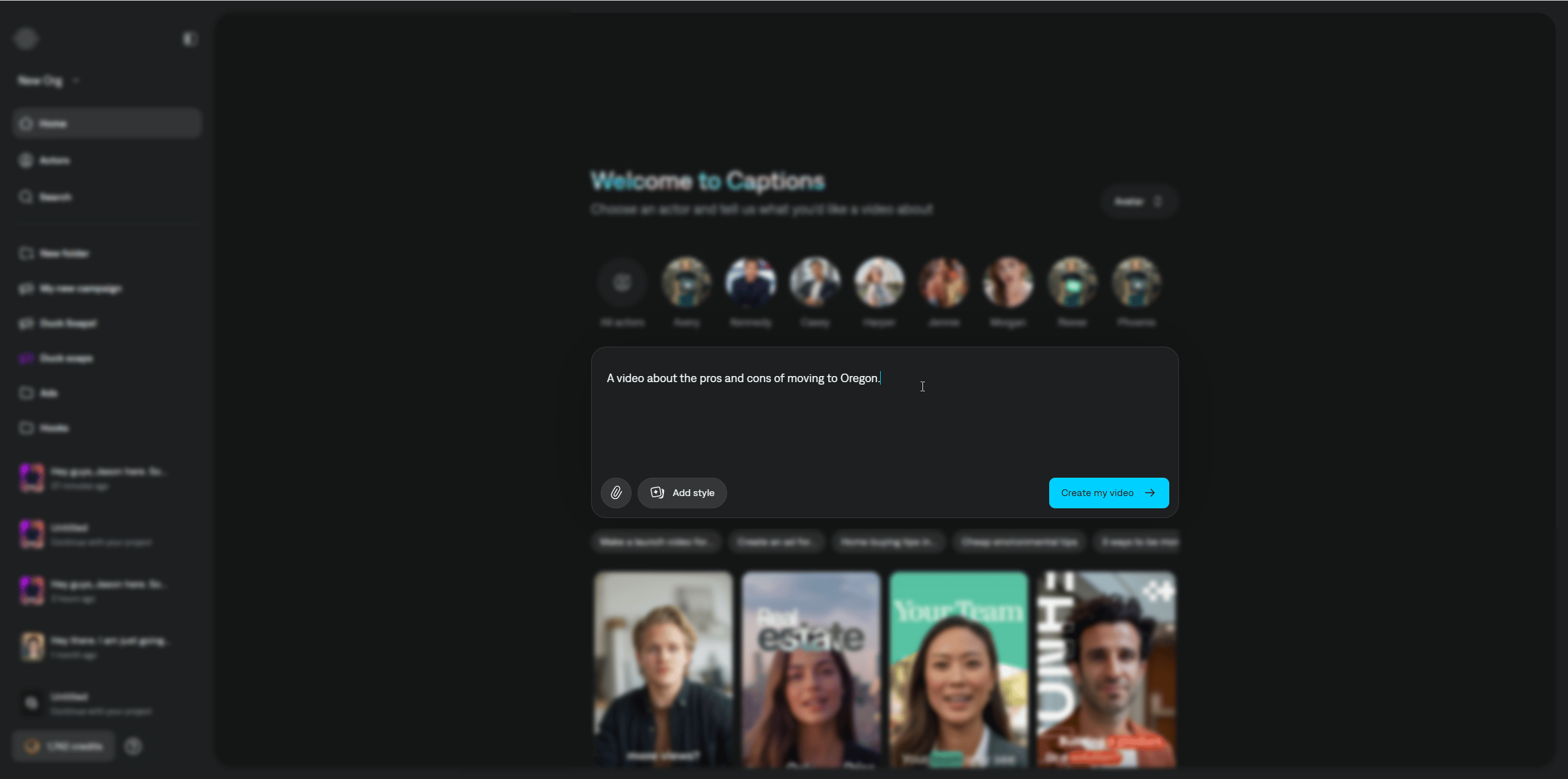 3. In the **Actor** library, start selecting one or more **Actors** for your video. Each actor produces its own separate video and uses additional credits. To create a custom actor, go to **All actors**, then **New actor**. For the full Actors library and creation flow on desktop, see [Actors](/help/docs/project/mirage-edit-actors).
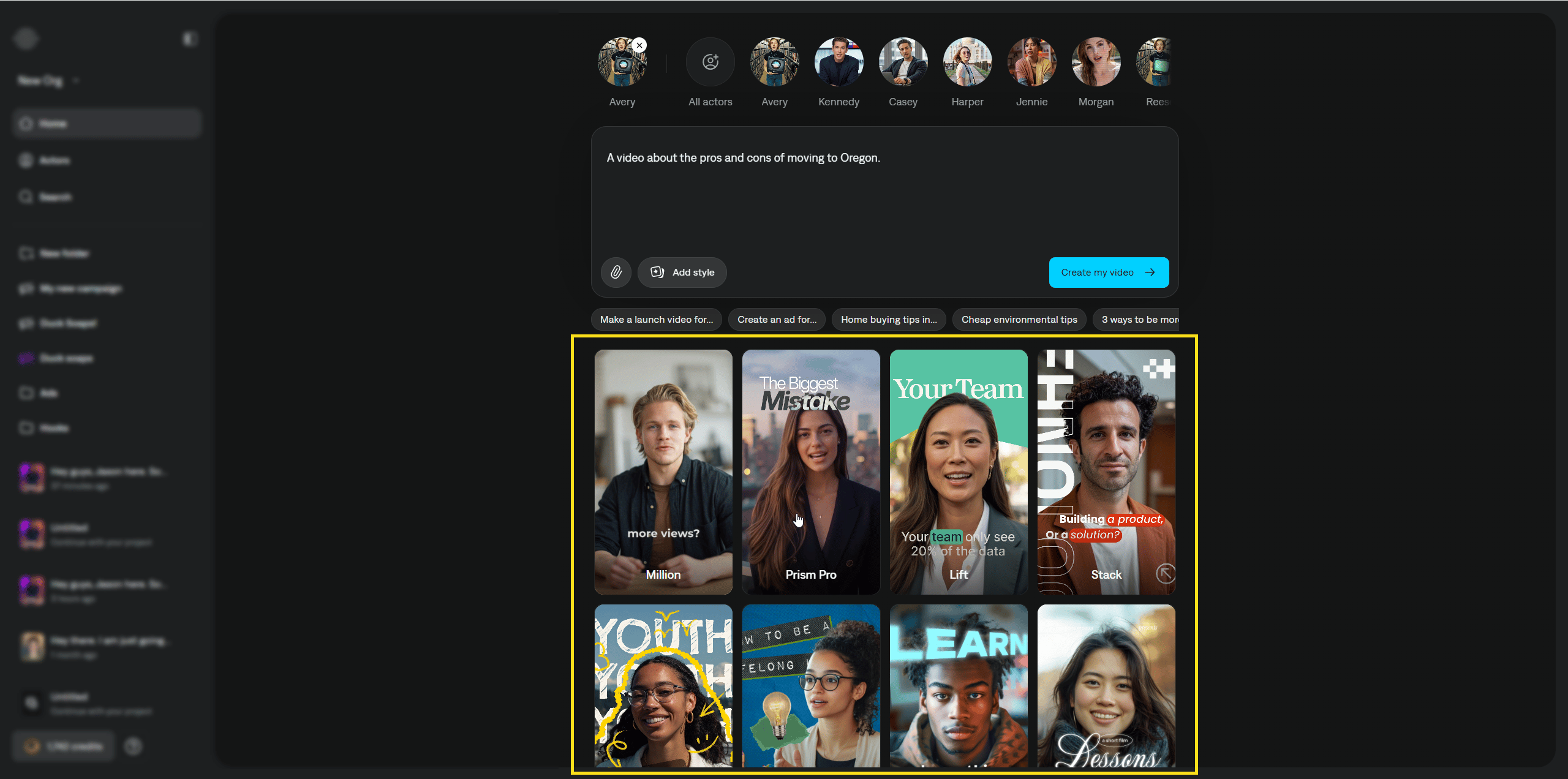
 4. Pick an **[AI Edit](/help/docs/project/ai-edit)** style so Captions can automatically edit the video after it is generated.
 5. When you are ready, click **Create my video**. Captions then adjusts the video generation settings for your project automatically.
### Customize project settings
5. When you are ready, click **Create my video**. Captions then adjusts the video generation settings for your project automatically.
### Customize project settings
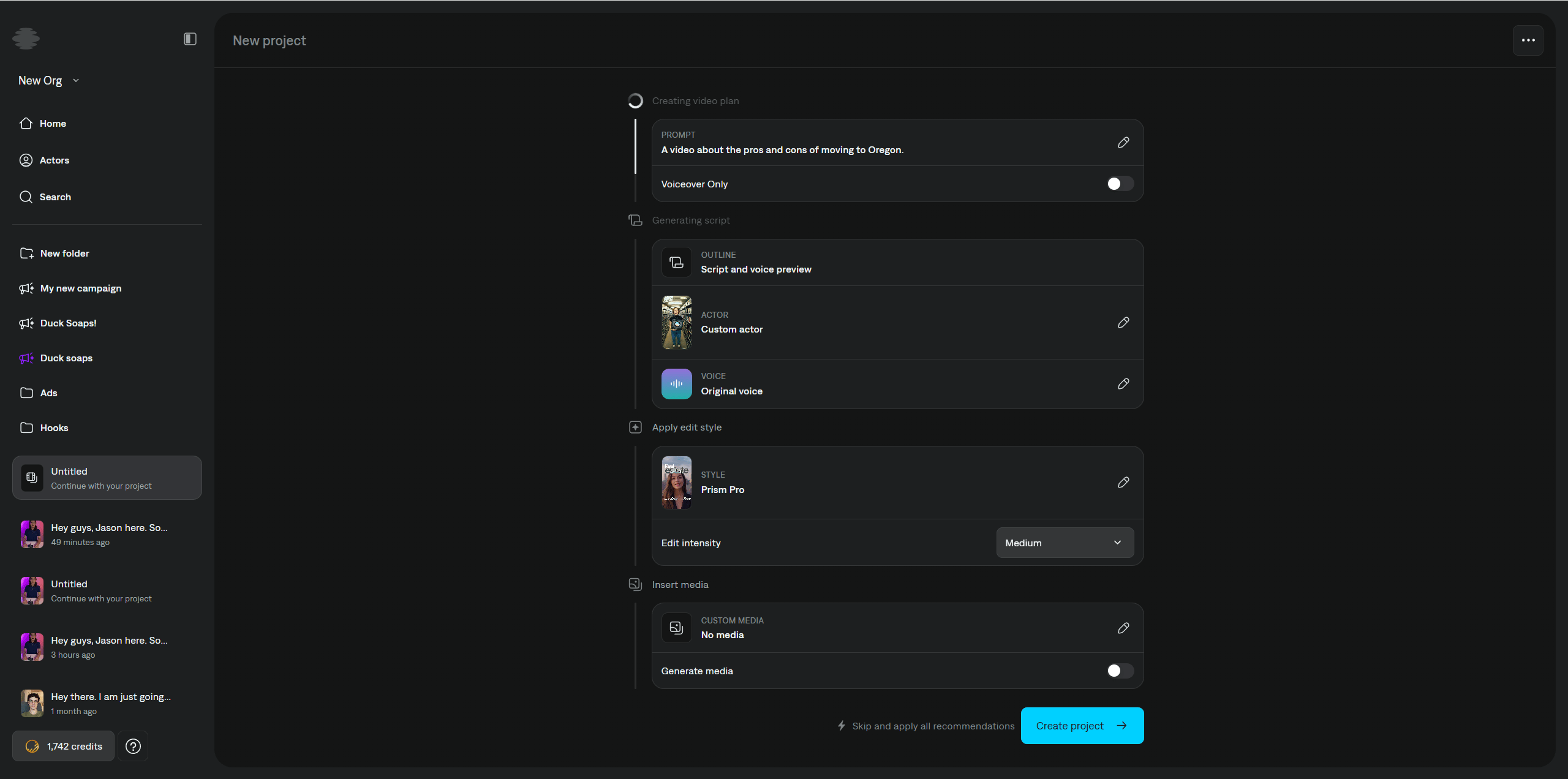 You can review and change options before you generate the final project.
* **Edit the prompt:** Updates to the prompt produce a new video plan.
* **Voiceover only:** Turn this on if you do not want AI actor faces in the video.
**Outline**
* **Script and voice preview:** Captions builds a script from your prompt and a voice preview for the selected voice. You can edit the script and preview audio for your changes.
* **Actor:** Change which actor or actors are used for the project.
* **Voice:** Change the voice used for your actor.
**Apply edit style**
* **Style:** Pick how the AI video is edited. To skip an AI edit look, choose **None**. To add captions only, open the **Captions only** tab and pick a [captions template](/help/docs/captions/styles).
* **Edit intensity:** Controls how much editing and how many effects are applied.
* **Color:** Adjusts color branding for edits and [captions](/help/docs/captions/styles).
**Insert media**
* **Custom media:** Import your own images and B-roll to use in the edit.
* **Generate media:** Lets Captions create B-roll and images for the edit. Turning this on uses more credits.
The full project settings view brings these sections together in one place.
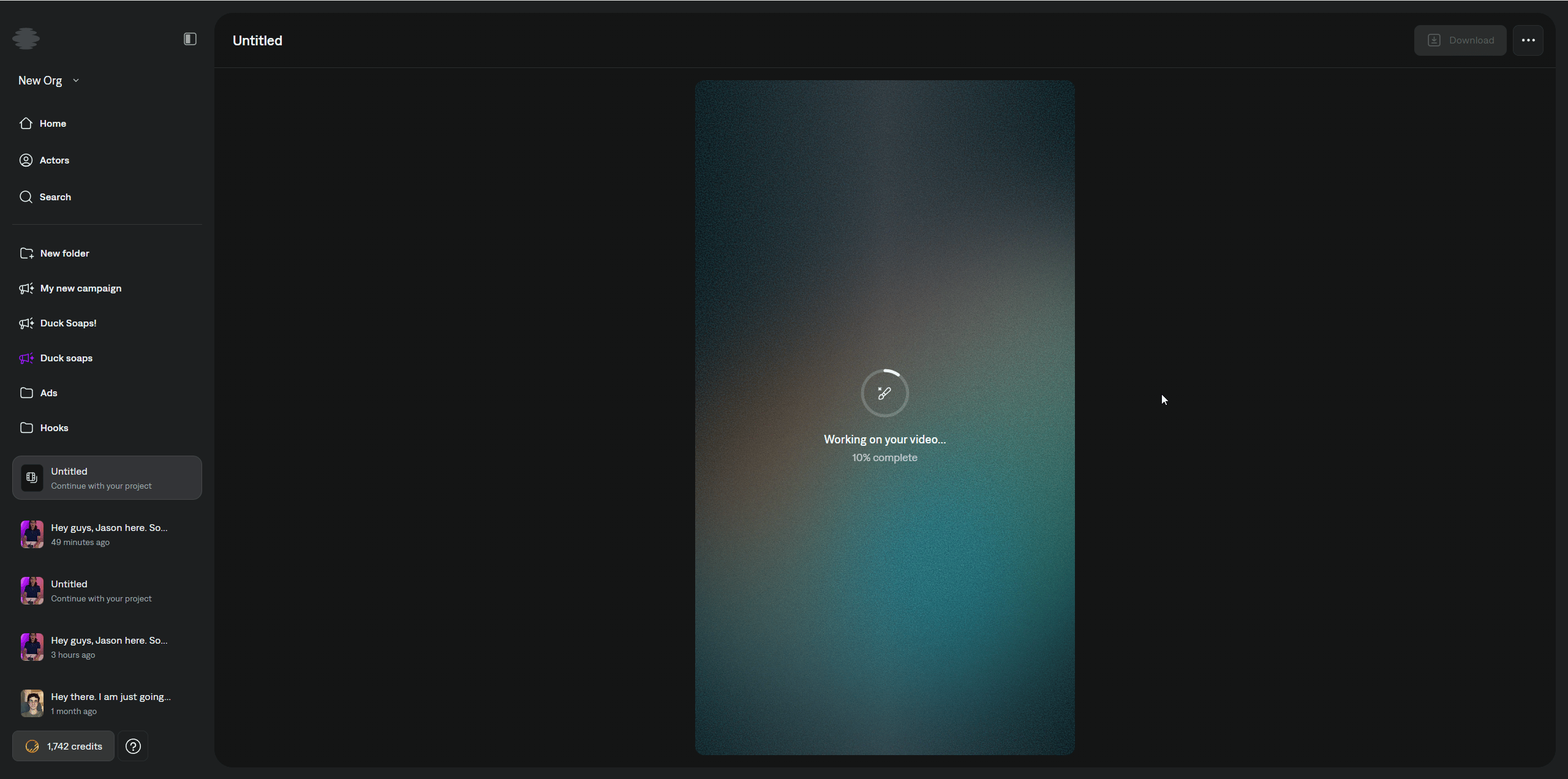
When everything looks right, click **Create project**. Captions starts generating your project. You will see a status screen while the video is created. The process may take a few minutes.
You can review and change options before you generate the final project.
* **Edit the prompt:** Updates to the prompt produce a new video plan.
* **Voiceover only:** Turn this on if you do not want AI actor faces in the video.
**Outline**
* **Script and voice preview:** Captions builds a script from your prompt and a voice preview for the selected voice. You can edit the script and preview audio for your changes.
* **Actor:** Change which actor or actors are used for the project.
* **Voice:** Change the voice used for your actor.
**Apply edit style**
* **Style:** Pick how the AI video is edited. To skip an AI edit look, choose **None**. To add captions only, open the **Captions only** tab and pick a [captions template](/help/docs/captions/styles).
* **Edit intensity:** Controls how much editing and how many effects are applied.
* **Color:** Adjusts color branding for edits and [captions](/help/docs/captions/styles).
**Insert media**
* **Custom media:** Import your own images and B-roll to use in the edit.
* **Generate media:** Lets Captions create B-roll and images for the edit. Turning this on uses more credits.
The full project settings view brings these sections together in one place.
When everything looks right, click **Create project**. Captions starts generating your project. You will see a status screen while the video is created. The process may take a few minutes.
 ***
## Frequently Asked Questions
You retain full rights to all videos created. The AI-generated actors are completely virtual and free from licensing restrictions. You can read more in our [**Terms and Conditions**](https://www.captions.ai/legal/terms).
You can generate videos in 39 languages.
Your video and audio files can be up to 100MB. *(Desktop only)*
Your prompt can be 30 seconds or 1,000 characters. *(Desktop only)*
Each segment can be up to 4 seconds. *(Desktop only)*
Your final video can be up to 30 seconds. *(Desktop only)*
Yes! If you're unhappy with any clips, you can click the regenerate button to see a fresh take using the same script and actor setting. *(Desktop only)*
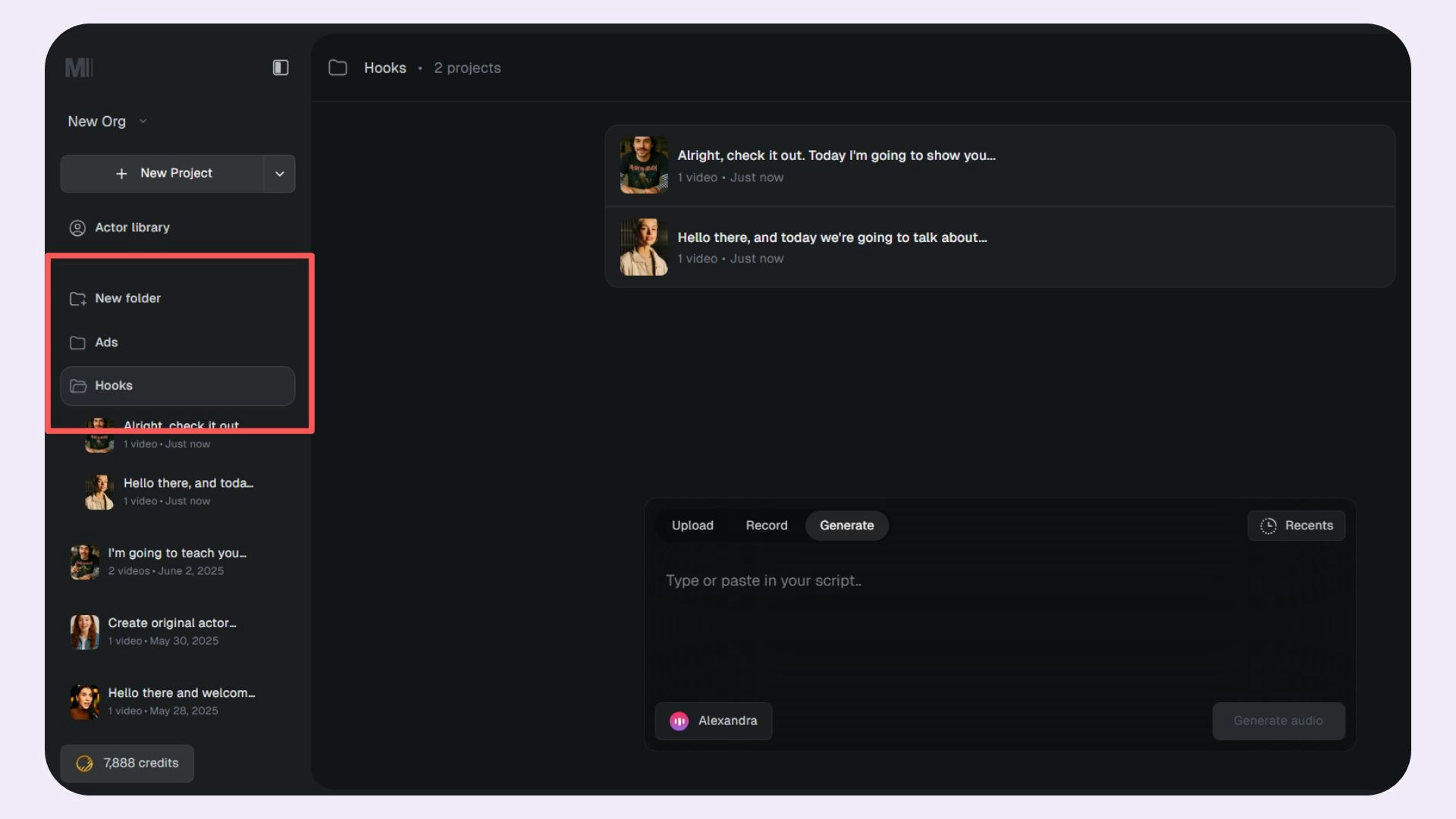
You can use **folders** to manage and organize your projects better. Use the **New Folder** option to create a new folder. *(Desktop only)*
***
## Frequently Asked Questions
You retain full rights to all videos created. The AI-generated actors are completely virtual and free from licensing restrictions. You can read more in our [**Terms and Conditions**](https://www.captions.ai/legal/terms).
You can generate videos in 39 languages.
Your video and audio files can be up to 100MB. *(Desktop only)*
Your prompt can be 30 seconds or 1,000 characters. *(Desktop only)*
Each segment can be up to 4 seconds. *(Desktop only)*
Your final video can be up to 30 seconds. *(Desktop only)*
Yes! If you're unhappy with any clips, you can click the regenerate button to see a fresh take using the same script and actor setting. *(Desktop only)*
You can use **folders** to manage and organize your projects better. Use the **New Folder** option to create a new folder. *(Desktop only)*