> ## Documentation Index
> Fetch the complete documentation index at: https://captions.ai/llms.txt
> Use this file to discover all available pages before exploring further.
# Publish & Export
> Export finished Captions video projects to your device on iOS or web — pick resolution and quality, and unlock AI-powered exports with a subscription.
# Publish & Export Your Videos from Captions
## Overview
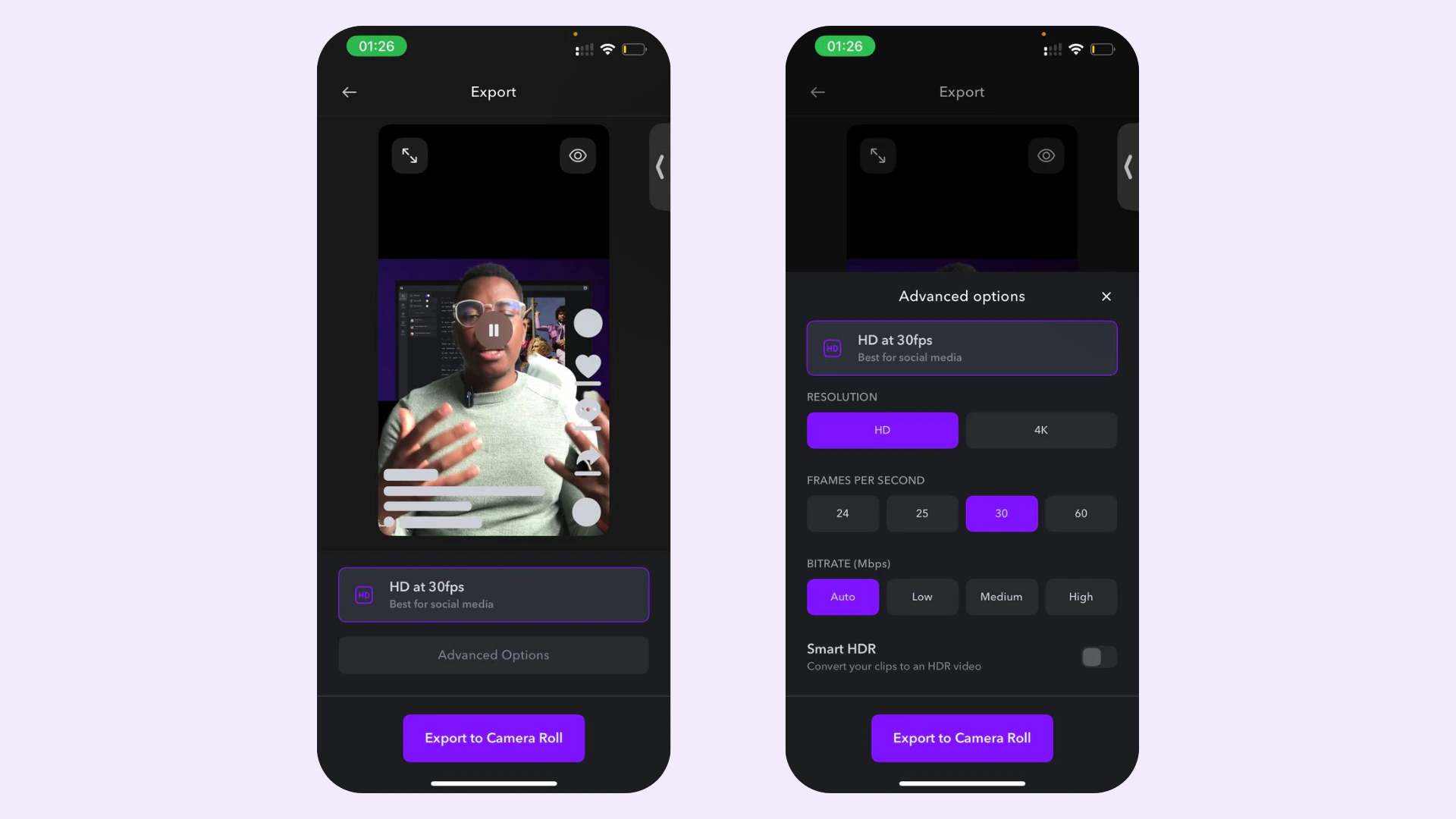
After you've recorded, generated, and edited your video, you can export your project to your device. Basic editing features can be exported on the Free plan. Most AI-powered features require an active [subscription](/help/docs/subscriptions) to export.
## Important
* While subscribed to **Basic**, you can export an unlimited number of Basic projects. However, if you are subscribed to Basic you must upgrade in order to export Max or Scale projects.
* While subscribed to **Max**, you can export an unlimited number of Basic and Max projects.
* While subscribed to **Scale**, you can export an unlimited number of Basic, Max, and Scale projects.
Learn more about [subscriptions and plans.](/help/docs/subscriptions)
## Export your project
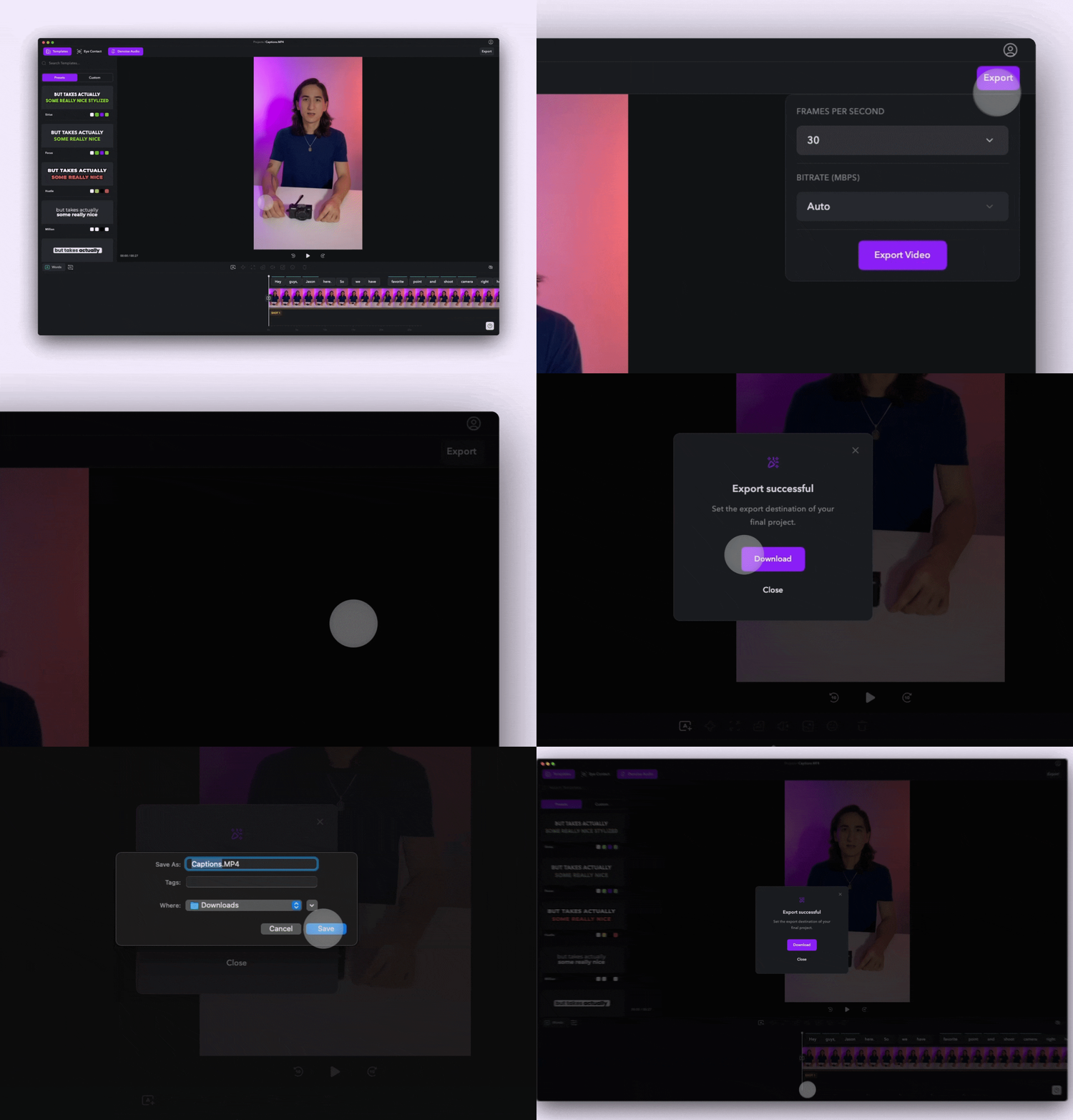
To export your project:
1. Select **Export**
2. Choose your export settings
3. Select **Export** and your video will be downloaded to your device.
### Advanced options of Export

## Important
* While subscribed to **Basic**, you can export an unlimited number of Basic projects. However, if you are subscribed to Basic you must upgrade in order to export Max or Scale projects.
* While subscribed to **Max**, you can export an unlimited number of Basic and Max projects.
* While subscribed to **Scale**, you can export an unlimited number of Basic, Max, and Scale projects.
Learn more about [subscriptions and plans.](/help/docs/subscriptions)
## Export your project
To export your project:
1. Select **Export**
2. Choose your export settings
3. Select **Export** and your video will be downloaded to your device.
### Advanced options of Export
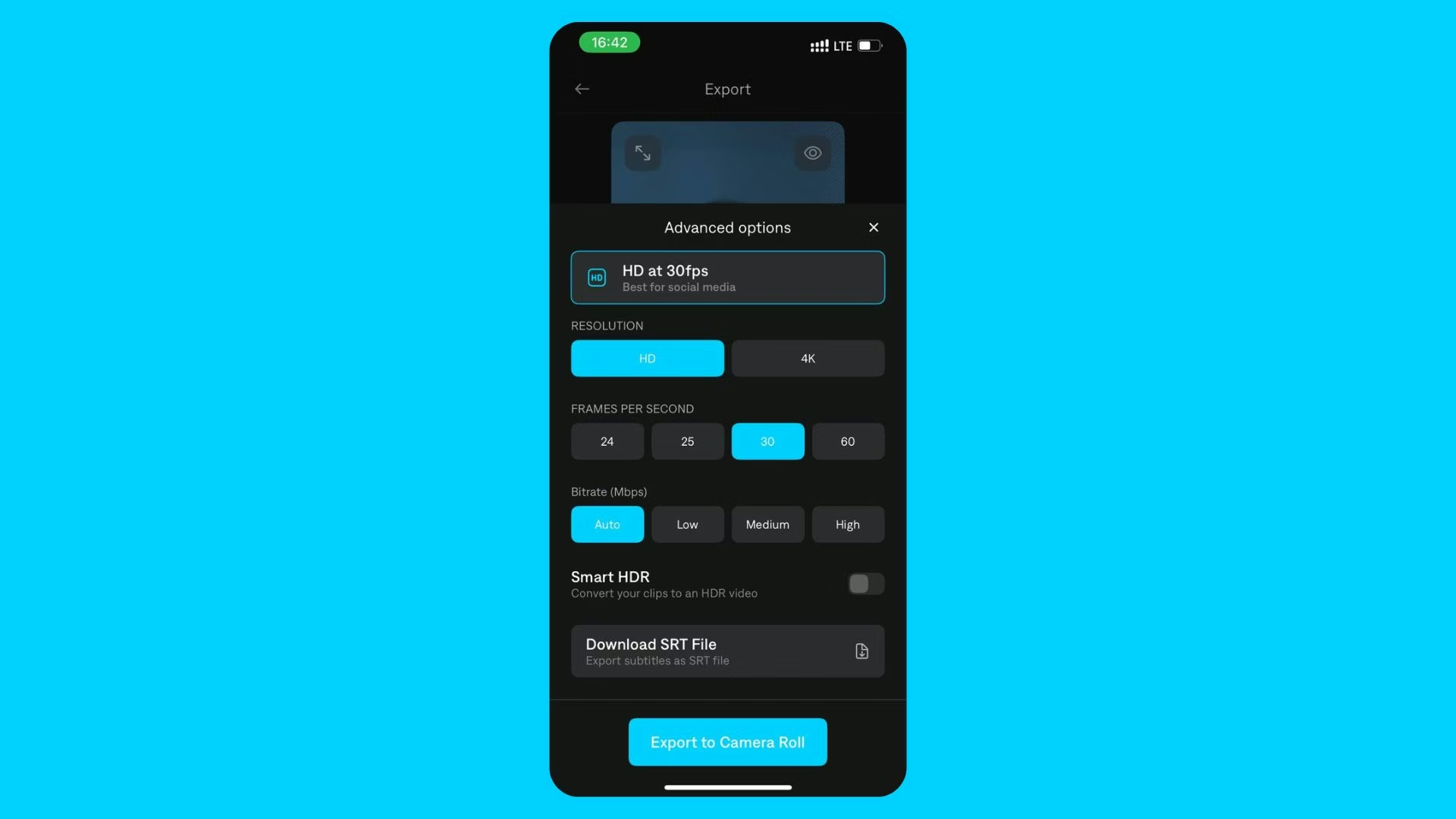 You can adjust advanced options of your current export in the **Advanced options** section:
* Choose the resolution of the export
* Choose the frame rate of the export (higher FPS gives smoother video quality)
* Choose the bitrate of the export (higher bitrate gives better video quality)
* Enable/disable Smart HDR for the export (your original video must support HDR for this option)
* Download the generated [captions](/help/docs/captions/add-captions) in a separate SRT file
## Tips
* To export your project without captions, simply [hide your captions](/help/docs/captions/hide-and-delete) before exporting.
* Before exporting, you can adjust the [scale](/help/docs/settings/scale-and-format) of your project.
* If you've already subscribed but are being asked to pay again, you may have accidentally created two accounts. Learn how to [restore your subscription](/help/docs/subscriptions).
## Frequently Asked Questions
For best results, we recommend exporting with the same settings as your original video. To check your original file settings:
**iOS**
1. Open the Photos app
2. Find your original video.
3. Swipe the video up to view the details.
**Mac**
1. Open the video in Quicktime
2. Click **Window** from the top navigation
3. Click **Show Movie Inspector**
HDR stands for "high dynamic range" and many cameras let you capture video with this setting enabled. When you shoot with HDR, your camera will take multiple recordings at different exposures and blend them together to create a final result that has more details. **Web does not support HDR videos.** If you notice any issues with your exported video, check to ensure HDR is disabled on your device and/or your editing software.
Simply put, bitrate refers to the amount of information or data contained in your video, per second. A lower bitrate has less information and a higher bitrate has more information. We recommend using the **Auto** option, but you can change the bitrate information to purposely decrease or increase the exported file size.
When you export a project from Captions, it may be exported in a different file format than the original file. It's important to know that smaller file sizes don't necessarily mean lower quality and if you are importing to social, many platforms compress your file anyway.
It depends on what features you used. Basic manual editing can be exported on the Free plan. If your project uses AI-powered features — such as [AI Edit](/help/docs/project/ai-edit), [captions styles](/help/docs/captions/styles), [eye contact](/help/docs/visual/eye-contact) correction, or [background music](/help/docs/audio/music) — a paid subscription is required to export. You'll be prompted to subscribe when you attempt to export a project that uses paid features.
You can adjust advanced options of your current export in the **Advanced options** section:
* Choose the resolution of the export
* Choose the frame rate of the export (higher FPS gives smoother video quality)
* Choose the bitrate of the export (higher bitrate gives better video quality)
* Enable/disable Smart HDR for the export (your original video must support HDR for this option)
* Download the generated [captions](/help/docs/captions/add-captions) in a separate SRT file
## Tips
* To export your project without captions, simply [hide your captions](/help/docs/captions/hide-and-delete) before exporting.
* Before exporting, you can adjust the [scale](/help/docs/settings/scale-and-format) of your project.
* If you've already subscribed but are being asked to pay again, you may have accidentally created two accounts. Learn how to [restore your subscription](/help/docs/subscriptions).
## Frequently Asked Questions
For best results, we recommend exporting with the same settings as your original video. To check your original file settings:
**iOS**
1. Open the Photos app
2. Find your original video.
3. Swipe the video up to view the details.
**Mac**
1. Open the video in Quicktime
2. Click **Window** from the top navigation
3. Click **Show Movie Inspector**
HDR stands for "high dynamic range" and many cameras let you capture video with this setting enabled. When you shoot with HDR, your camera will take multiple recordings at different exposures and blend them together to create a final result that has more details. **Web does not support HDR videos.** If you notice any issues with your exported video, check to ensure HDR is disabled on your device and/or your editing software.
Simply put, bitrate refers to the amount of information or data contained in your video, per second. A lower bitrate has less information and a higher bitrate has more information. We recommend using the **Auto** option, but you can change the bitrate information to purposely decrease or increase the exported file size.
When you export a project from Captions, it may be exported in a different file format than the original file. It's important to know that smaller file sizes don't necessarily mean lower quality and if you are importing to social, many platforms compress your file anyway.
It depends on what features you used. Basic manual editing can be exported on the Free plan. If your project uses AI-powered features — such as [AI Edit](/help/docs/project/ai-edit), [captions styles](/help/docs/captions/styles), [eye contact](/help/docs/visual/eye-contact) correction, or [background music](/help/docs/audio/music) — a paid subscription is required to export. You'll be prompted to subscribe when you attempt to export a project that uses paid features.