> ## Documentation Index
> Fetch the complete documentation index at: https://captions.ai/llms.txt
> Use this file to discover all available pages before exploring further.
# Add & Delete Clips
> Add new clips anywhere on your Captions timeline from your camera roll, or delete entire clips or trimmed portions to refine your video project.
## Add clip
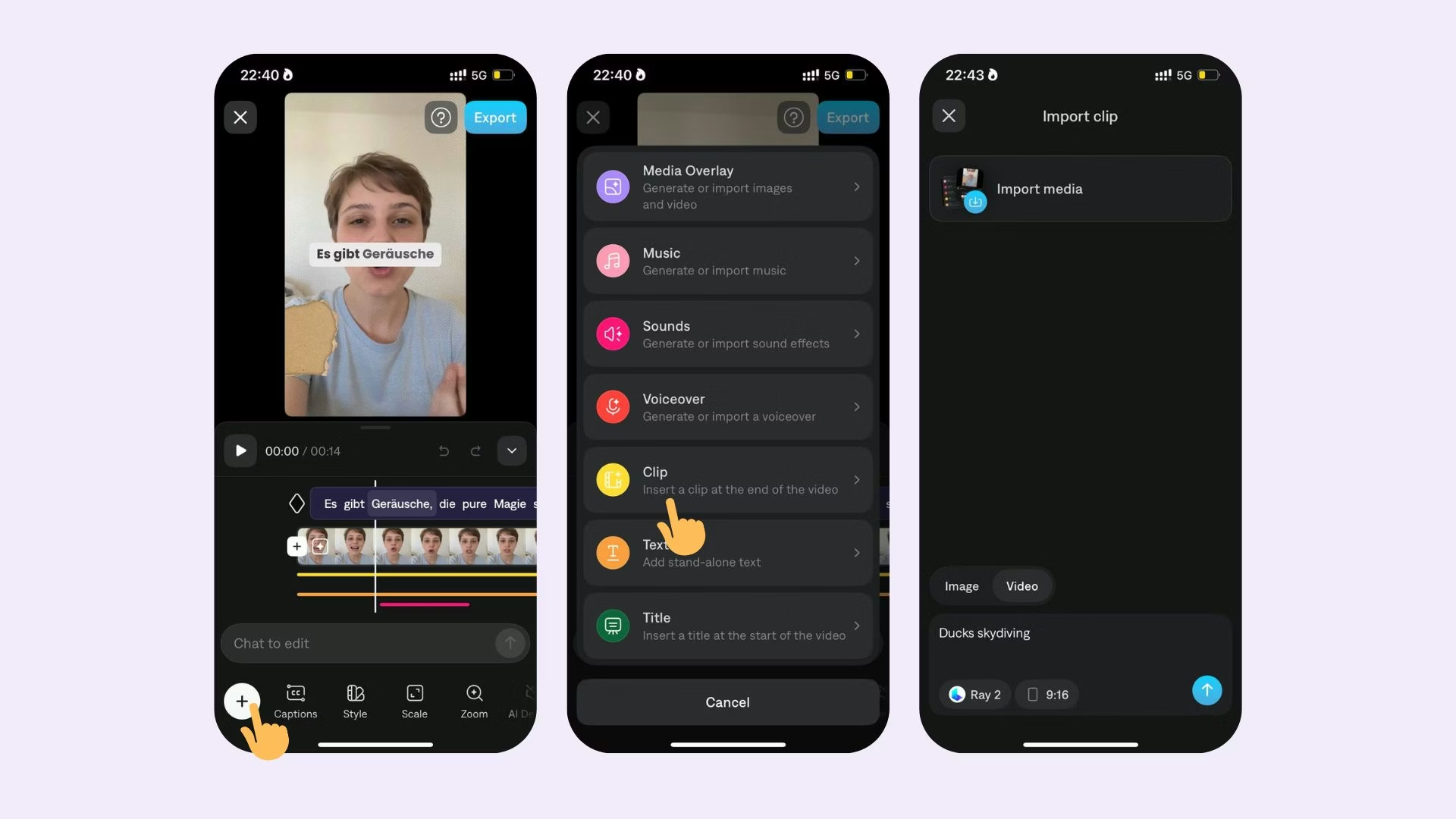 To add a clip anywhere in your project:
* Tap on the timeline and adjust the timeline to where you'd like to insert a clip
* Select [Split](/help/docs/timeline/split-merge)
* Tap the icon between your two split clips
* Tap **Insert Clip**
* Select your clip from your photo album
To add a clip to the beginning or end of your video:
1. Scroll to the beginning of end of your timeline
2. Tap **+** button
After adding a clip, captions will not be added automatically. Learn how to [add them manually](/help/docs/captions/add-captions).
## Delete clip
To add a clip anywhere in your project:
* Tap on the timeline and adjust the timeline to where you'd like to insert a clip
* Select [Split](/help/docs/timeline/split-merge)
* Tap the icon between your two split clips
* Tap **Insert Clip**
* Select your clip from your photo album
To add a clip to the beginning or end of your video:
1. Scroll to the beginning of end of your timeline
2. Tap **+** button
After adding a clip, captions will not be added automatically. Learn how to [add them manually](/help/docs/captions/add-captions).
## Delete clip
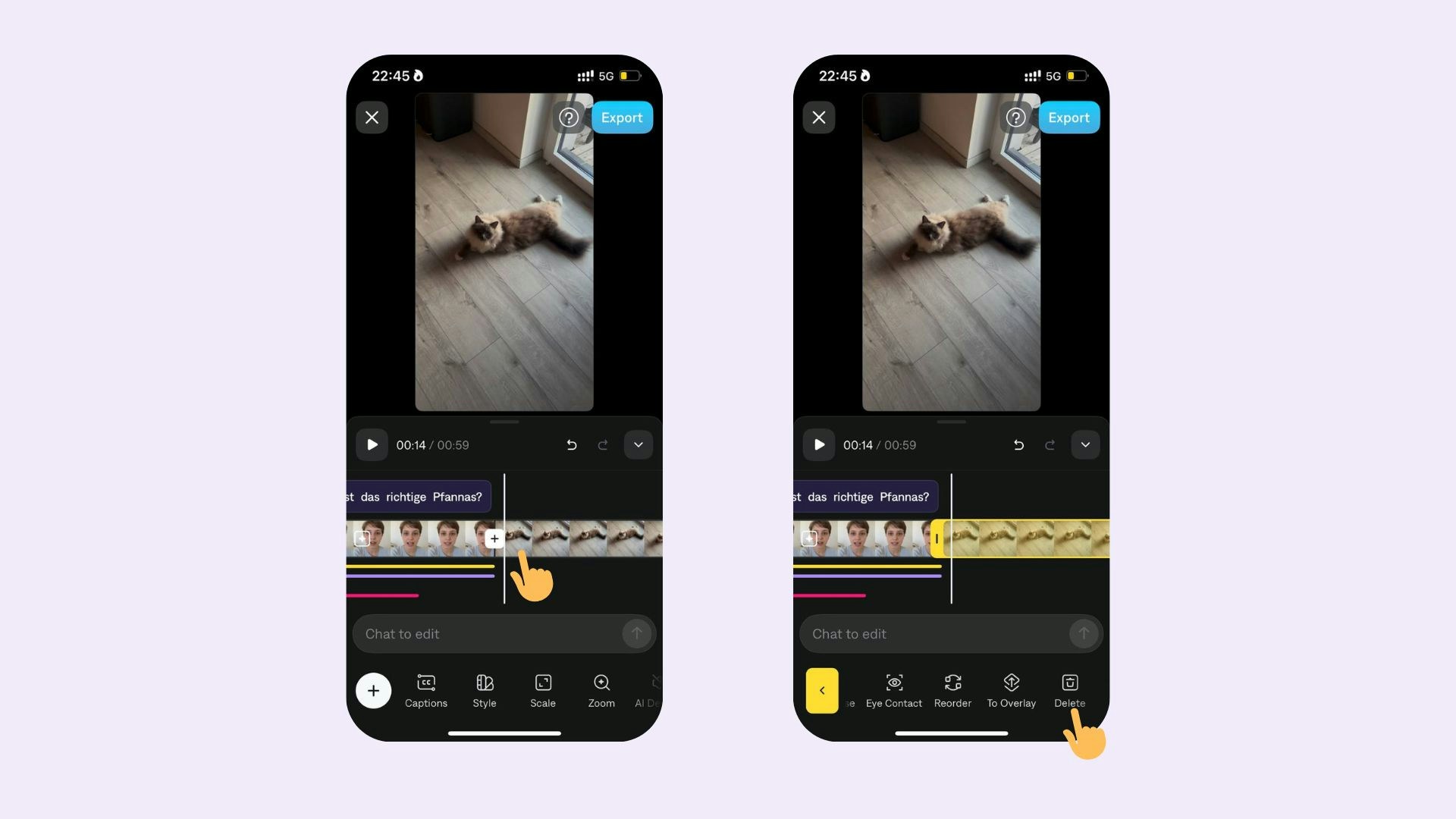 To delete a clip:
1. Tap anywhere on the timeline
2. Tap **Delete**.
To delete only a portion of your video:
1. [Split](/help/docs/timeline/split-merge) the clip at the beginning and end of the portion you'd like to delete
2. Tap on the middle clip
3. Tap **Delete**.
To delete a clip:
1. Tap anywhere on the timeline
2. Tap **Delete**.
To delete only a portion of your video:
1. [Split](/help/docs/timeline/split-merge) the clip at the beginning and end of the portion you'd like to delete
2. Tap on the middle clip
3. Tap **Delete**.