> ## Documentation Index
> Fetch the complete documentation index at: https://captions.ai/llms.txt
> Use this file to discover all available pages before exploring further.
# Media Overlay
> Generate AI images and b-roll, import stock media, or replace and edit video overlays in Captions projects using models from Luma, Google, OpenAI, and more.
## How It Works
Generate image and video overlays for your project.
Import and add media overlays from your device.
Edit media overlays in the manual editor.
Replace existing media overlays with other images and videos from your device.
### Generate Images and Video Overlays
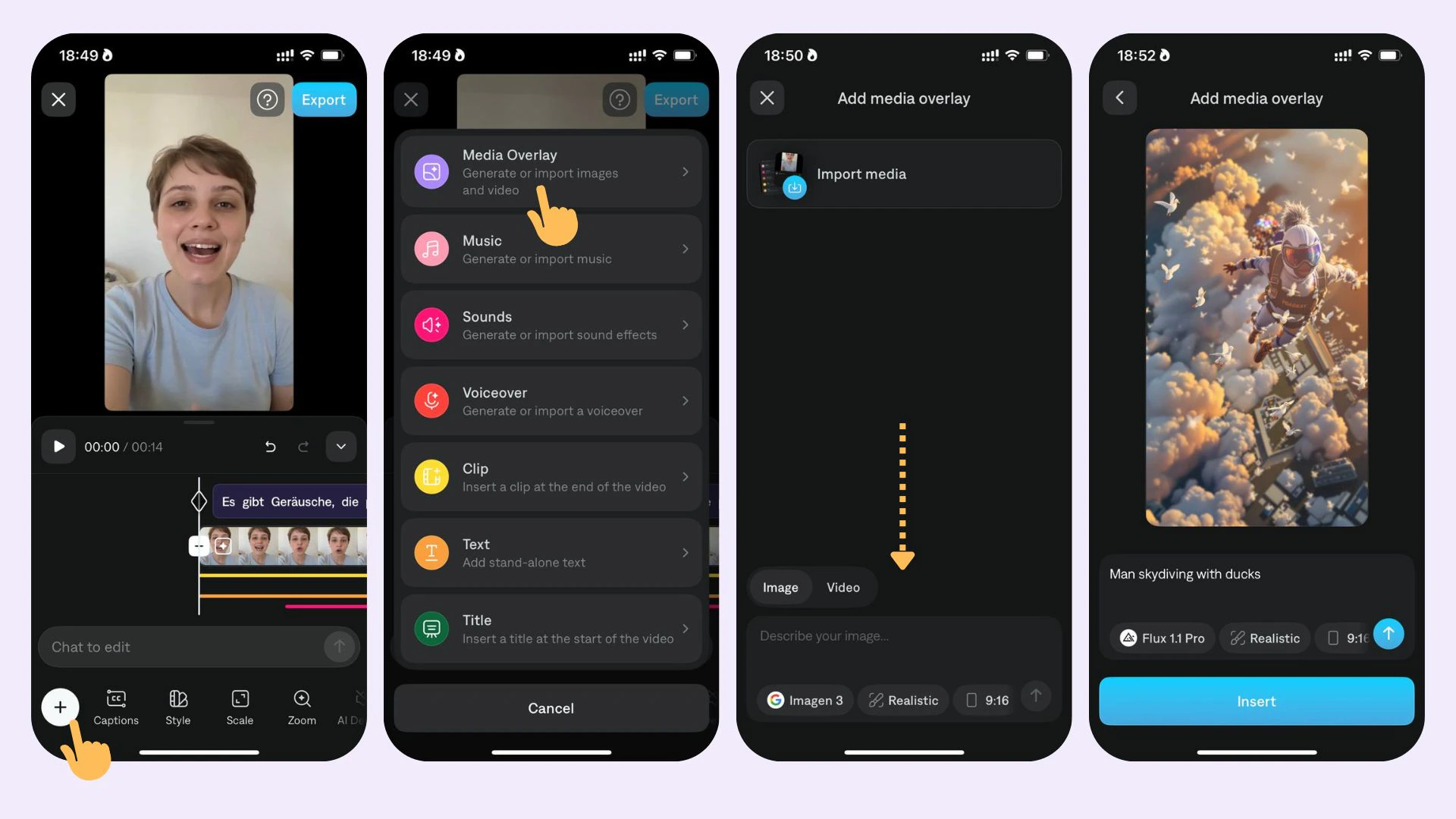 To generate an image or a video clip based on a prompt:
1. Tap on **Generate** and select between generating an image or a video
2. Write your prompt
3. Choose the desired AI model for generating the media overlay
4. Set the aspect ratio to **1:1** (optional)
5. Tap on **Generate** and wait for your media to be generated
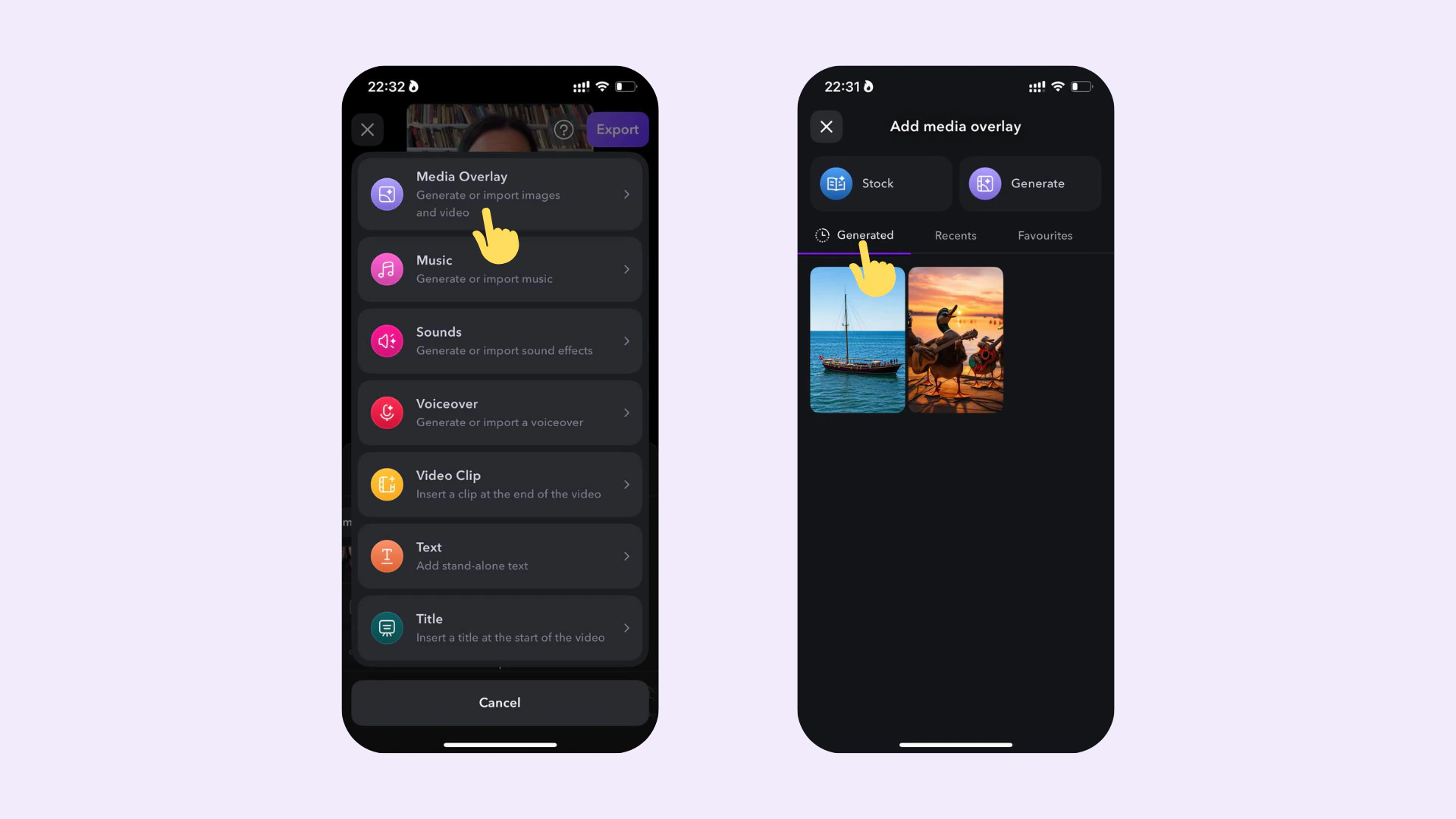
You can re-use AI images and videos that you previously generated from other projects in new projects.
To generate an image or a video clip based on a prompt:
1. Tap on **Generate** and select between generating an image or a video
2. Write your prompt
3. Choose the desired AI model for generating the media overlay
4. Set the aspect ratio to **1:1** (optional)
5. Tap on **Generate** and wait for your media to be generated
You can re-use AI images and videos that you previously generated from other projects in new projects.
 ### Add Media
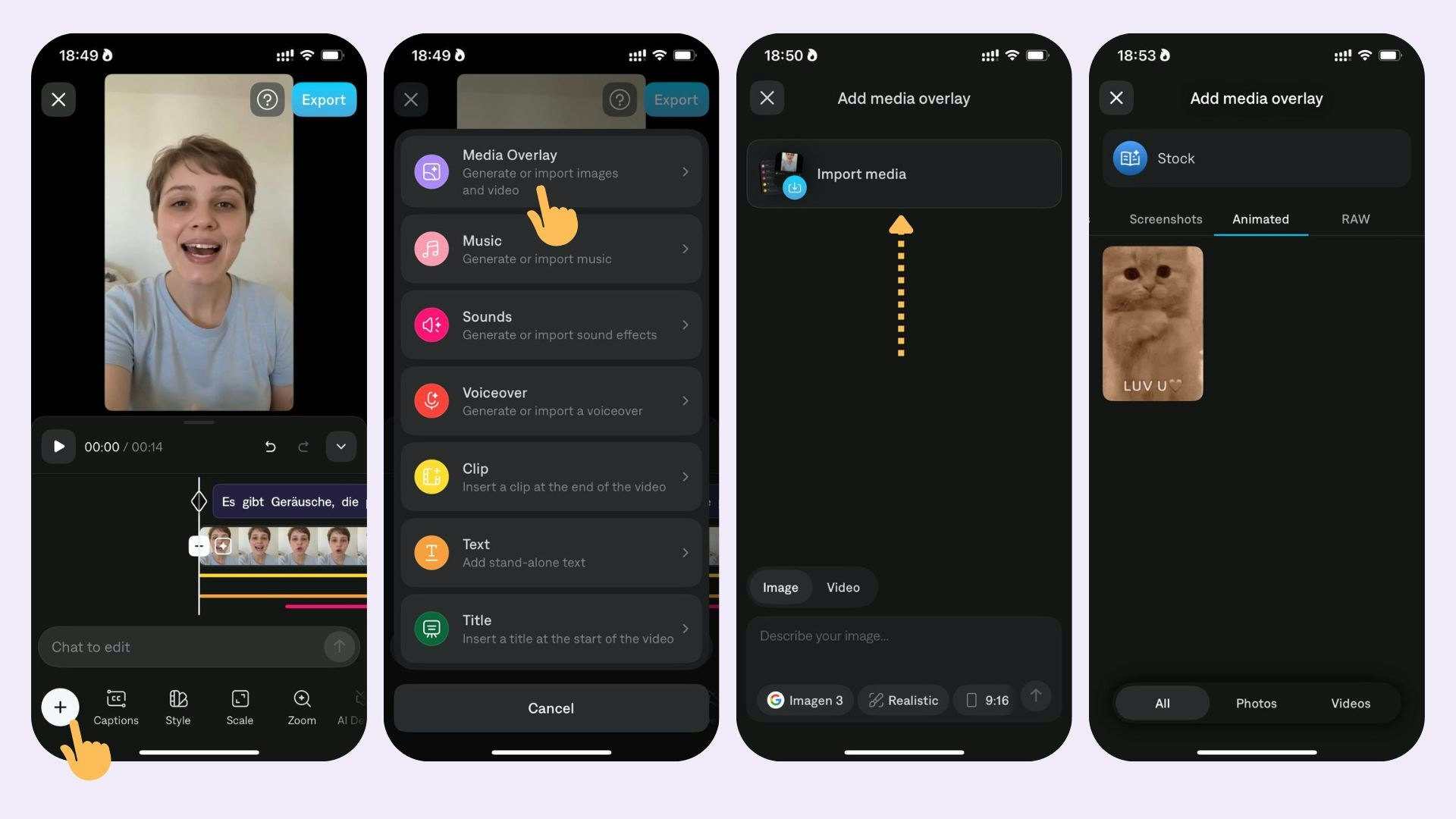 To add images, videos, GIFs, select **Media Overlay**. Then:
* Tap on **Import** to import an image or video form your device
* Tap on **Import** and then **Stock** to search for stock images, GIFs, and stickers
* Tap on **Generate** to generate videos or images based on a prompt
### Edit Media
To add images, videos, GIFs, select **Media Overlay**. Then:
* Tap on **Import** to import an image or video form your device
* Tap on **Import** and then **Stock** to search for stock images, GIFs, and stickers
* Tap on **Generate** to generate videos or images based on a prompt
### Edit Media
 To edit your image, video, or GIF, select it. Then choose from the following options:
* **Position:** Select **Edit** and select from Caption Aware, Freeform, Top Half, Bottom Half, or Full Screen
* **Transition:** Tap **Edit** and select from None, Fade, Pop, Zoom, Scale, Slide Left, or Slide Up.
* **Reposition:** Tap or use one finger to move to a new location
* **Resize:** Tap on the outer edge or use two fingers to pinch smaller or larger
* **Rotate:** Tap on the outer edge or use two fingers to rotate clockwise or counter-clockwise
* **Duration:** Tap and drag or use one finger to the start or end of the media
* **Delete:** Tap **Delete** or **Delete All**
* **Split:** Tap **Split** to split the media overlay into separate parts
* **Animate (only for images):** Tap **Animate** to animate and convert an image overlay into a video
### Replace Media
To edit your image, video, or GIF, select it. Then choose from the following options:
* **Position:** Select **Edit** and select from Caption Aware, Freeform, Top Half, Bottom Half, or Full Screen
* **Transition:** Tap **Edit** and select from None, Fade, Pop, Zoom, Scale, Slide Left, or Slide Up.
* **Reposition:** Tap or use one finger to move to a new location
* **Resize:** Tap on the outer edge or use two fingers to pinch smaller or larger
* **Rotate:** Tap on the outer edge or use two fingers to rotate clockwise or counter-clockwise
* **Duration:** Tap and drag or use one finger to the start or end of the media
* **Delete:** Tap **Delete** or **Delete All**
* **Split:** Tap **Split** to split the media overlay into separate parts
* **Animate (only for images):** Tap **Animate** to animate and convert an image overlay into a video
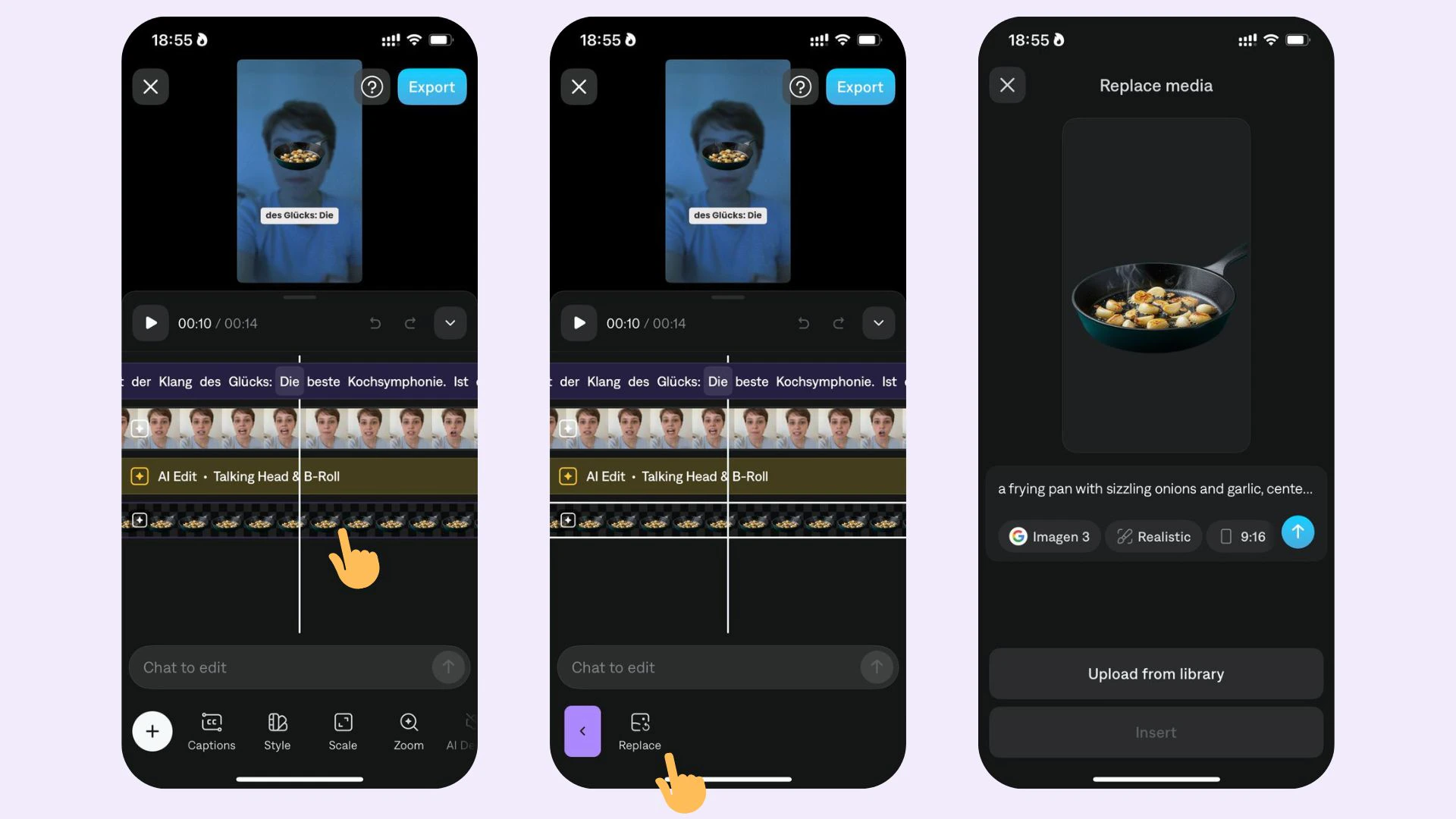
### Replace Media
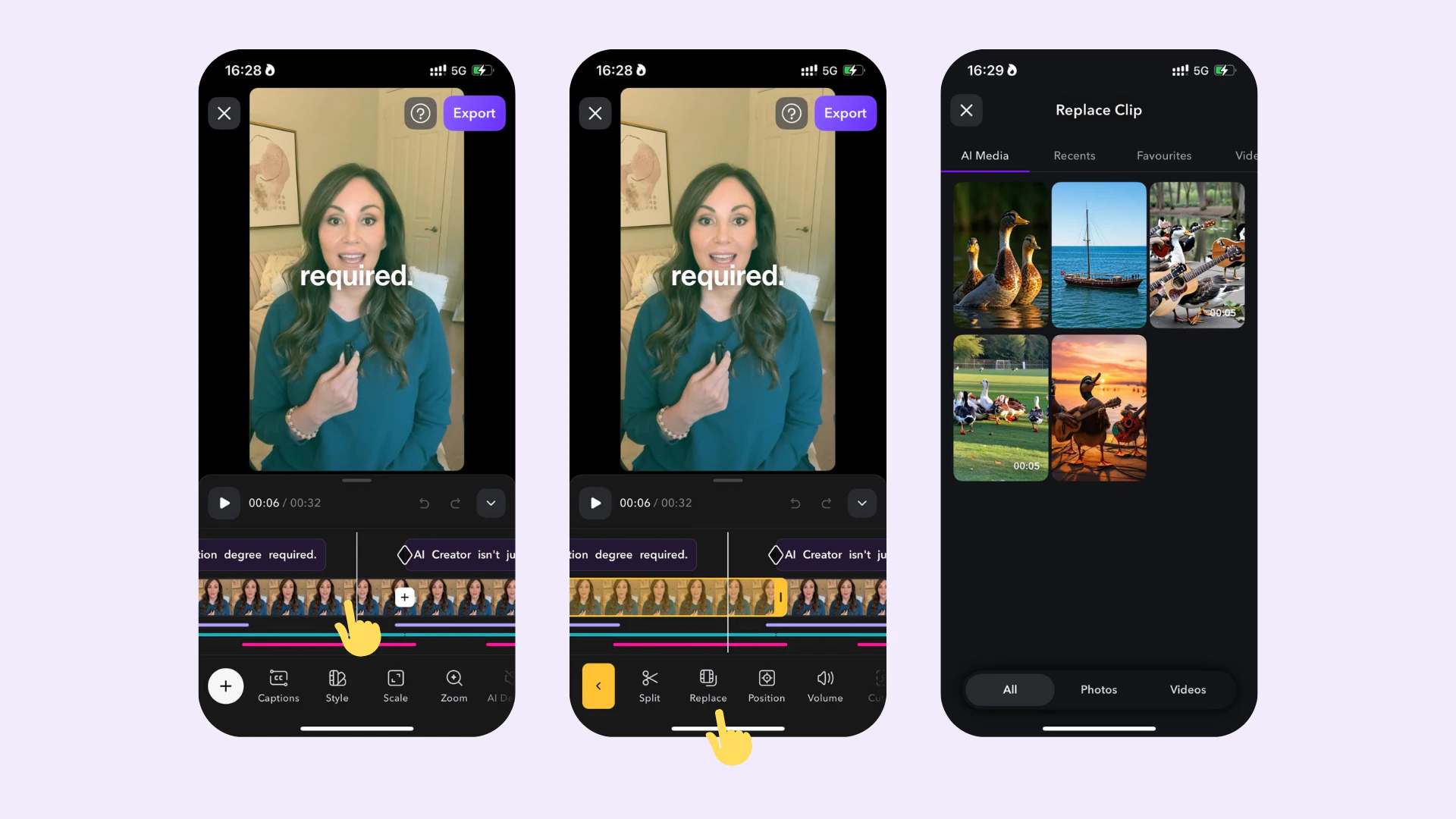 To replace an image or video in your project:
1. Tap the media in your project timeline
2. Tap **Replace**
3. Select the new media you want to use
## Frequently Asked Questions
At the start of your video, tap **Images** and import your logo. Reposition the image to your desired location and use the dragger to drag the image to the end of your video. You now have your logo or watermark for the entirety of your video
For generating image overlays, Captions supports 12 integrations with different AI models:
* Photon (Luma Al)
* Photon Flash (Luma Al)
* Flux 1.1 Pro (Black Forest Labs)
* Imagen 3 (Google)
* Imagen 3 Fast (Google)
* Ideogram V1 (Ideogram)
* Ideogram V1 Turbo (Ideogram)
* DALL-E 3 HD (OpenAI)
* DALL-3 3 (OpenAI)
* Recraft V3 (Recraft)
* SD 3.5 (Stability AI)
* SD 3.5 Turbo (Stability AI)
For generating video overlays, Captions supports 12 integrations with different AI models:
* Veo 2 (Google) - this model is only available for users with the [**Scale**](/help/docs/subscriptions) plan.
* Pika 2.2 (Pika)
* KLling 1.6 (Kling)
* Ray 2 (Luma AI)
* Video 01 (KMiniMax)
To replace an image or video in your project:
1. Tap the media in your project timeline
2. Tap **Replace**
3. Select the new media you want to use
## Frequently Asked Questions
At the start of your video, tap **Images** and import your logo. Reposition the image to your desired location and use the dragger to drag the image to the end of your video. You now have your logo or watermark for the entirety of your video
For generating image overlays, Captions supports 12 integrations with different AI models:
* Photon (Luma Al)
* Photon Flash (Luma Al)
* Flux 1.1 Pro (Black Forest Labs)
* Imagen 3 (Google)
* Imagen 3 Fast (Google)
* Ideogram V1 (Ideogram)
* Ideogram V1 Turbo (Ideogram)
* DALL-E 3 HD (OpenAI)
* DALL-3 3 (OpenAI)
* Recraft V3 (Recraft)
* SD 3.5 (Stability AI)
* SD 3.5 Turbo (Stability AI)
For generating video overlays, Captions supports 12 integrations with different AI models:
* Veo 2 (Google) - this model is only available for users with the [**Scale**](/help/docs/subscriptions) plan.
* Pika 2.2 (Pika)
* KLling 1.6 (Kling)
* Ray 2 (Luma AI)
* Video 01 (KMiniMax)