> ## Documentation Index
> Fetch the complete documentation index at: https://captions.ai/llms.txt
> Use this file to discover all available pages before exploring further.
# Add Static Text Overlays
> Add static text overlays to your videos in Captions. Reposition, resize, rotate, adjust duration on the timeline, and edit spelling, font, and color.
# Add Static Text Overlays to Your Videos
## How It Works
### Add Text
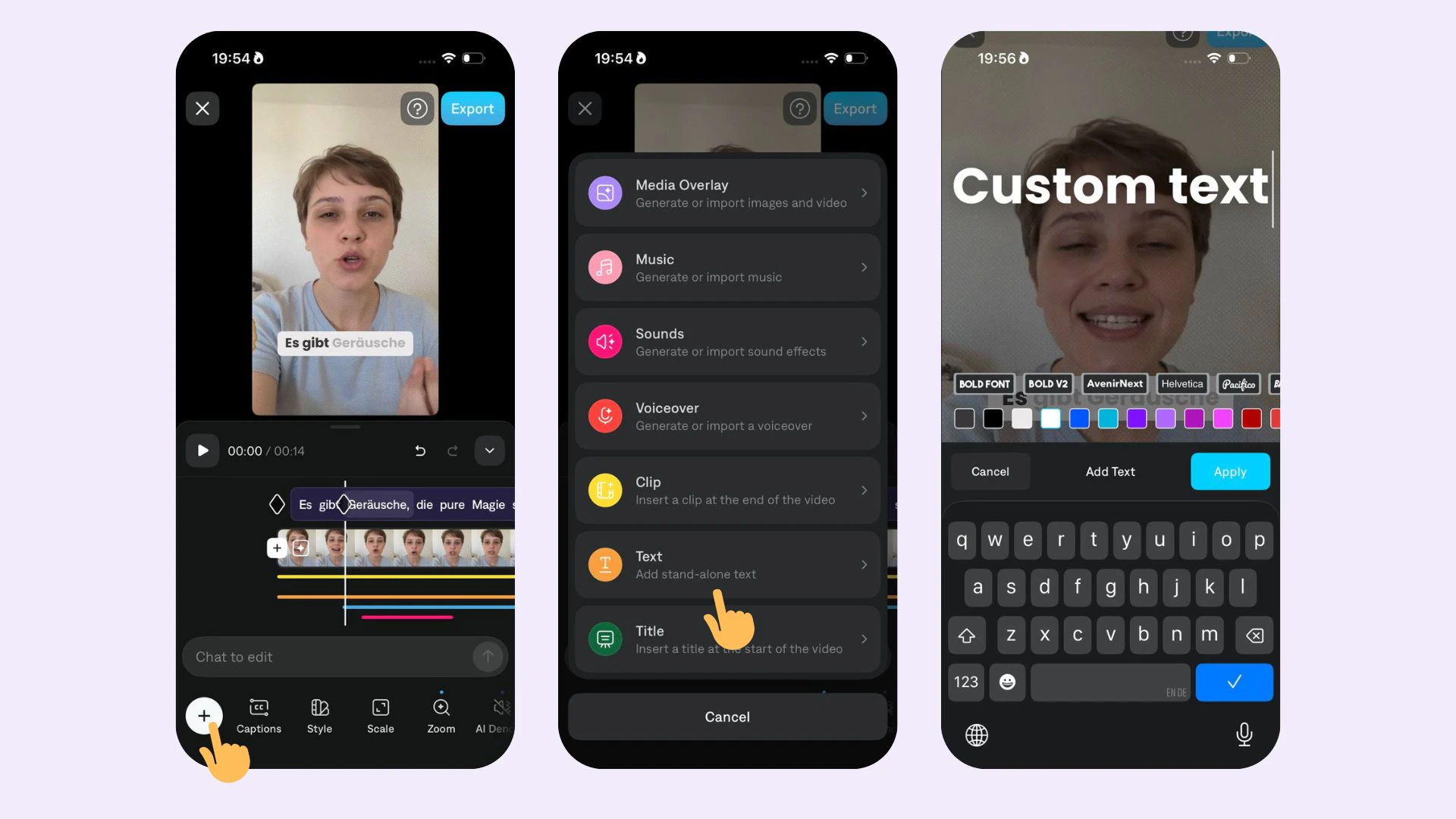 To add text:
1. Select **Text**.
2. Select **Add**
3. Type your text
4. Select **Apply**
### Edit Text
To edit text, choose from the following options:
* **Reposition:** Click or use one finger to move to a new location
* **Resize**: Click on the outer edge or use two fingers to pinch smaller or larger
* **Rotate**: Click on the outer edge or use two fingers to rotate clockwise or counter-clockwise
* **Move on the timeline:** Click and drag or use one finger to move earlier or later on the timeline
* **Adjust duration:** Click or drag either end of the text bar to make it smaller or larger
* **Edit spelling, font, or color:** Select **Edit**
* **Delete:** Select **Delete** or **Delete All**
To add text:
1. Select **Text**.
2. Select **Add**
3. Type your text
4. Select **Apply**
### Edit Text
To edit text, choose from the following options:
* **Reposition:** Click or use one finger to move to a new location
* **Resize**: Click on the outer edge or use two fingers to pinch smaller or larger
* **Rotate**: Click on the outer edge or use two fingers to rotate clockwise or counter-clockwise
* **Move on the timeline:** Click and drag or use one finger to move earlier or later on the timeline
* **Adjust duration:** Click or drag either end of the text bar to make it smaller or larger
* **Edit spelling, font, or color:** Select **Edit**
* **Delete:** Select **Delete** or **Delete All**