> ## Documentation Index
> Fetch the complete documentation index at: https://captions.ai/llms.txt
> Use this file to discover all available pages before exploring further.
# Auto-Zoom Video Effects
> Automatically add dynamic zoom effects to the most engaging parts of your video with Captions AI Zoom. Choose intensity and animation curve on iOS.
# Apply Dynamic Zoom Effects to Highlight Key Moments
### Add Zooms
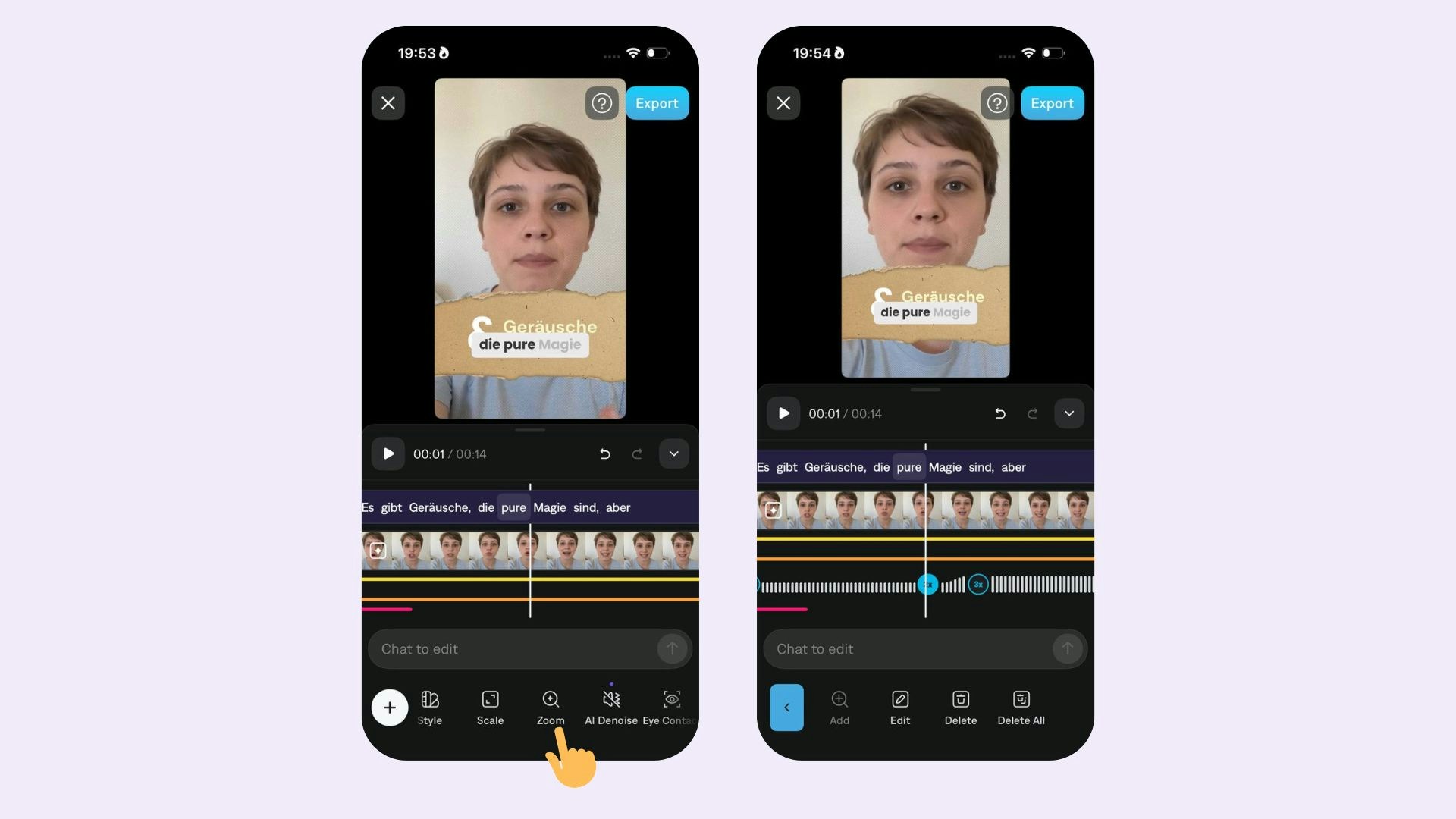 To add zooms to your video:
1. Scroll on the timeline to the time in the video you'd like to add a zoom
2. Tap **Zoom** - Zooms will automatically be applied.
3. Tap **+**
4. Choose the intensity
5. Choose the animation curve
### Edit Zooms
To add zooms to your video:
1. Scroll on the timeline to the time in the video you'd like to add a zoom
2. Tap **Zoom** - Zooms will automatically be applied.
3. Tap **+**
4. Choose the intensity
5. Choose the animation curve
### Edit Zooms
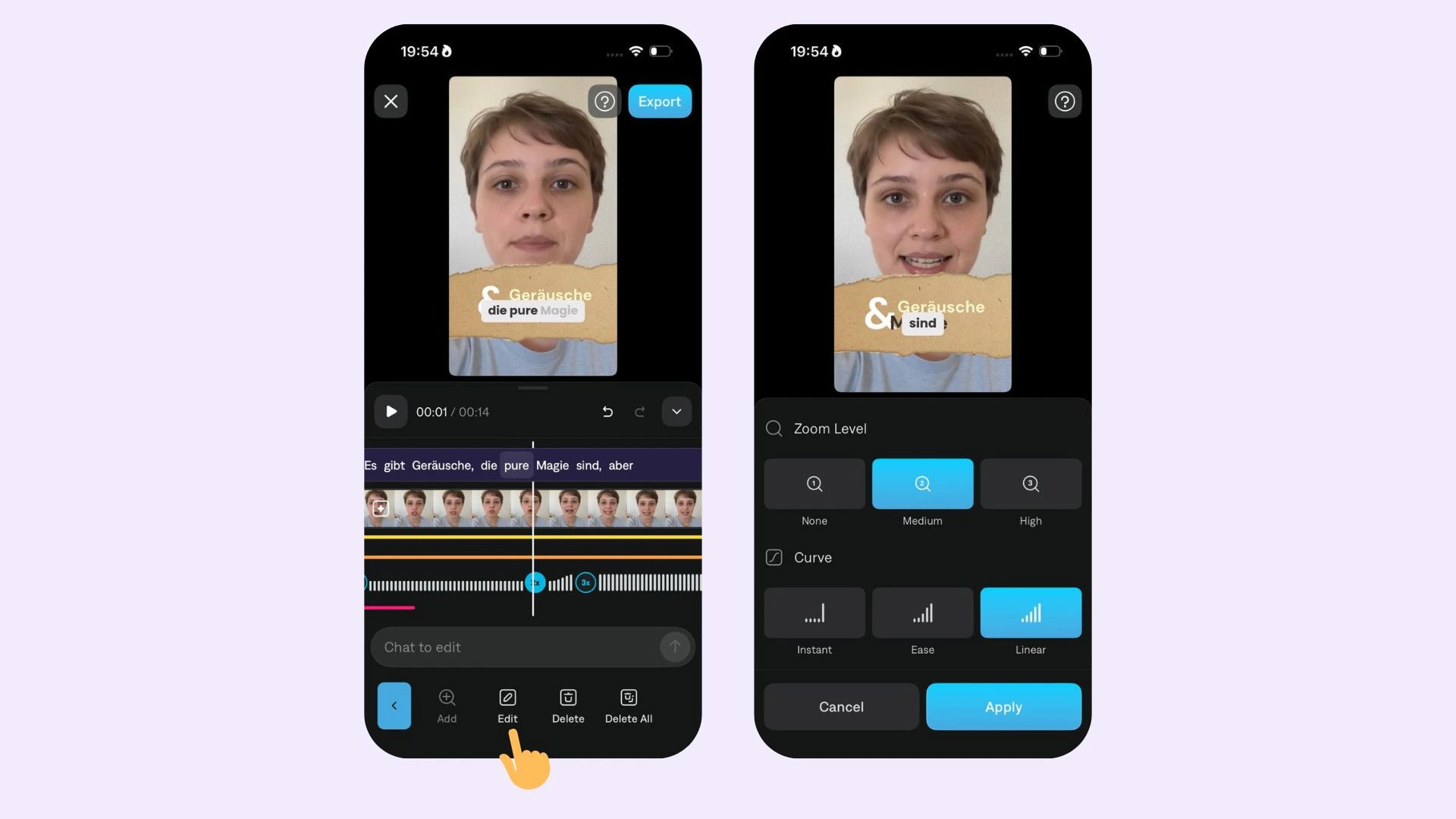 To make edits to zoom, select **Edit** and choose from:
* **Intensity:** Choose between zoom level 0 (no zoom), 1, and 2.
* **Animation Curve:** Choose between Linear, Ease, or Instant.
* **Delete:** Tap **Delete** or **Delete All**
To make edits to zoom, select **Edit** and choose from:
* **Intensity:** Choose between zoom level 0 (no zoom), 1, and 2.
* **Animation Curve:** Choose between Linear, Ease, or Instant.
* **Delete:** Tap **Delete** or **Delete All**