> ## Documentation Index
> Fetch the complete documentation index at: https://captions.ai/llms.txt
> Use this file to discover all available pages before exploring further.
# Generate Audio
> Learn how to generate audio for your Mirage videos.
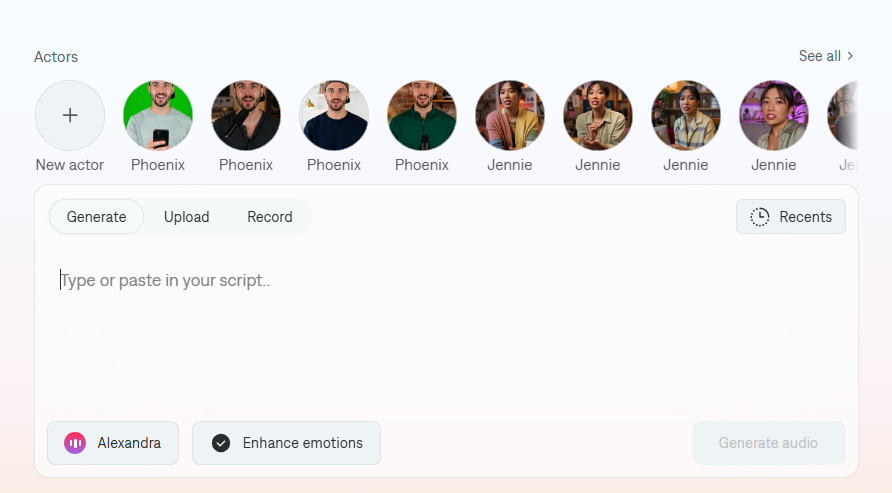 Generate studio-quality voiceovers directly in Captions, or upload your own audio. This guide covers prompting for expressive delivery, choosing the right voice, supported languages, voice cloning, and limits.
## Prompting guide: Enhancing emotion
Use inline audio tags and prompt techniques to direct performance.
* Emotional tags: Add tags like `[excited]`, `[calm]`, `[sad]`, `[whispers]`, `[laughs]` inline with your text to shape delivery.
* Punctuation: Use `!` for energy, `...` for pauses, `?` for rising intonation, `,` for brief pauses, `:` to cue anticipation, and `;` for longer pauses.
* Emphasis: WRITE words in ALL CAPS to increase emphasis and pitch.
See full guides:
* Enhance emotion test and tag catalog: [Enhanced Emotion Prompt Guide](/help/mirage/mirage-prompt-guide)
* Prompting techniques and examples: [Mirage Audio Prompt Guide](/help/mirage/mirage-prompt-guide)
### Manually adjusting emotion
You can refine delivery without changing your script:
* Insert or remove emotion tags around phrases to increase or reduce intensity.
* Add pacing with ellipses (`...`) and commas to slow down or breathe between ideas.
* Regenerate just the line/segment after small prompt tweaks for fast iteration.
Example: "We did it \[excited]! ... But \[calm] there's more work ahead."
## Voice selection: Male vs. Female
Choose a voice that matches the on-screen actor to maintain realism and lip-sync believability.
* Match appearance: If the actor presents as female, choose a female voice; if male, choose a male voice.
* Context matters: For narration over b‑roll, you can choose any voice; for talking-head shots, match gender and tone to the actor.
* Brand consistency: Keep the same voice across versions unless testing variants.
## Languages
* Text-to-speech languages: Arabic, Chinese (Simplified), Czech, Danish, Dutch, English, Filipino, Finnish, French, German, Greek, Hindi, Indonesian, Italian, Japanese, Korean, Malay, Polish, Portuguese, Romanian, Russian, Slovak, Spanish, Swedish, Tamil, Turkish, Ukrainian.
* Uploading audio: All languages are supported if you upload your own recorded audio; Mirage will use the language present in the file.
If your language isn’t supported in TTS yet, record or upload your own track to proceed today.
## Voice clone
Create a voice that sounds like you or your brand’s talent.
### Create a voice clone
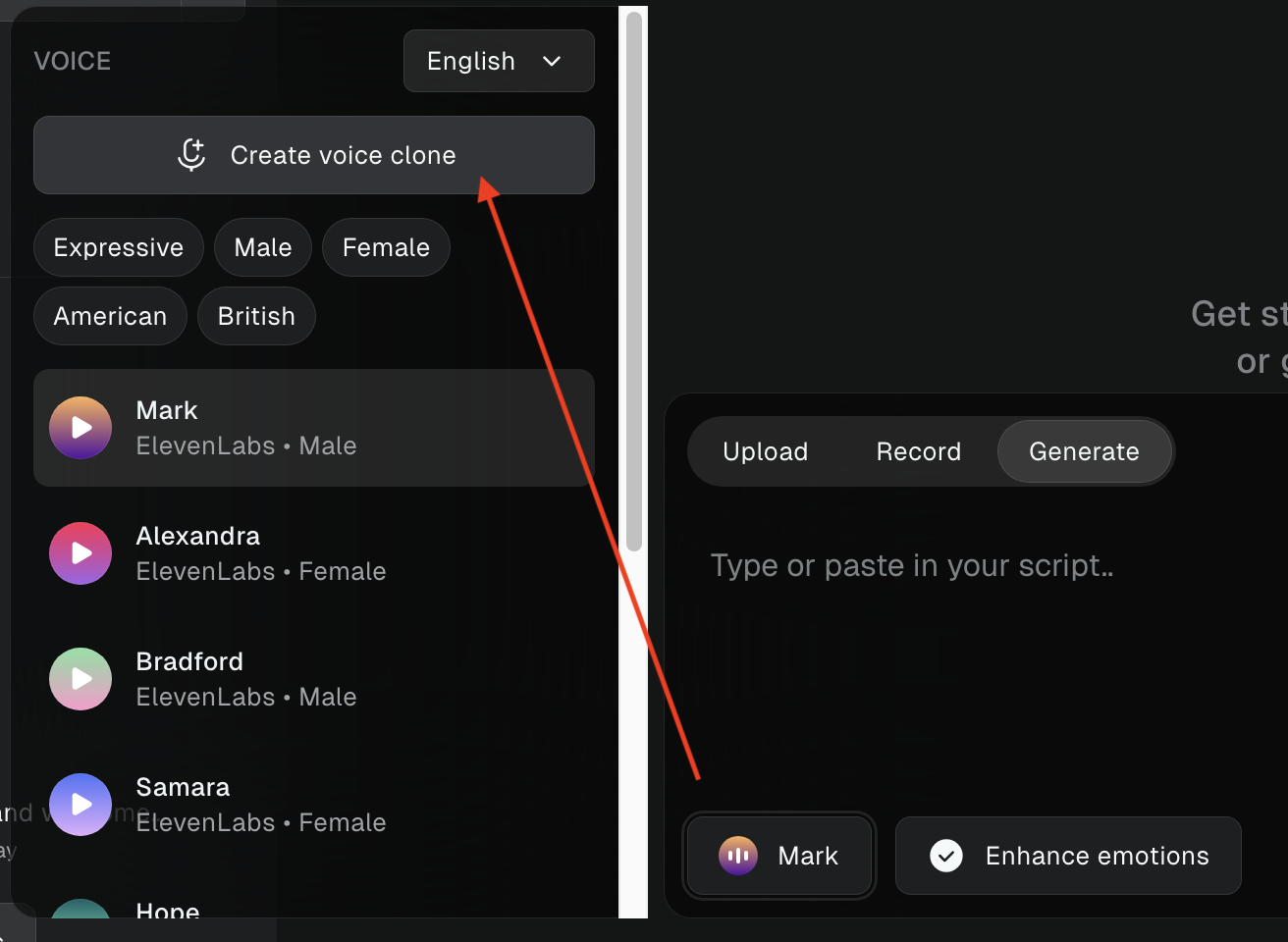
1. Open the voice actors section, then click on **Create voice clone**.
2. Record your voice for around 30 seconds (with energized voice and minimum background noise).
3. Preview the result and save or discard.
Generate studio-quality voiceovers directly in Captions, or upload your own audio. This guide covers prompting for expressive delivery, choosing the right voice, supported languages, voice cloning, and limits.
## Prompting guide: Enhancing emotion
Use inline audio tags and prompt techniques to direct performance.
* Emotional tags: Add tags like `[excited]`, `[calm]`, `[sad]`, `[whispers]`, `[laughs]` inline with your text to shape delivery.
* Punctuation: Use `!` for energy, `...` for pauses, `?` for rising intonation, `,` for brief pauses, `:` to cue anticipation, and `;` for longer pauses.
* Emphasis: WRITE words in ALL CAPS to increase emphasis and pitch.
See full guides:
* Enhance emotion test and tag catalog: [Enhanced Emotion Prompt Guide](/help/mirage/mirage-prompt-guide)
* Prompting techniques and examples: [Mirage Audio Prompt Guide](/help/mirage/mirage-prompt-guide)
### Manually adjusting emotion
You can refine delivery without changing your script:
* Insert or remove emotion tags around phrases to increase or reduce intensity.
* Add pacing with ellipses (`...`) and commas to slow down or breathe between ideas.
* Regenerate just the line/segment after small prompt tweaks for fast iteration.
Example: "We did it \[excited]! ... But \[calm] there's more work ahead."
## Voice selection: Male vs. Female
Choose a voice that matches the on-screen actor to maintain realism and lip-sync believability.
* Match appearance: If the actor presents as female, choose a female voice; if male, choose a male voice.
* Context matters: For narration over b‑roll, you can choose any voice; for talking-head shots, match gender and tone to the actor.
* Brand consistency: Keep the same voice across versions unless testing variants.
## Languages
* Text-to-speech languages: Arabic, Chinese (Simplified), Czech, Danish, Dutch, English, Filipino, Finnish, French, German, Greek, Hindi, Indonesian, Italian, Japanese, Korean, Malay, Polish, Portuguese, Romanian, Russian, Slovak, Spanish, Swedish, Tamil, Turkish, Ukrainian.
* Uploading audio: All languages are supported if you upload your own recorded audio; Mirage will use the language present in the file.
If your language isn’t supported in TTS yet, record or upload your own track to proceed today.
## Voice clone
Create a voice that sounds like you or your brand’s talent.
### Create a voice clone
1. Open the voice actors section, then click on **Create voice clone**.
2. Record your voice for around 30 seconds (with energized voice and minimum background noise).
3. Preview the result and save or discard.
 ## Character & time limit
* Character limit: Your prompt should be at least 70 characters and maximum 2000 characters long (which is equal to 60 seconds).
* Note: Free users have a 15 second video generation limit which is equal to about 500 characters.
If you hit a limit, split your script into multiple segments and generate per segment. Then assemble in the timeline.
## Character & time limit
* Character limit: Your prompt should be at least 70 characters and maximum 2000 characters long (which is equal to 60 seconds).
* Note: Free users have a 15 second video generation limit which is equal to about 500 characters.
If you hit a limit, split your script into multiple segments and generate per segment. Then assemble in the timeline.