

Add music to a video with Captions
Learn why background music matters and how to add or generate music for your videos.
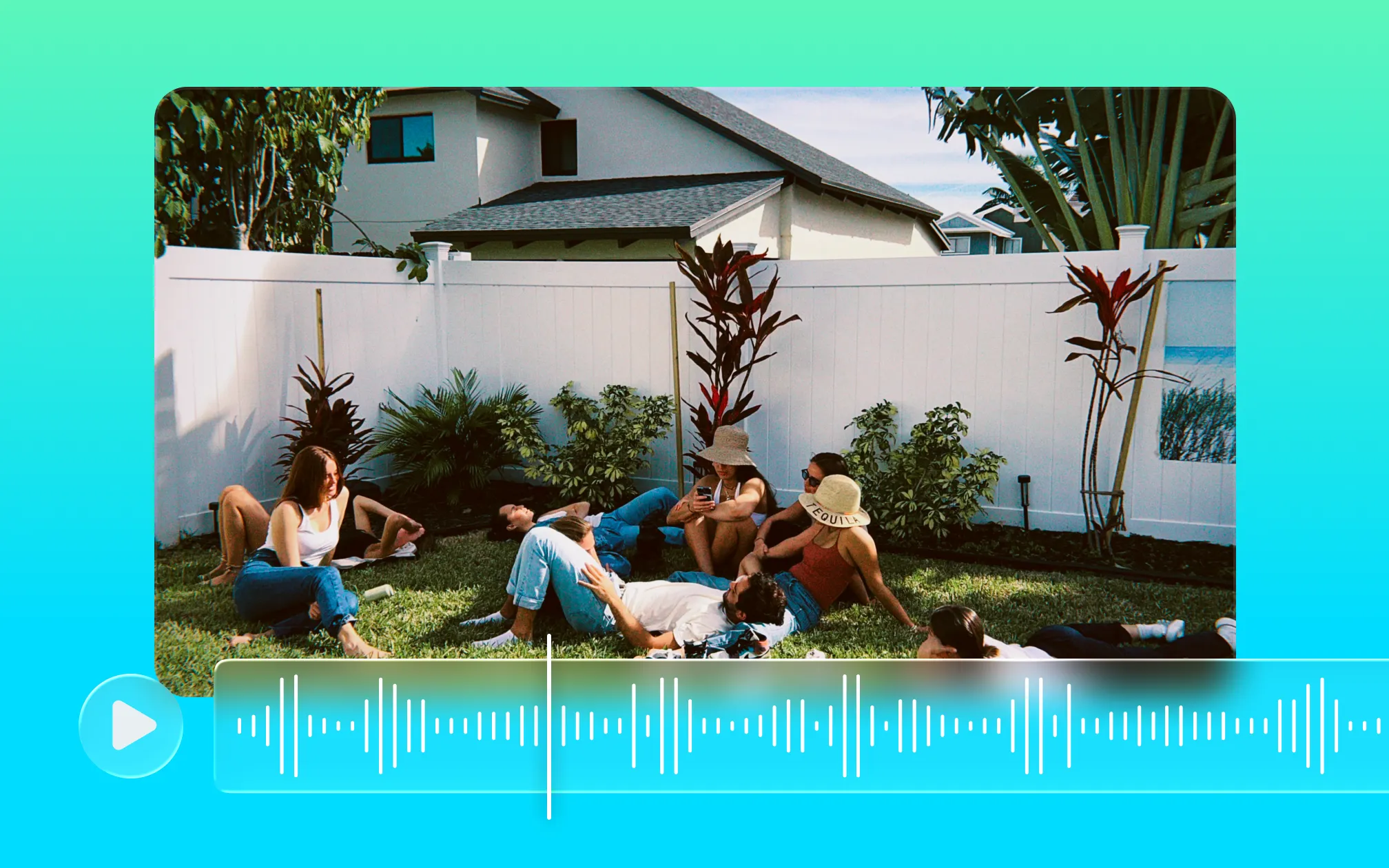
The right background track improves pacing, strengthens transitions, and makes content feel complete. Without it, even strong visuals can feel unfinished.
Adding music isn’t technically complicated. What slows creators down is everything around it: finding the right track, checking licensing, and matching audio to the pacing of the edit.
Here’s how to add music to a video—including how to generate original music when you don’t have the right track.
Why background music matters in video
Background music does more than fill silence. It influences how viewers interpret what they’re seeing.
A steady track can smooth transitions between cuts. A shift in energy can signal a new segment or idea. Even subtle ambient music can make educational or informational videos feel more polished and intentional.
This matters even more in short-form content. Platforms like TikTok, Instagram Reels, and YouTube Shorts move quickly, and viewers decide within seconds whether to keep watching. Music often provides the pacing that keeps a video moving.
The goal is rarely to make music the focus. In most cases, it simply supports the edit, helping the video feel cohesive from beginning to end.
Ways creators typically add music to a video
There are several ways to add background music depending on the tools you’re using.
Some creators work inside professional editing software, such as Premiere Pro or Final Cut. Others rely on lightweight online editors designed for quick social content. Many platforms also include built-in music libraries that make it easy to place a track beneath your video timeline.
For creators publishing frequently, the most efficient workflow keeps editing, captions, and audio in one place so adjustments happen inside the same project rather than across multiple tools. Tools like Captions combine these steps in a single editor.
How to add music to a video in Captions
Captions gives you options to add an existing track, or generate new music specifically for your video. Audio lives on the same timeline as your footage and subtitles, so you can adjust everything in one place and hear changes instantly.
Here’s how to add your own track:
- Upload your video or record directly in Captions.
- Open the editor timeline.
- Select Add Audio.
- Upload your music file.
- Drag the track beneath your video layer.
- Trim it to match your video length.
- Preview and export.
Once added, your music becomes part of the edit. You can refine timing and levels without leaving the project.
How to generate new music in Captions:
Finding music that fits takes time. Even when a track is usable, it may not match the pacing or tone of your video.
Generating music removes that friction. Instead of searching through libraries, you create a track that fits your video from the start. You choose the mood and energy, and the music is generated specifically for the project.
Here are the key steps:
- Open your video in the editor and select AI Music.
- Choose the style or mood you want.
- Generate the track.
- Apply it to your timeline.
- Preview and export.
The track is created inside your project, so you can adjust it as needed and keep your workflow moving. From there, you can continue refining subtitles, timing, and visuals in Captions until the video is ready to export.