

How to make the trending negative text effect for videos
Learn about the negative text effect you've been seeing everywhere — then do it in 1 tap with the Prism Pro AI Edit style.
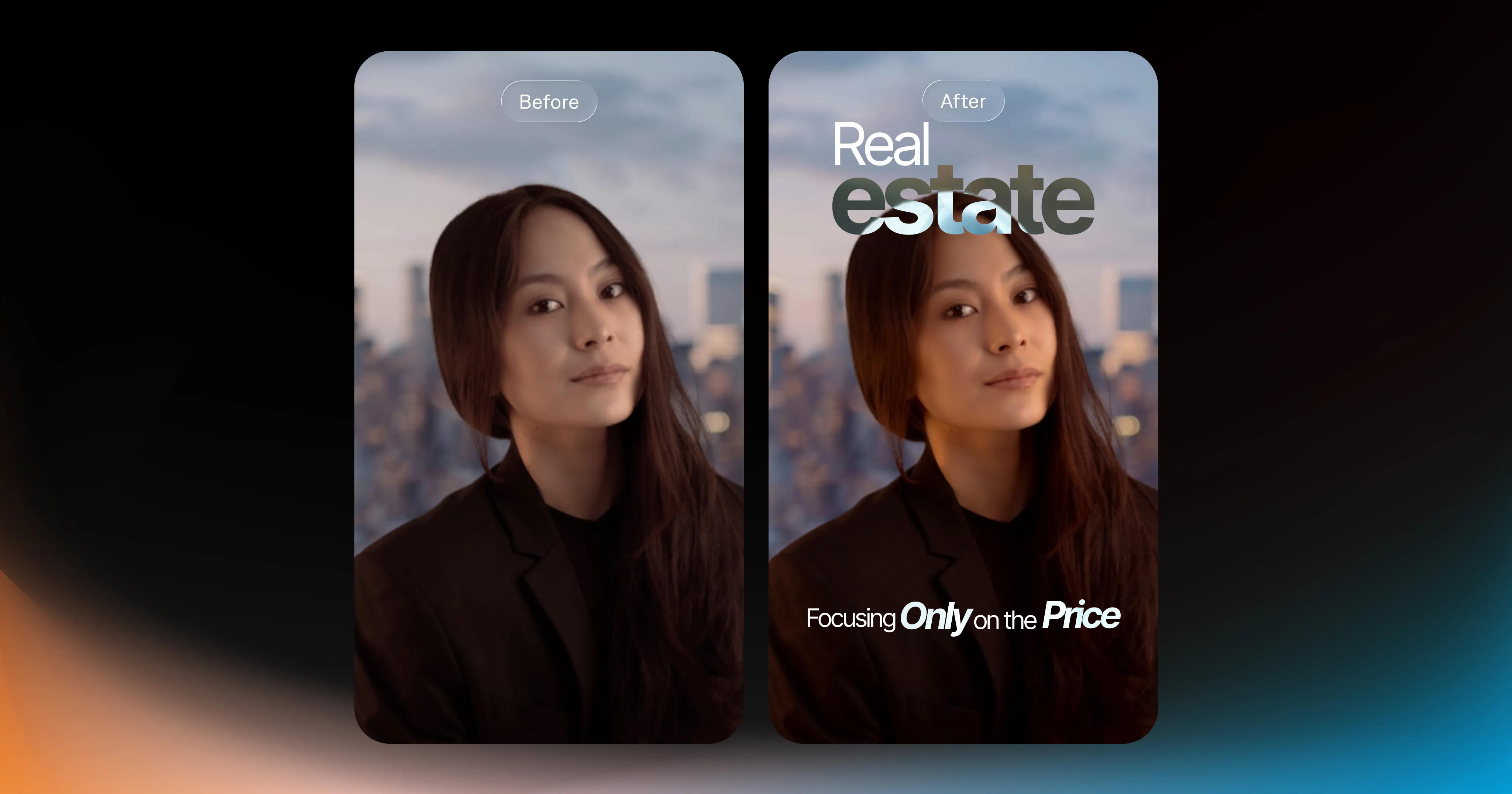
You’ve probably seen this style popping up in videos lately, especially in real estate, business, and lifestyle content.
A caption comes in normally, then one word hits and the video underneath flips, almost like a photo negative. It’s quick, but it’s enough to make you look again.
Some people call it “inverted text.” Editors know it as a difference blend mode effect. Most creators don’t think about the name, they just recognize the look. Either way, it’s one of those details that makes a video feel more polished and intentional.
Why this style is taking off
Most captions are consistent by design. They help with clarity and accessibility, but visually they often stay the same from start to finish.
This style adds a small shift. When a word flips or reacts to the footage, it gives your eye something new to focus on. It’s a subtle change, but it can help keep viewers engaged, especially in those first few key seconds.
There’s also a practical side to it. A lot of videos are shot in busy environments, kitchens, offices, open houses, gyms. Standard captions can sometimes blend into the background. This approach keeps contrast high without adding heavy background elements behind every line. You can see it in action below.
What the effect actually is
Technically, this is done with a blend mode, usually “difference,” which inverts the colors where the text overlaps the video. That’s why you’ll see terms like “blend mode text” or “difference text effect.”
But you don’t need to think about the mechanics to use it. The simpler way to think about it is this: the text reacts to the video instead of just sitting on top of it. That’s what gives it a more integrated feel.
How people are making this
Right now, a lot of creators are building this manually in tools like CapCut or Premiere.
It usually involves stacking layers, applying blend modes, masking text, and then lining everything up so the effect hits on the right words. It works, but it takes time and some experimentation, especially if your footage has movement or changing light.
That’s why you mostly see it from people who already know their way around editing, or from people following step-by-step tutorials.
The faster way to recreate it
If you want the look without the time-consuming workflow, Captions has an AI Edit style called Prism Pro that applies this style instantly.
Instead of dealing with blend modes and masks, Prism Pro applies color-reactive text and subtle transitions that already feel clean and consistent.
Here’s the fastest way to use it:
Upload your video to Captions
Select AI Edit
Choose Edit Style → Prism Pro
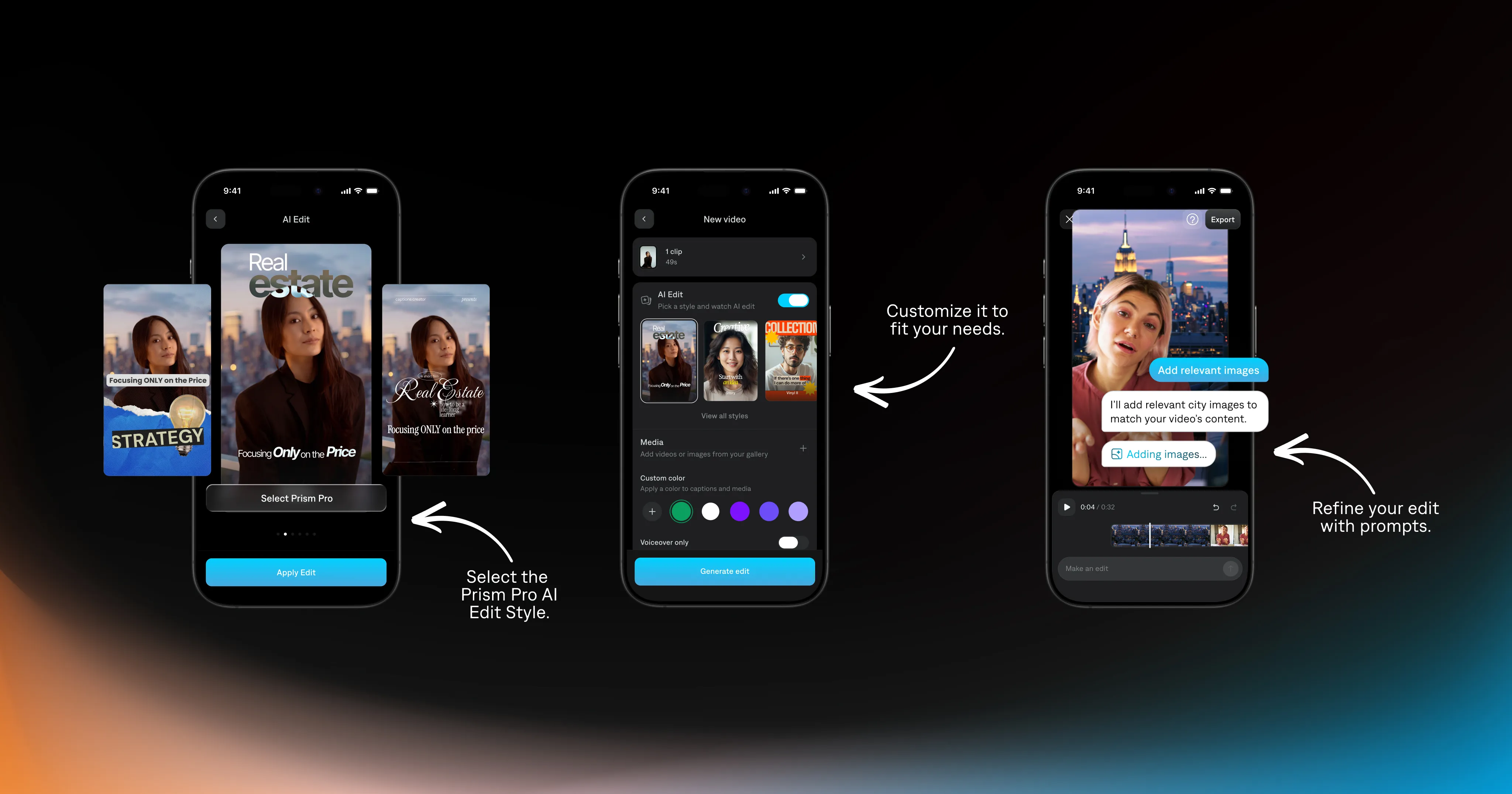
Once it’s applied, you can fine-tune your edit by choosing which words to highlight or prompting changes with AI.
A few tips
Use it in the right places. This text effect lands best on moments like your hook, a key number, or the main point you want to land.
Keep it visually balanced. Don't overuse the text effect. If too much on the screen is happening, the emphasis the effect provides can be lost.
Or, if you’d rather not think through each of those decisions, you can let Prism Pro handle it all for you. It applies the effect, adapts it to your footage, and highlights the right moments so your video already feels polished without extra work.