

Stop missing out on the benefits of moving text in videos
Moving text makes the difference between a video that feels recorded and one that feels edited. Here's how to do it.
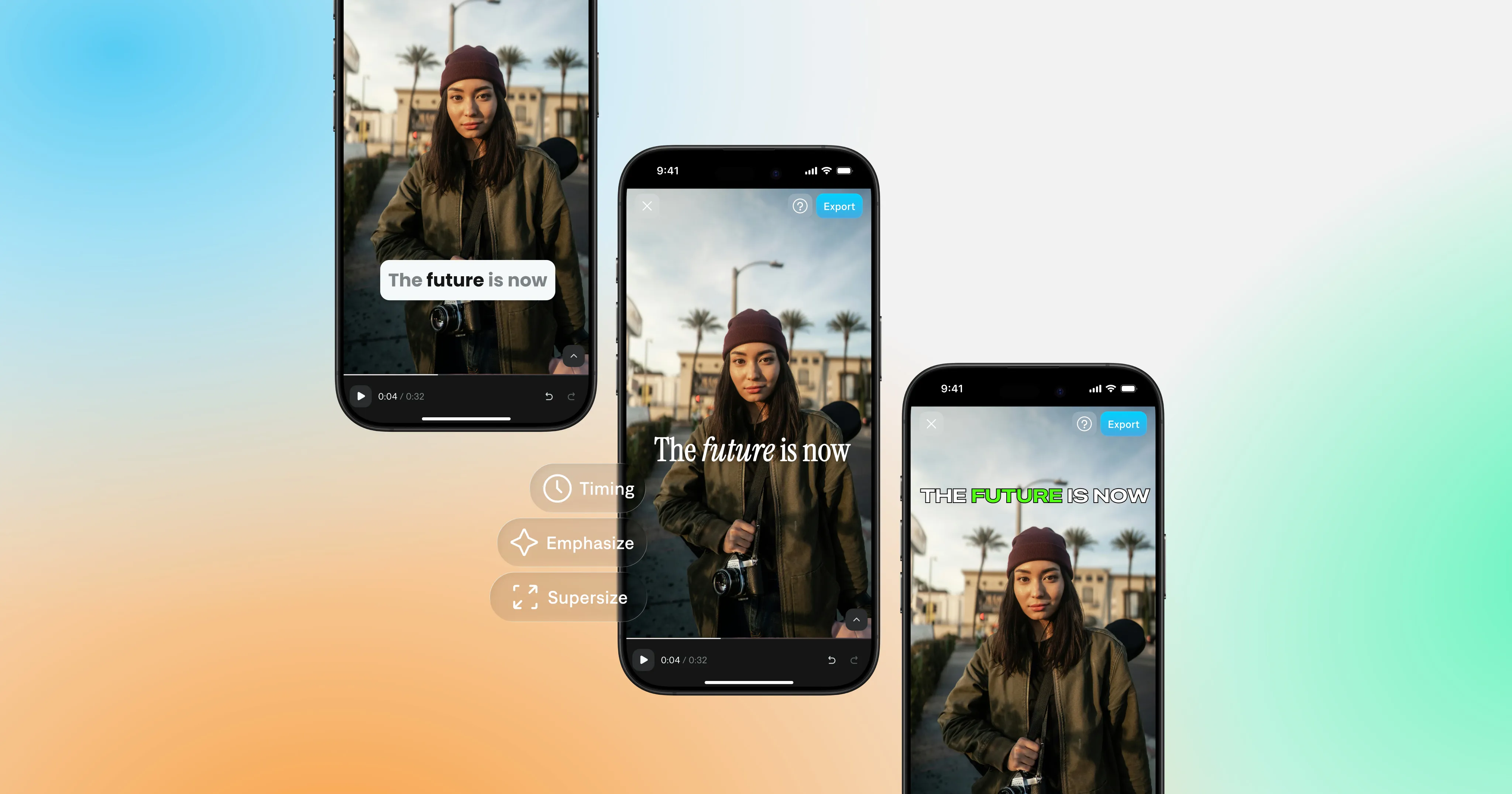
Scroll through TikTok or Reels for a few minutes and you'll notice that great videos don’t rely fully on audio to make their mark. The captions make a big difference—and they’re animated to help build engagement.
Words pop in on beat, phrases slide up, critical words light up as they're spoken. It looks sharp, it holds attention, and top creators and editors have been doing it for a while now.
If you’re not using moving text in your videos today, you might be missing out on easy-to-gain engagement. The problem is, most video editing tools make it harder than it needs to be. Getting text to move in sync with audio delivery usually means navigating keyframes, stacked layers, and a lot of tedious timeline work.
Why native TikTok and Instagram text tools hold you back
Native tools are fine for posting quickly. But the moment you want something that looks intentional and repeatable, they start getting in the way.
The font options look exactly like everyone else's. The animations are either too subtle to register or chaotic enough to distract. Timing adjustments are tedious on a mobile timeline. And if you want the same style across ten videos, you're rebuilding it from scratch every time.
How to add animated text instantly in Captions
Luckily, Captions automates most of this and makes it straightforward no matter your editing experience. Here's how to do it.
Step 1: Upload your video
Open Captions, tap New Project, upload your clip, and generate captions.
Step 2: Choose an animated style
Tap the Style icon in the captions toolbar. Many of the 100+ styles have word animations built in that fire automatically as each word is spoken. Tap any style to preview it live on your video before committing.
Step 3: Preview and export
Play through your video and check that nothing overlaps your face or feels too fast. When it looks right, tap Export, choose 9:16 for Reels, TikTok, and Shorts, and export in high quality.
If you're using moving text as a hook, make sure the first word animates within the first second. Any later and you've already lost part of your audience.
A few things that make a real difference
Keep text out of the face zone. Avoid covering eyes, mouth, and hands. Leave room at the bottom for platform UI like buttons and profile elements.
Match the animation to the content. Calm slide-ins work well for tutorials. Bold pop-ins suit ads. Minimal motion fits testimonials. The style should feel like a natural extension of the video, not something added on top of it.
Build a system and stick to it. Pick one font, one highlight color, one animation style, then reuse it. Consistency is what makes a feed look like someone intentional is behind it.
If you notice the animation before the message, dial it back. Moving text should make your words land harder, not compete with them.
If you've got footage sitting in your camera roll that just needs that extra layer of polish, upload it to Captions and try a style. Most people find the whole thing takes less time than they expected.