

How to get transcripts of a YouTube video: a quick guide
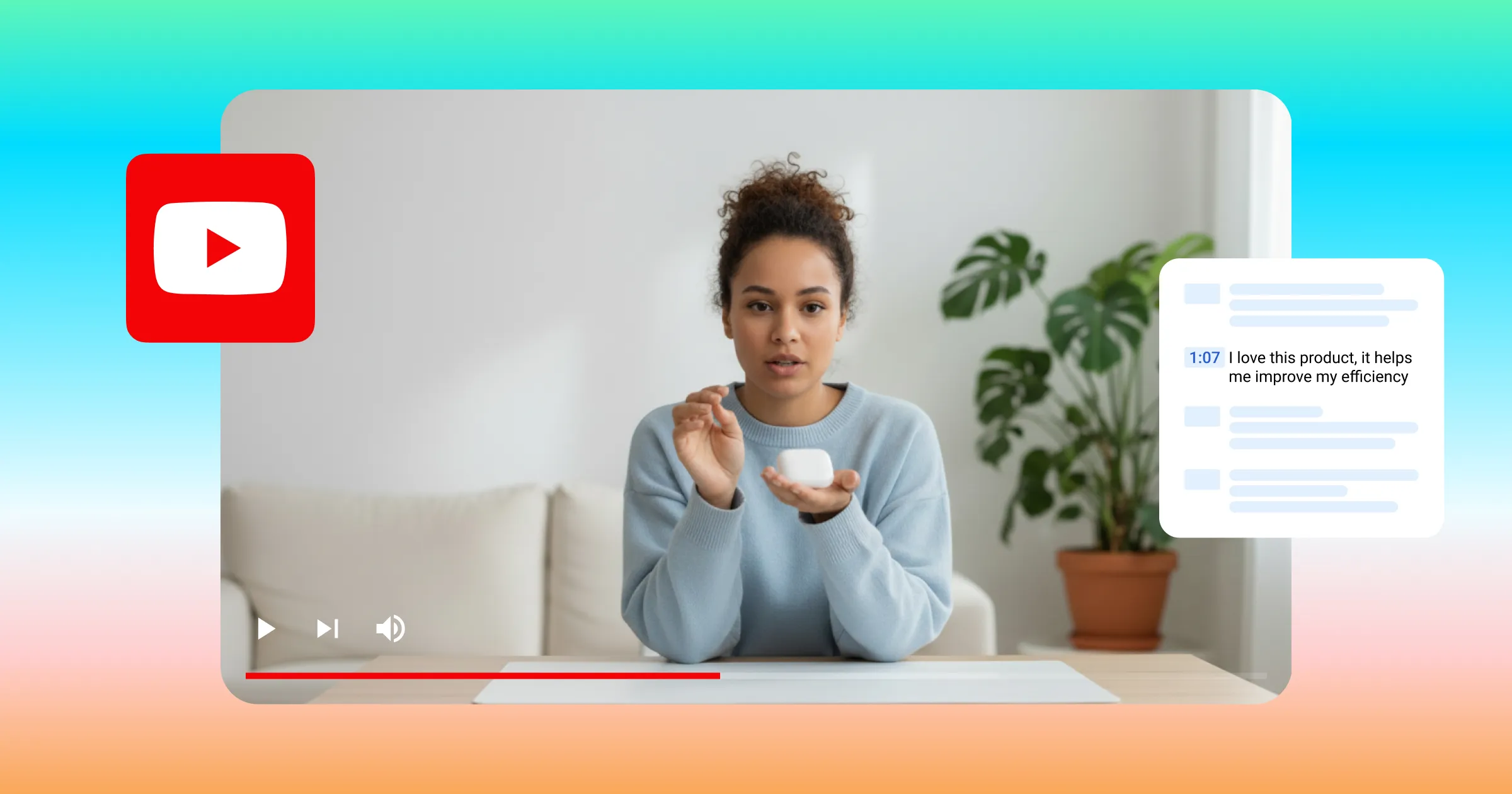
YouTube transcripts help viewers quickly find information, follow along with dense content, and better understand what a video is about. They also make your content more accessible to deaf and hard-of-hearing viewers, non-native speakers, and visual learners. And from a creator's perspective, they're one of the more underrated tools for improving your SEO.
Here's everything you need to know about finding, creating, and making the most of YouTube transcripts.
Why use transcripts in YouTube videos?
Accessibility: Transcripts make your content available to people who are deaf or hard of hearing, as well as viewers who don't speak the video's primary language. Broader accessibility means a broader potential audience.
YouTube SEO: YouTube's algorithm ranks videos based on factors like engagement, watch time, and keyword use. Transcripts give the algorithm more text to work with, helping it understand what your video is about and increasing the chances it gets surfaced in relevant searches. They also contain useful anchor text for internal links to your website or other social platforms.
Audience engagement: Transcripts help viewers stay engaged by letting them scan for key points and follow along more easily. That added value can translate into longer watch times, more shares, and stronger overall performance.
Viewing experience: For dense tutorials, step-by-step guides, or educational content, transcripts are particularly useful. Rather than pausing and rewinding to catch something, viewers can read at their own pace and refer back to specific sections whenever they need to.
By default, transcripts are hidden. You can view them by opening the video description and clicking "Show Transcript." YouTube generates them automatically from the video's audio, though you can also upload your own manually. Either way, it's worth editing for accuracy before publishing.
"Once you have the transcript, you can turn it into on-screen captions automatically. Captions give viewers an on-screen experience that works even without sound. Many people watch at low volume or in silent environments, and captions help them follow along without missing anything.
How to find a transcript on YouTube
Here’s how to copy a transcript from YouTube instead of creating one.
1. Select the video
Navigate to YouTube on your desktop or mobile device. Search for the video you want a transcript of. Most long-form videos have them, but Shorts and music videos typically don't.
2. Click "Show Transcript"
Open the video description and click "Show Transcript." This button appears directly in the description, without needing to expand or scroll through additional menus first.
3. Read and navigate the transcript
Once you click "Show Transcript," it will appear to the right of the video. The transcript scrolls automatically as the audio plays, highlighting the current line of text. Click any line to jump to that moment in the video. You can toggle timestamps on and off by clicking the "..." button in the top-right corner of the transcript panel and selecting "Toggle timestamps."
4. Adjust the language
For videos using YouTube's auto-generated transcripts, the text defaults to the language spoken in the video. Some videos offer transcripts in multiple languages. If yours does, you'll see a "Language" button in the bottom-left corner of the transcript panel. Select the language you want and the text will update automatically.
5. Download the transcript
YouTube only lets you download a transcript if you own the video. For videos you don't own, copy and paste the transcript text into a document editor like Google Docs or Microsoft Word. You can also use a browser extension like YouTube Transcript Extractor for Chrome if you need to do this regularly.
How to get transcripts for your own YouTube videos
To view or manage transcripts for videos on your own channel:
Go to YouTube and log in to your account
Click your profile picture in the top-right corner and select "YouTube Studio"
Select "Subtitles" from the left-hand menu
Choose the video you want and set the language if needed
From here you can download, edit, or delete the transcript, or upload a new one
YouTube gives you three ways to create a transcript for your own videos.
Auto-sync: If you have a full written script, you can paste it into YouTube and let the platform set the timestamps automatically. Open the video in the Subtitles tab, click "Auto-sync," paste your script, and click "Publish."
Manual: More time-intensive, but gives you precise control. Open the video in the Subtitles tab, click "Type manually," and type the transcript as the video plays. Once done, click "Edit Timings" to adjust timestamps, then "Publish."
Text file upload: The most accurate option if you already have a transcript file. YouTube supports .srt and .vtt formats. Open the video in the Subtitles tab, click "Upload file," choose whether your file includes timing or not, select your file, review the text, and publish.
5 tips for more effective YouTube transcripts
Record high-quality audio. Auto-generated transcripts are only as accurate as the audio they're working from. Clear, high-quality recording gives you a much better starting point.
Reduce background noise. Background noise leads to missed or mis-transcribed words, which affects both accuracy and SEO. Captions' Denoise feature removes distracting sound before it becomes a problem.
Speak clearly. Even the best transcription tools struggle with fast or unclear speech. Slowing down and enunciating gives you a cleaner output with less editing needed.
Identify multiple speakers. If your video has more than one speaker, auto-generated tools can struggle to distinguish between them. Manually edit the transcript to label who is speaking and when.
Always edit for accuracy. Don't publish without reviewing. Errors in your transcript affect SEO and the viewer experience. Edit directly in YouTube Studio or download the text into a document editor to clean it up.
Make your content more accessible with Captions
Transcripts are a great start, but they're only part of the picture. If you're building a channel from scratch, getting the basics right matters too, from picking a name to making sure every video is as watchable and accessible as possible. Most people watch videos without sound, which means on-screen captions are often the difference between someone watching and someone scrolling past.
Captions generates accurate subtitles automatically, lets you clean up background noise before you publish, and can dub your videos into other languages without you having to re-record anything. It's the fastest way to make your content work for more people.