

How to reduce mic background noise before and after recording videos
Clear, simple ways to improve your audio before and after recording.

You don’t notice it while you’re recording. Then you open your edit and hear it right away. A low hum under everything. A soft hiss. Or that hollow echo that makes your voice sound like it’s bouncing around the room. Suddenly, parts of your footage feel harder to use.
The good news is you probably don’t need new gear. Most audio problems come down to your environment and a few setup choices, not the mic itself.
Why your mic is picking up background noise
Your mic isn’t just recording your voice. It’s capturing everything in the room. The hum of your AC, the faint buzz from your laptop, and the way your voice reflects off nearby walls all get picked up together.
A lot of this goes unnoticed while you’re recording. You stop hearing the fan after a while, but your mic doesn’t.
And counterintuitively, buying a better mic can actually make this worse. Higher-quality mics capture more detail, which just means cleaner, crisper background noise.
Fix it before you hit record
If you haven’t started recording yet, a few small changes can make a big difference.
Get closer to the mic. The farther you are, the more you need to raise the gain, and that brings in more background noise. Sitting closer helps your voice come through clearly at a lower level.
Record in a softer space. Hard surfaces create echo and make your audio feel distant. Softer materials like rugs, curtains, or furniture help absorb sound and keep your voice more direct.
Turn off background noise. Fans, AC units, and other steady sounds are easy to ignore while recording, but they stand out in playback. If you can turn them off for a short time, it’s worth it.
Watch your levels. Too much gain brings in noise. Too little means you’ll boost it later. Aim for clear, consistent levels without pushing too high.
None of this will give you perfect silence, but it will make your audio sound a lot better and be much easier to work with.
Cleaning it up after the fact
Even with a solid setup, some background noise will still come through. That’s normal.
Where people run into trouble is trying to remove too much of it. Traditional tools like EQ and noise gates can work, but they’re easy to overuse. When that happens, your voice starts to sound thin or unnatural.
A better approach is to reduce noise without over-processing the voice. AI denoise tools are designed for this. Instead of manually filtering out specific frequencies, they identify your voice and lower everything around it. It’s also much faster, especially if you’re editing regularly or working on multiple videos.
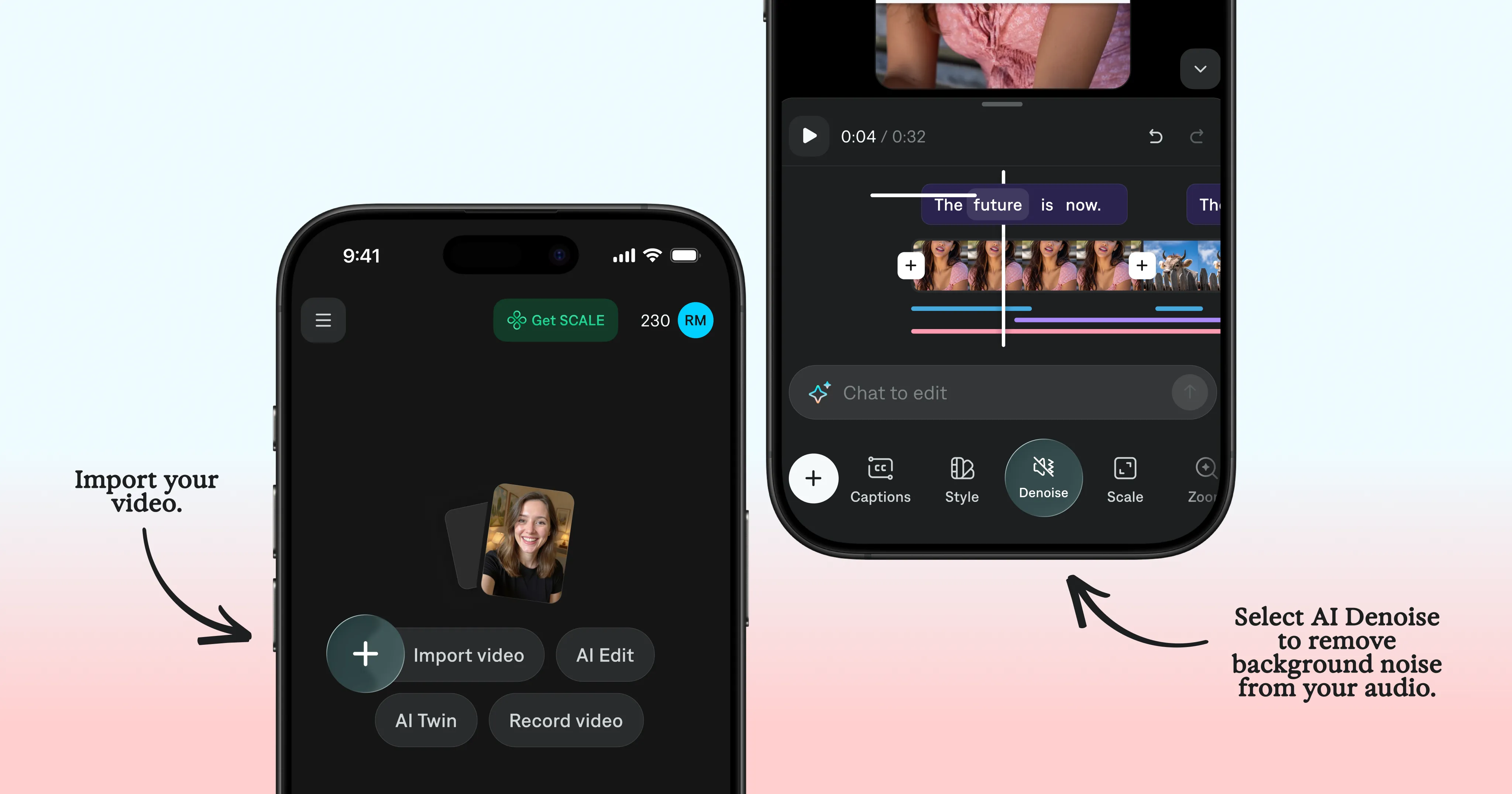
How to remove background noise using AI Denoise in Captions
If your audio needs cleanup, you can handle it directly in Captions.
The AI Denoise tool reduces background noise automatically, without manual adjustments.
Here’s how it works:
Upload your video or record directly in the app
Apply AI Denoise
AI reduces background hum, hiss, and room noise in just a few seconds
Export your cleaned-up video
Because it’s working around your voice, the result sounds natural. You avoid the hollow or over-processed sound that often comes from pushing traditional tools too far.
It’s a simple way to fix distracting audio without slowing you down or changing your workflow.