Overview
Go from 0 to video with just a prompt — enabling anyone to go from idea to edited talking video, featuring actors that don’t exist. With this first-of-its-kind tool, it’s never been easier to turn text into professional-quality videos or ads. Prompt to Video is powered by Mirage, our groundbreaking video generation model.What edits are applied to the video?
All elements of professional video storytelling are seamlessly combined into one cohesive experience:- A-Roll: A Mirage-generated actor addresses the camera directly, delivering your message with natural expression and movement.
- B-Roll: Contextual images and videos are generated and thoughtfully incorporated to enhance your video and message.
- Professional editing: Our model will then analyze the content and apply choice transitions, sound effects, music, zooms, cuts, and other edits.
Frequently Asked Questions
Are videos I generate with Captions available for commercial use?
Are videos I generate with Captions available for commercial use?
You retain full rights to all videos created. The AI-generated actors are completely virtual and free from licensing restrictions. You can read more in our Terms and Conditions.
What languages can I generate Prompt to Video projects in?
What languages can I generate Prompt to Video projects in?
You can generate videos in 39 languages.
What is the size limit for uploading video or audio files?
What is the size limit for uploading video or audio files?
Your video and audio files can be up to 100MB. (Desktop only)
What is the maximum character limit for audio prompts?
What is the maximum character limit for audio prompts?
Your prompt can be 30 seconds or 1,000 characters. (Desktop only)
How can I organize my projects?
How can I organize my projects?
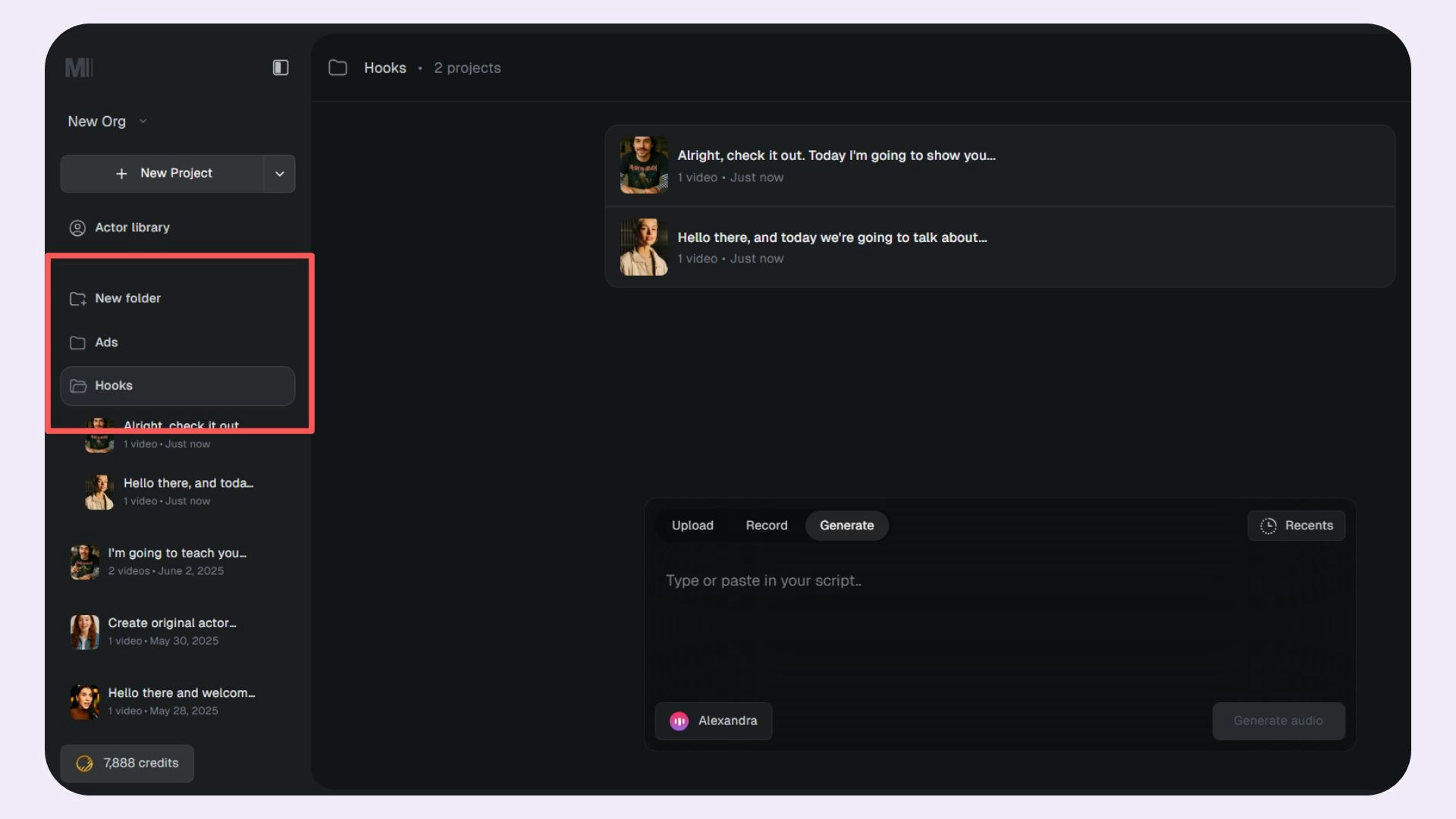
You can use folders to manage and organize your projects better. Use the New Folder option to create a new folder.