Overview
Mirage Avatar X is our next-generation avatar model — the most powerful we’ve ever made. Unmatched realism. Hyper-expressive emotion. Natural movements. Now available in Captions. There are two ways to get an avatar, and both start in the same place:- Start in the avatar library. Browse 200+ ready-made avatars spanning diverse people, personas, and looks you can pick and generate with immediately.
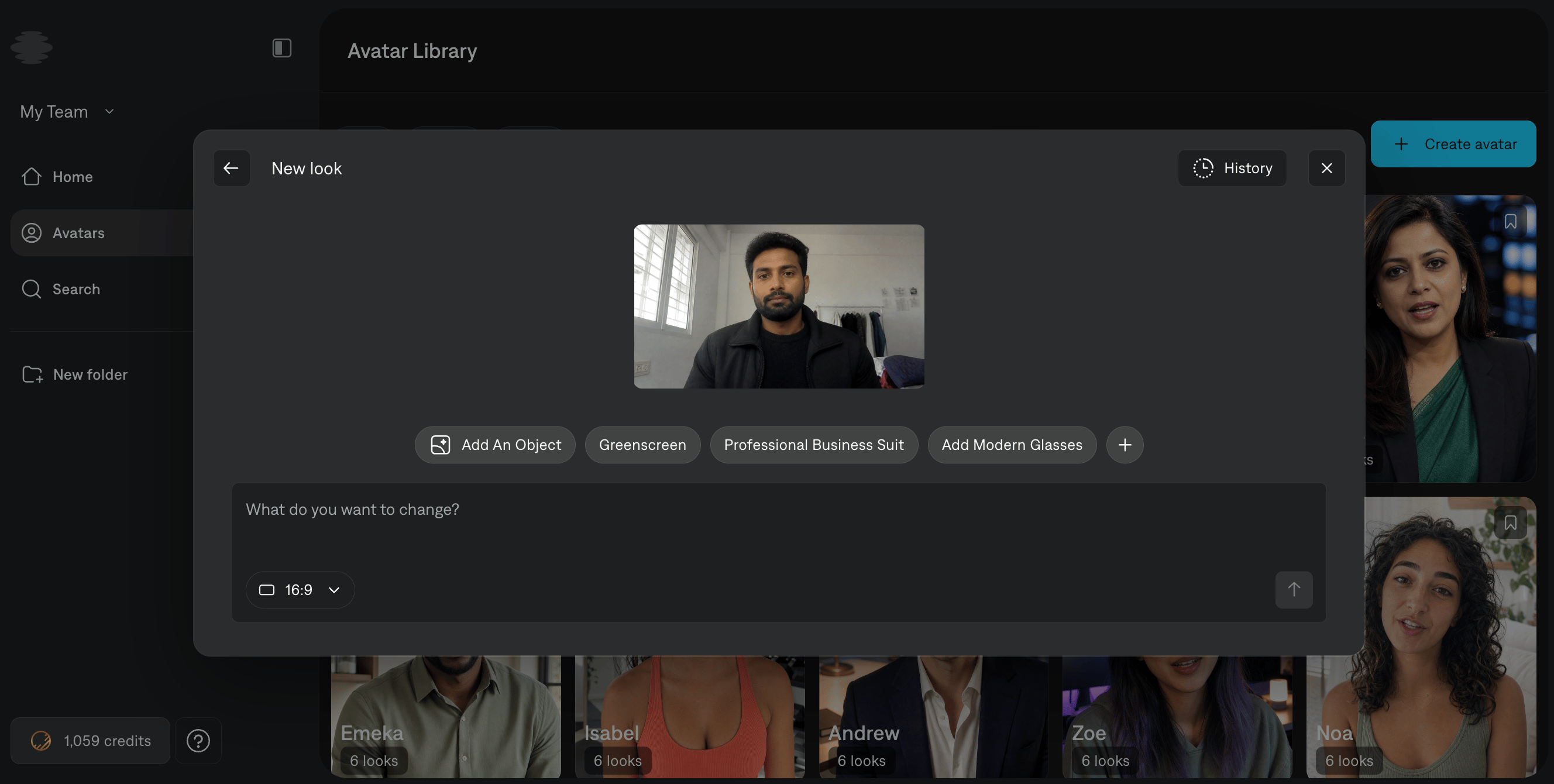
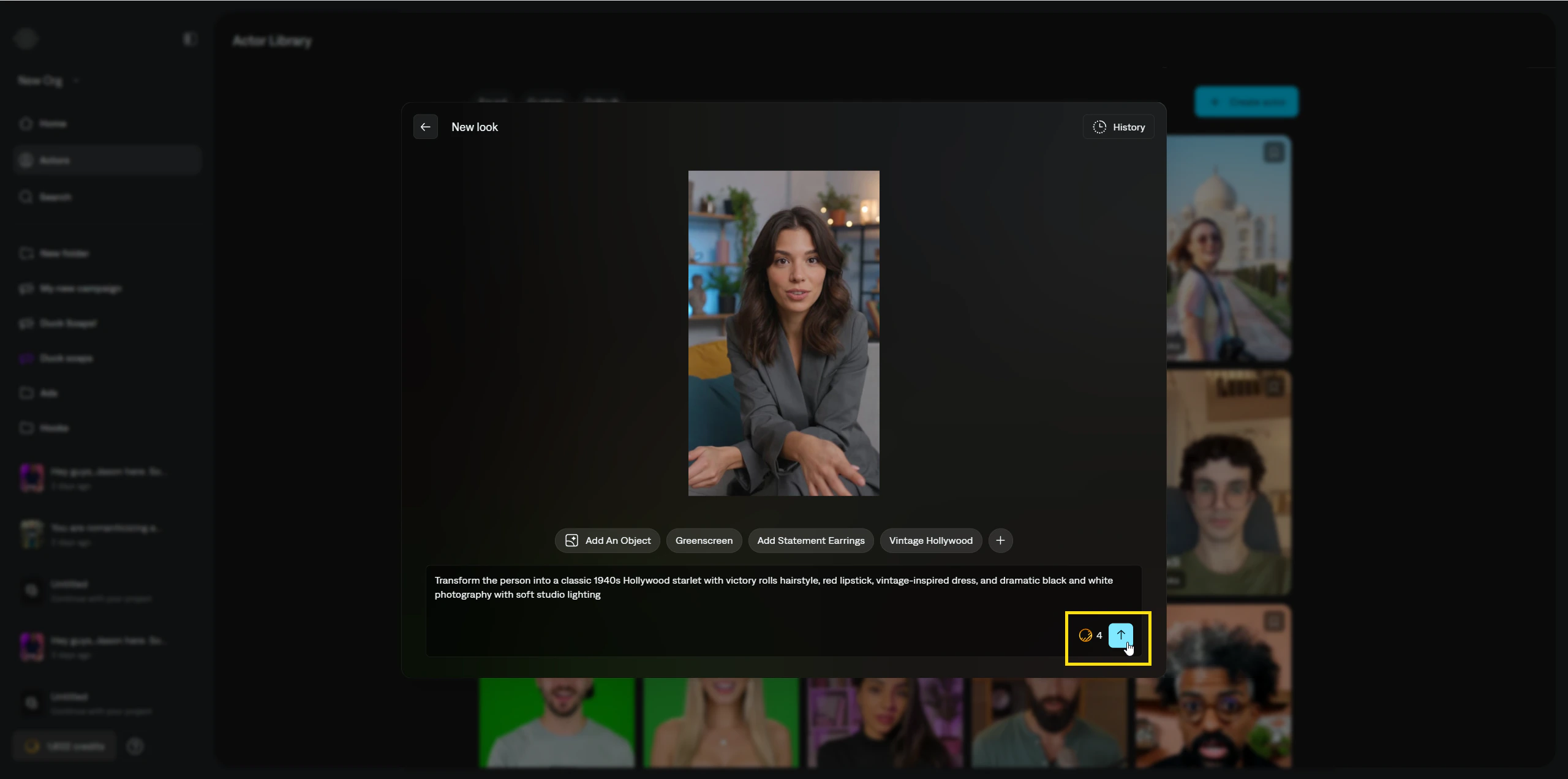
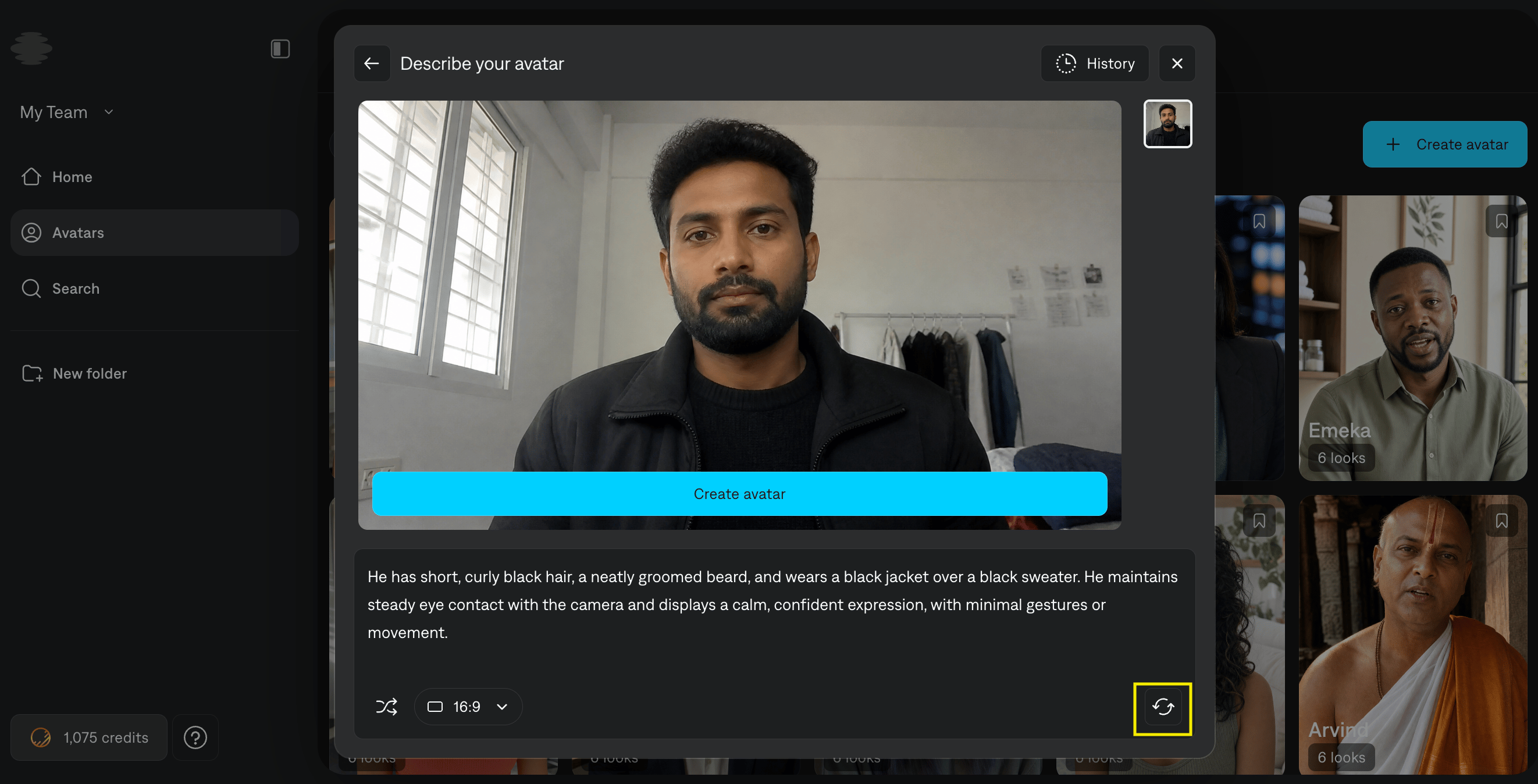
- Or make your own custom avatar. If you can’t find what you’re looking for, create a custom avatar simply by describing the person you have in mind with a text prompt. When you save it, your avatar lands in the same avatar library as the presets, ready to use in any video.
- Web
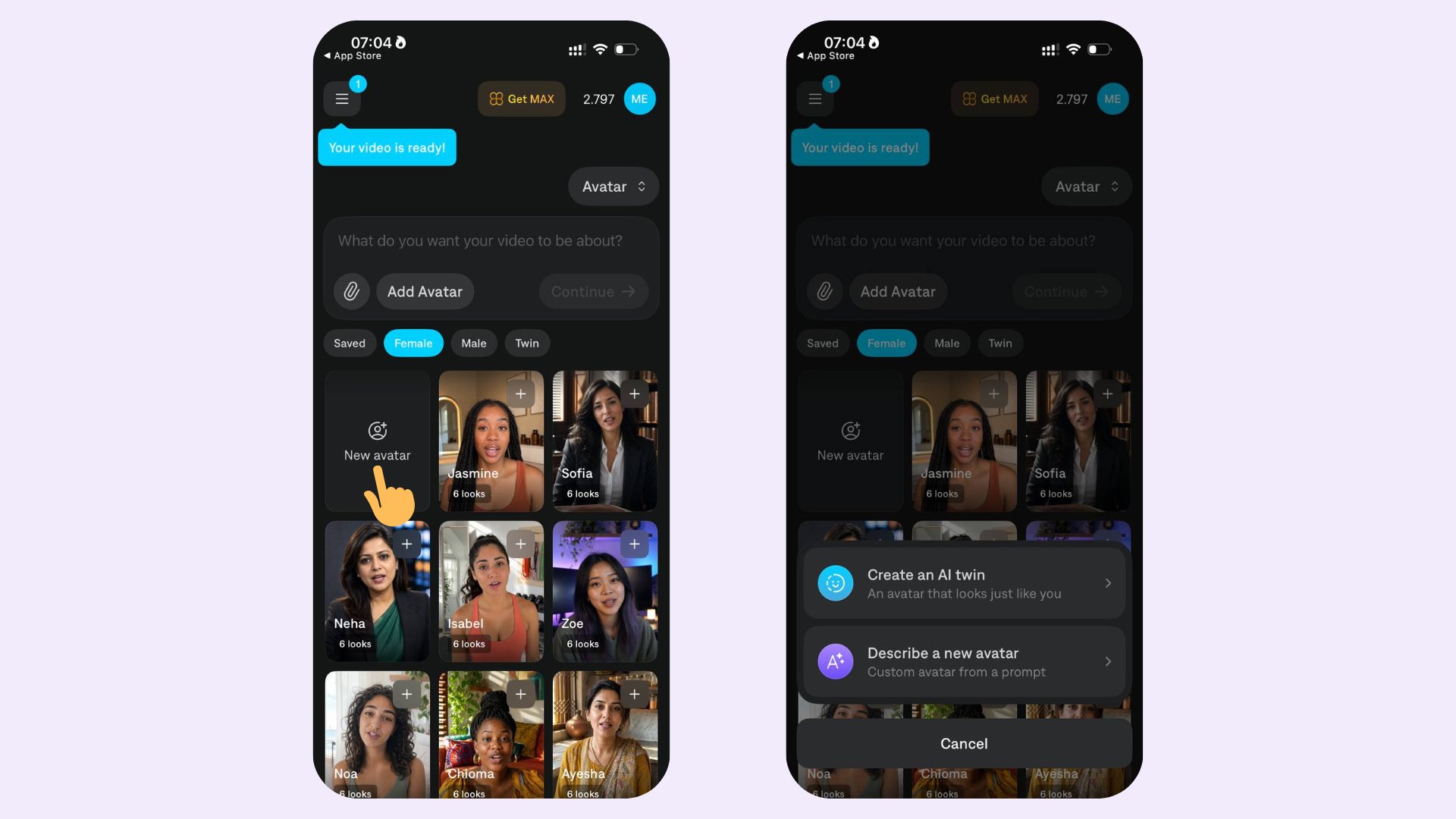
- iOS
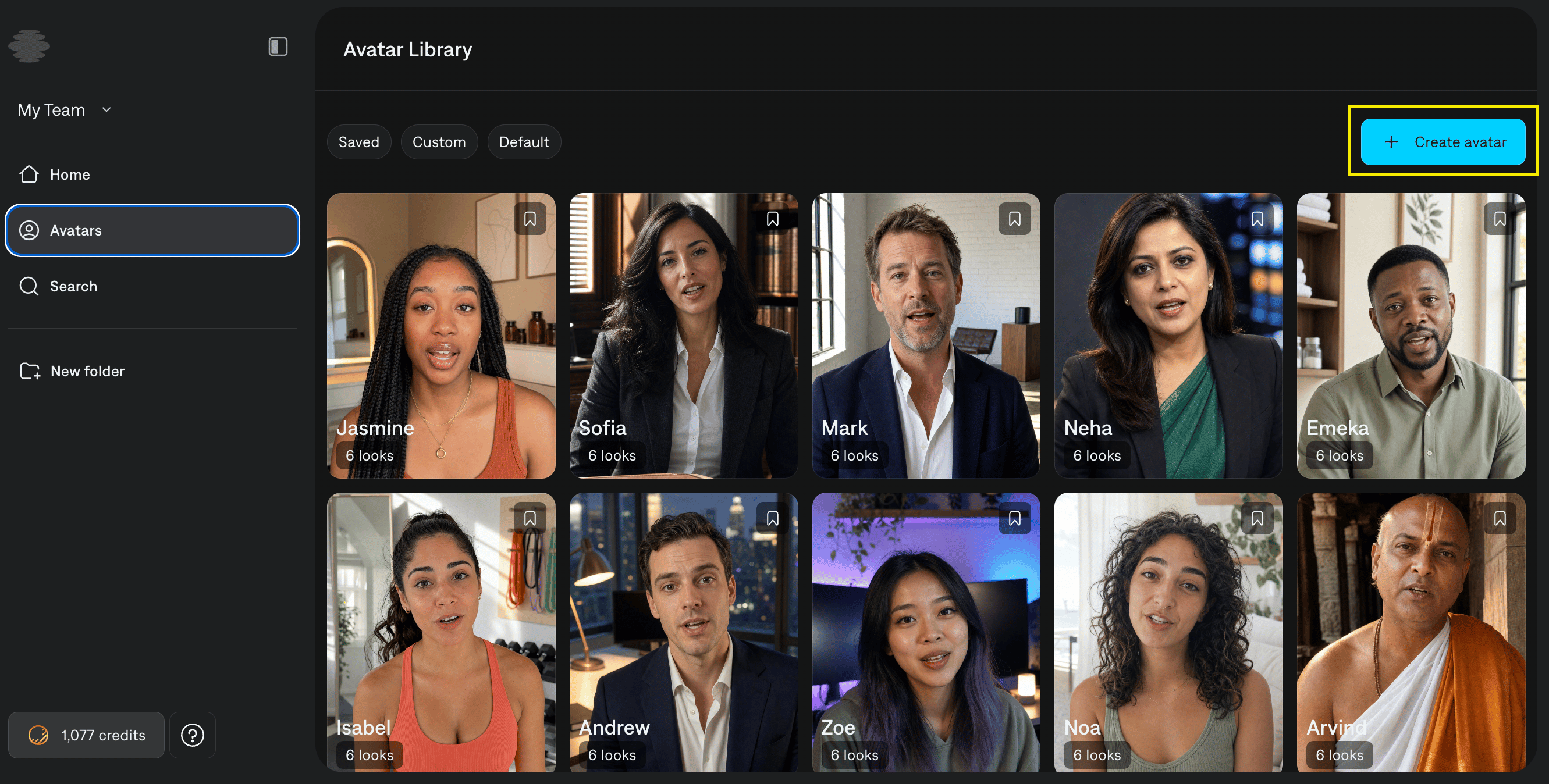
On Captions on Web, the Avatar library is where you browse our extensive and diverse range of ready-made avatars.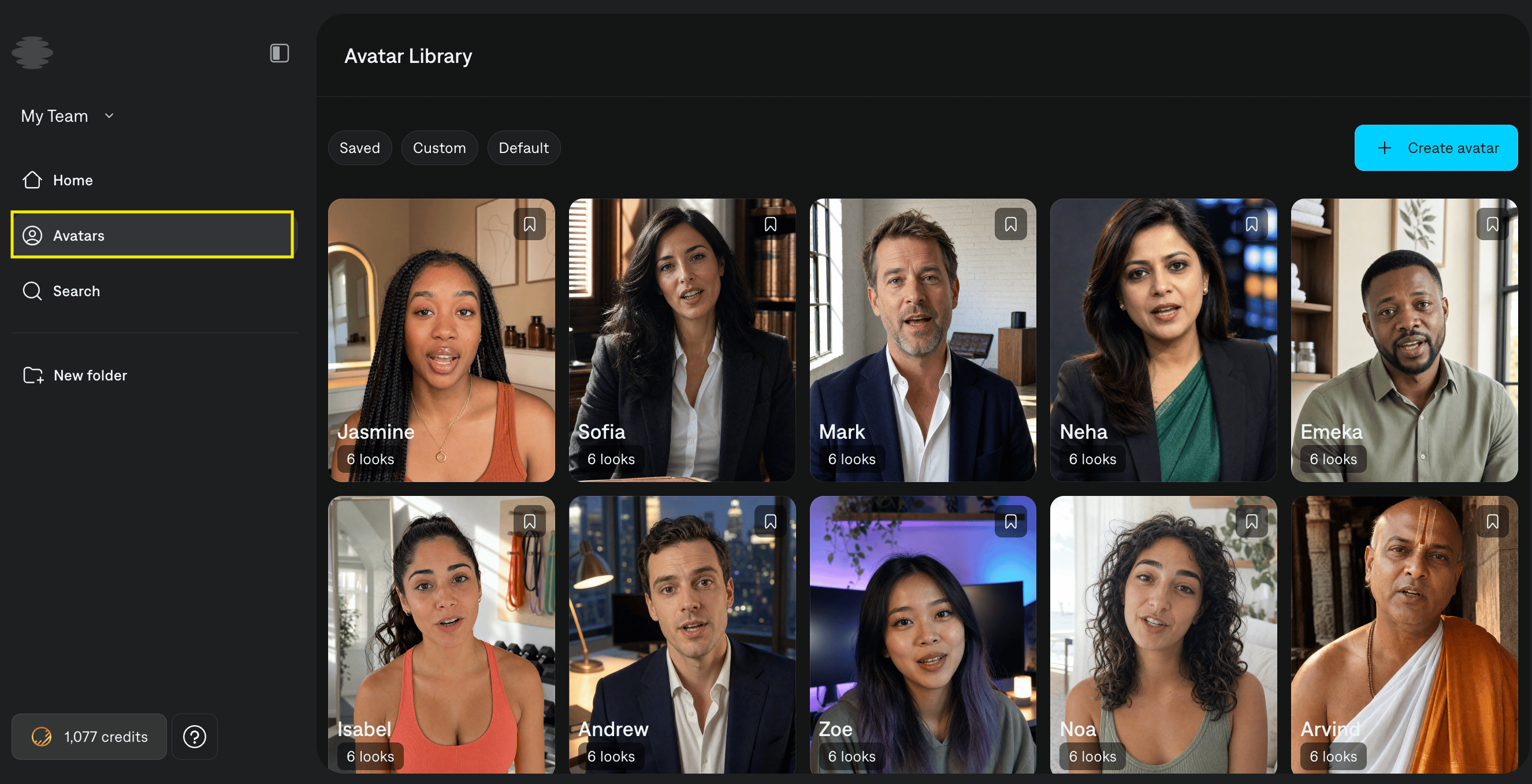
Open the Avatar library
Click the Avatar Library in the left sidebar to open the Avatars page. The Avatar library lists public avatar (available to everyone) and private avatars (avatars you created, visible only to you).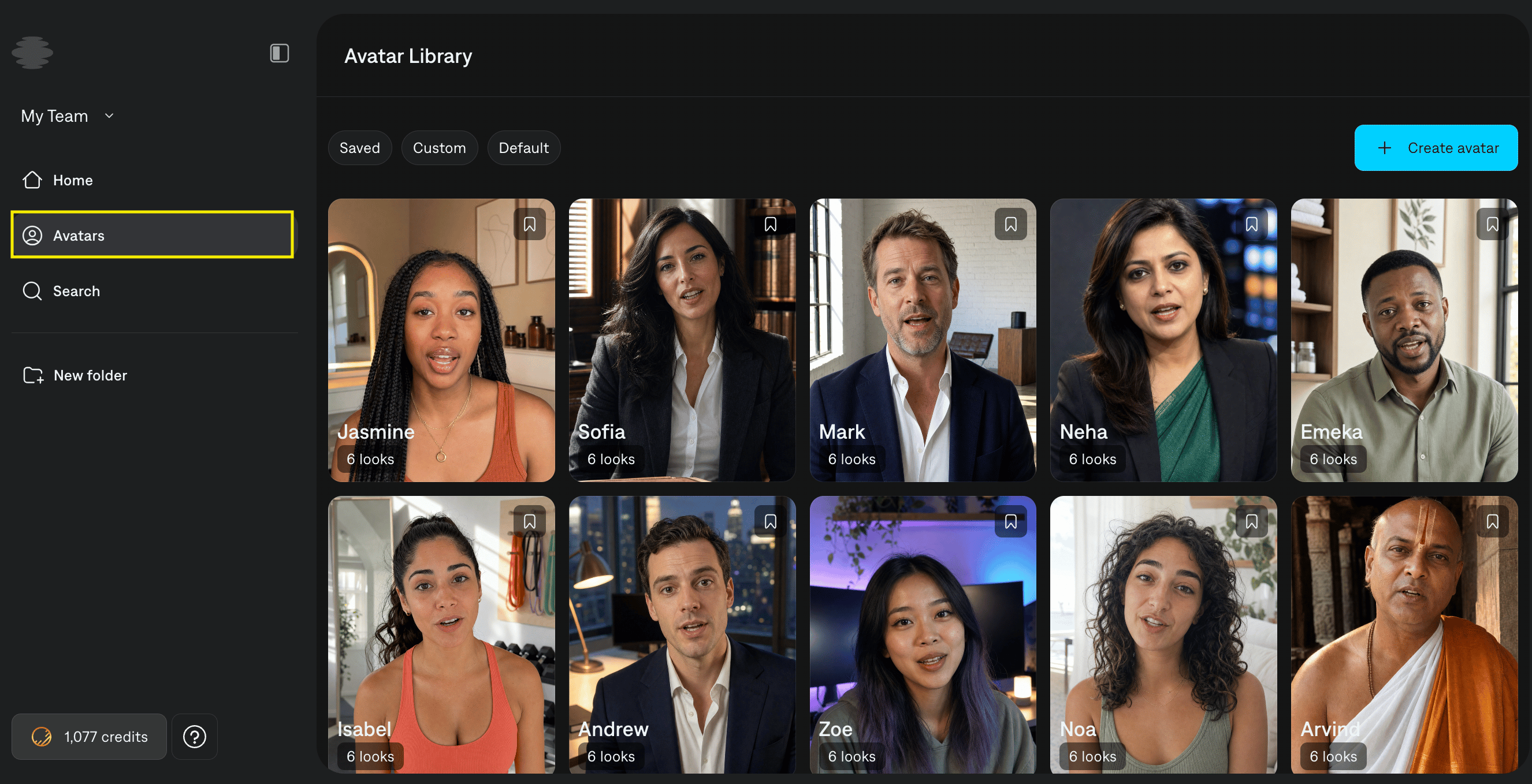
Create a custom avatar
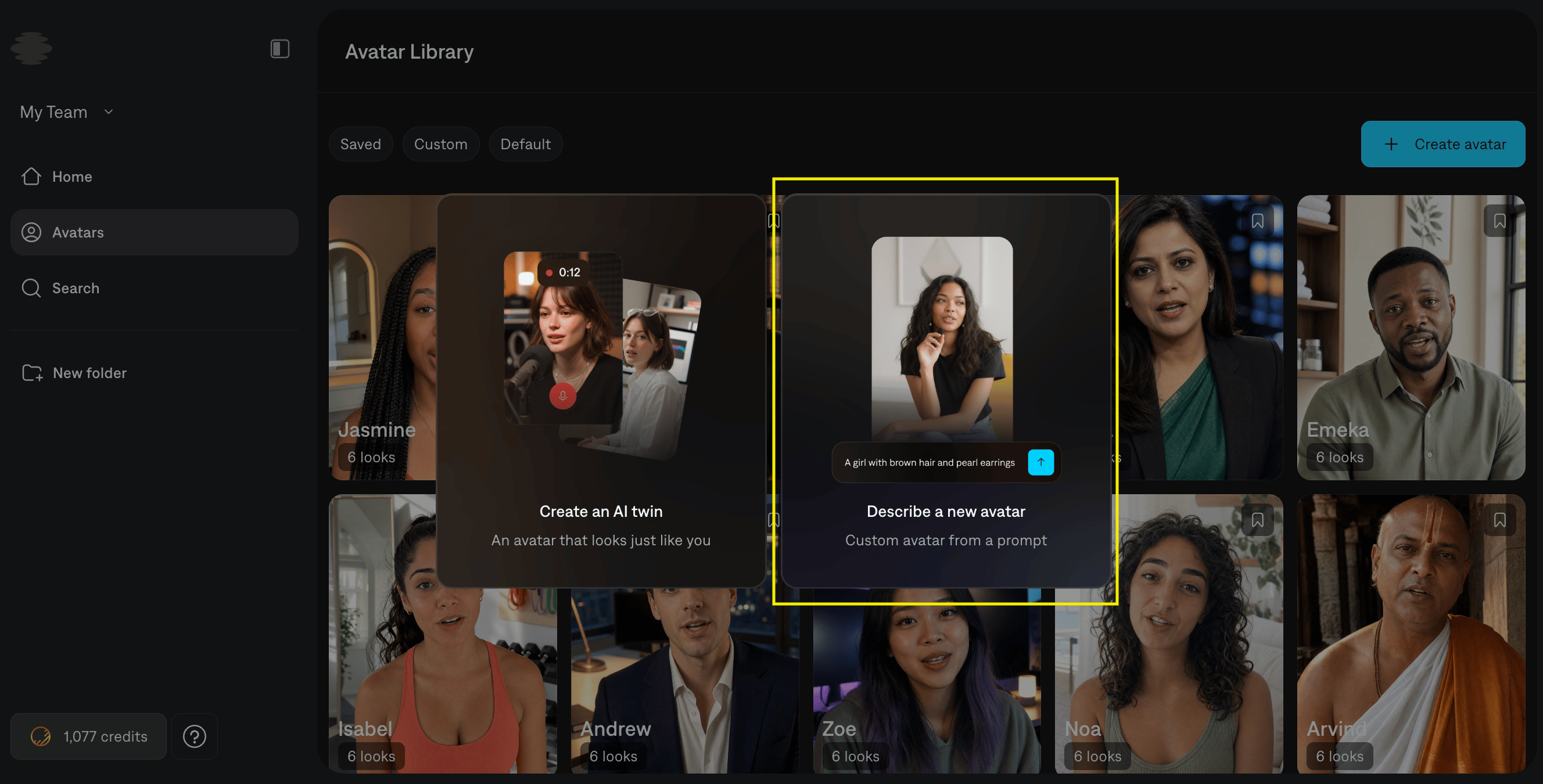
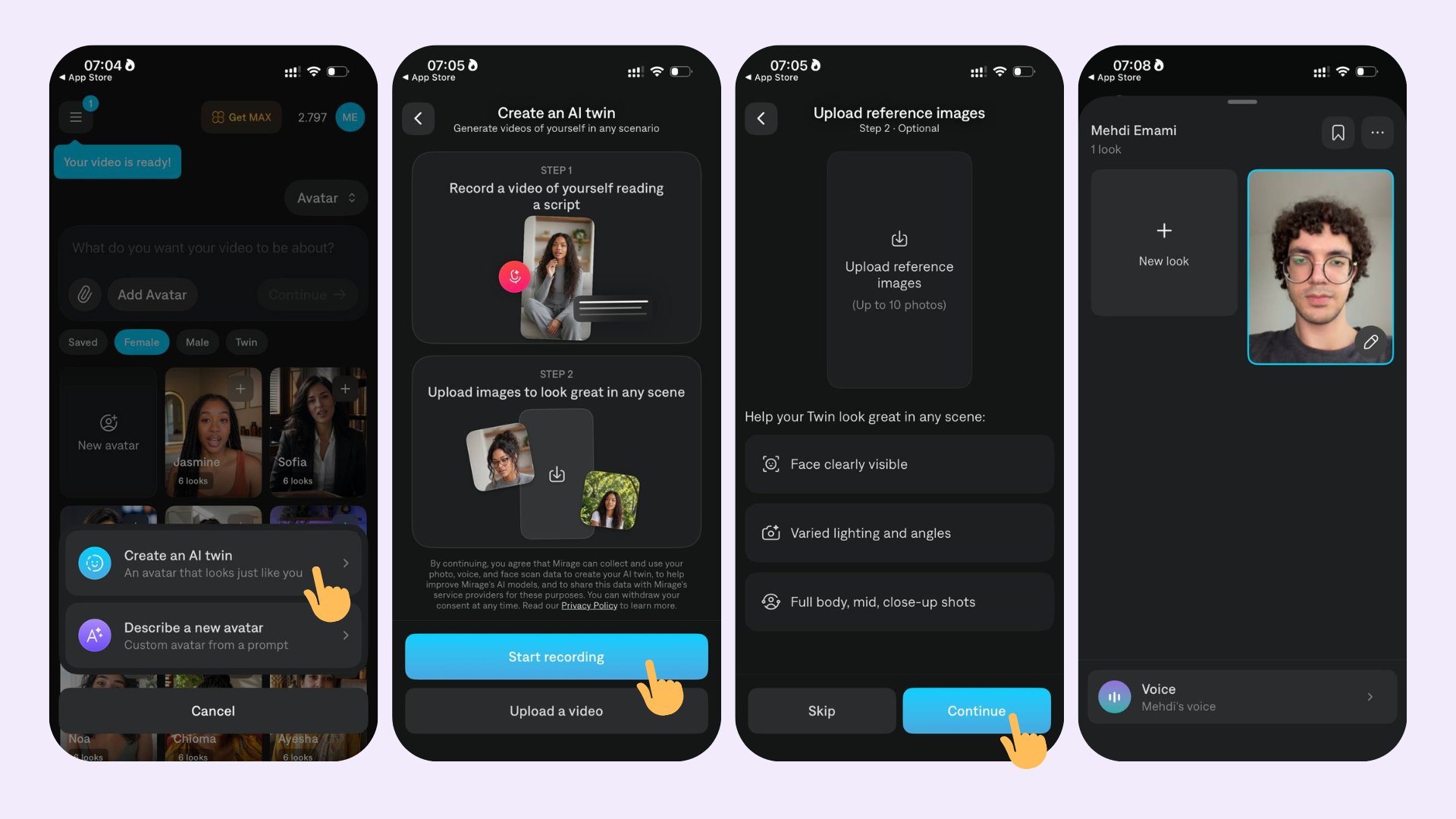
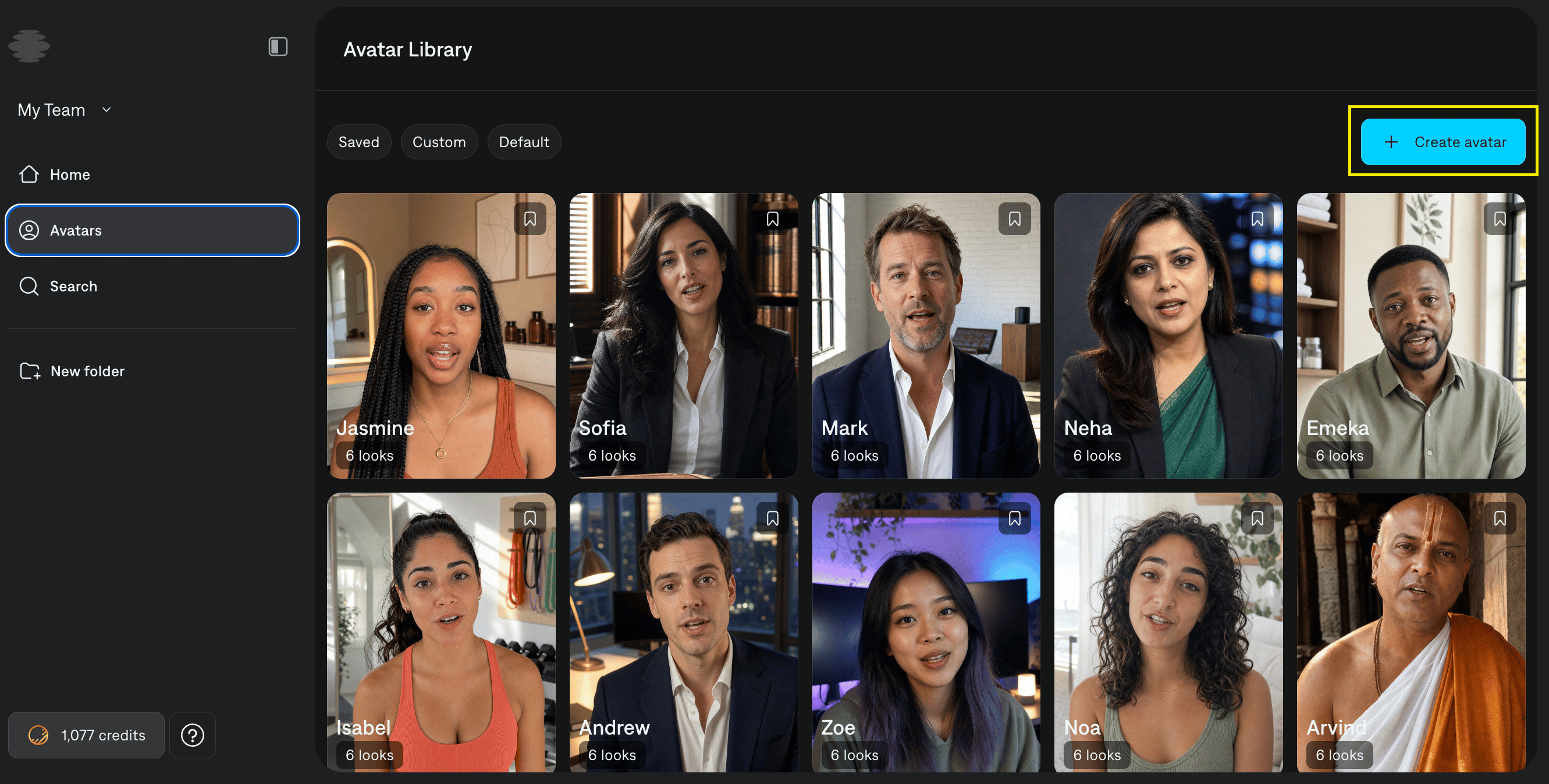
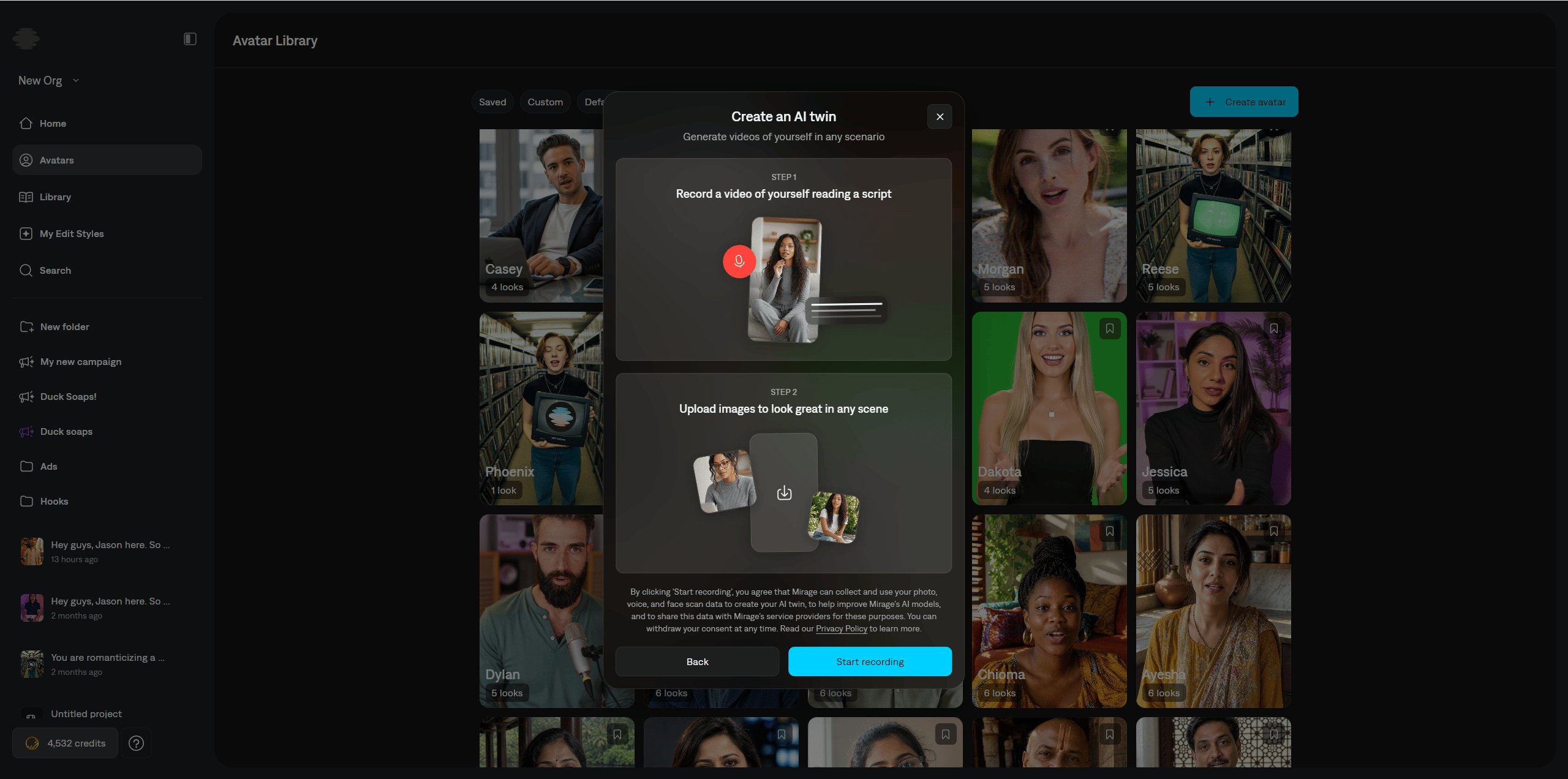
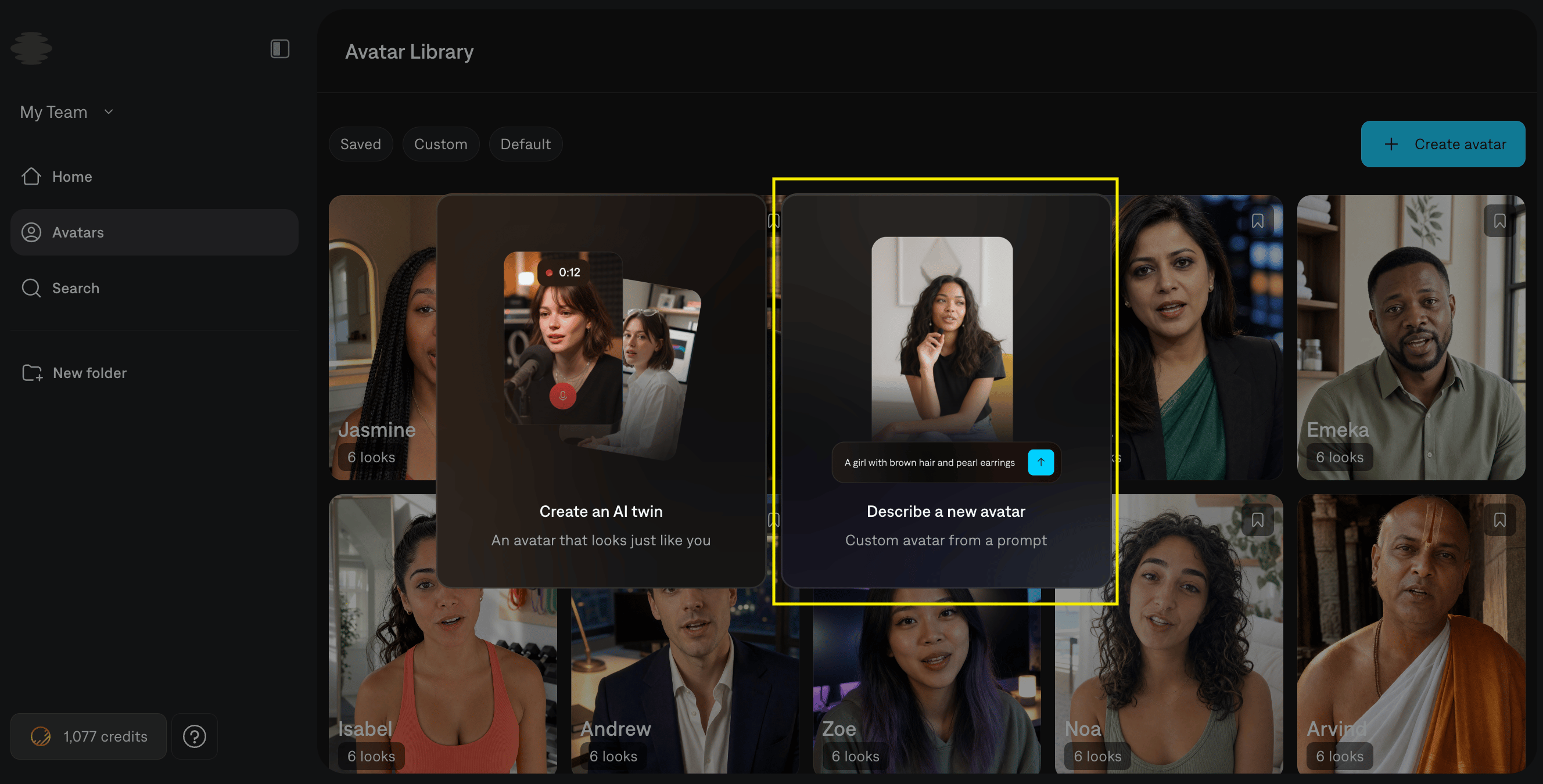
Click Create avatar. You can start in one of two ways:- Create an AI twin
- Describe a new avatar based on a prompt
Create an AI twin
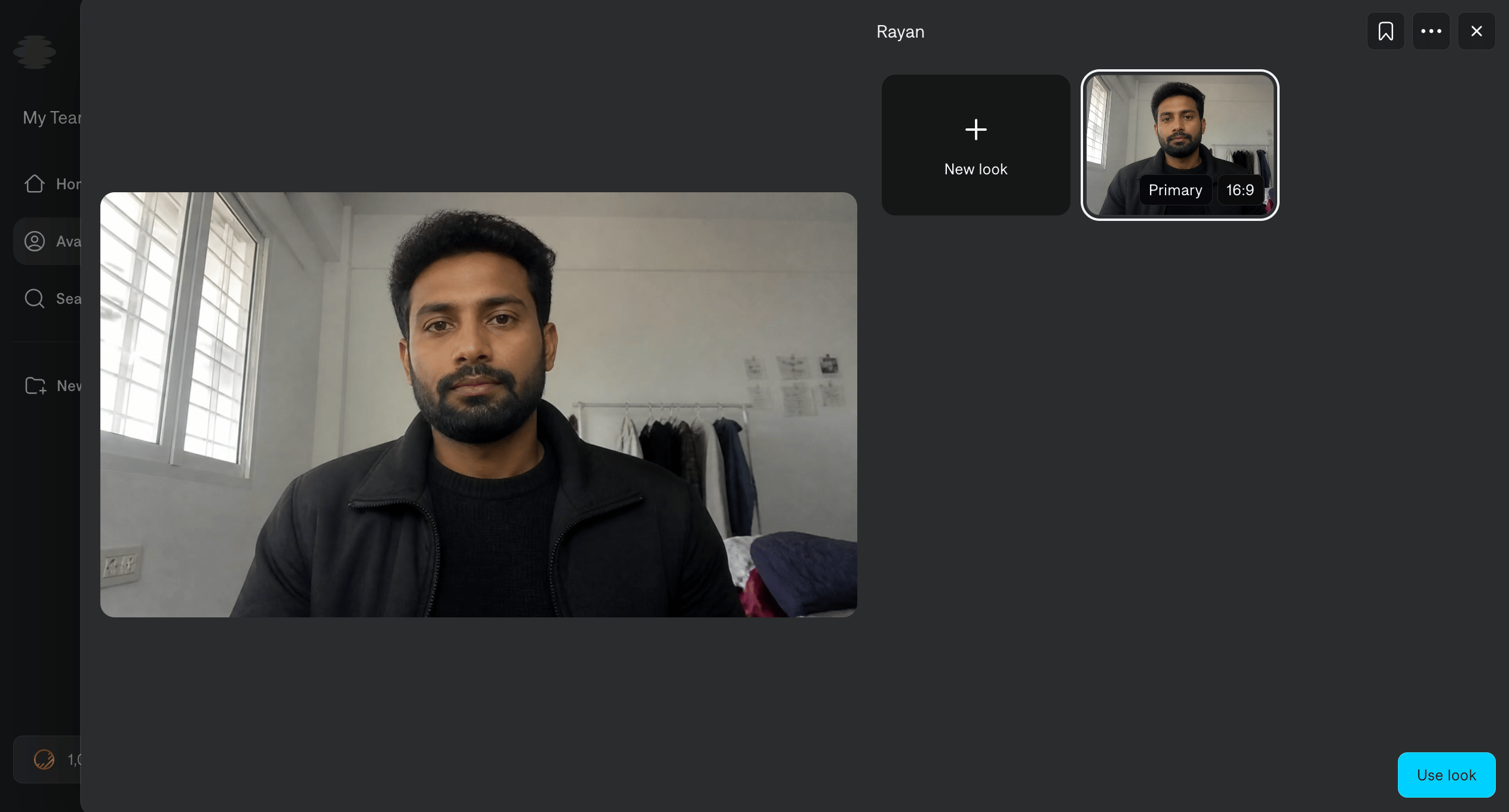
Record a short video of yourself reading the script that shows up on screen. It should show:- The face clearly
- The mouth open with teeth visible
- A mid or close-up shot
- Only one person in the frame
- A subject whose gender matches the speaker voice you plan to use
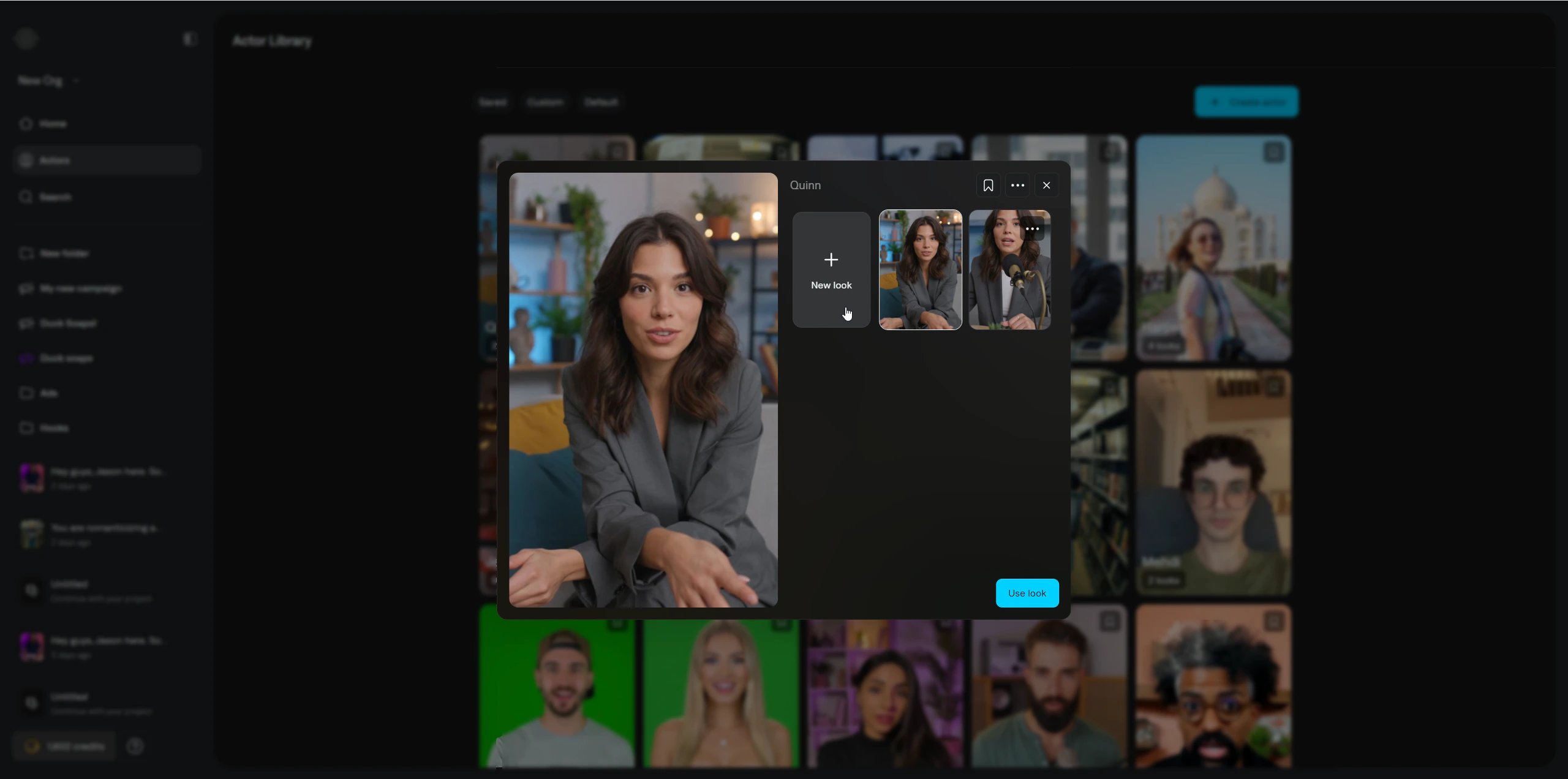
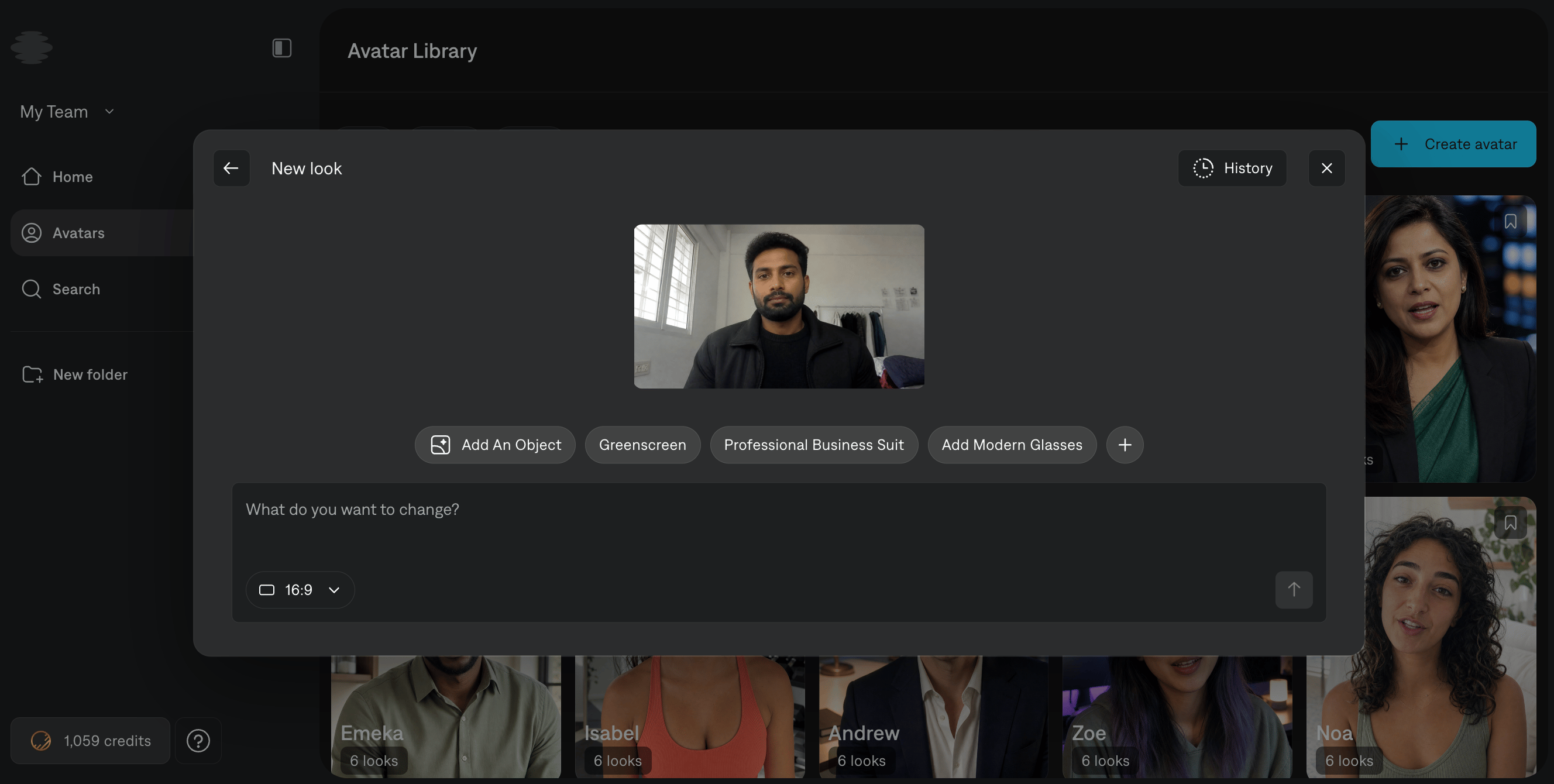
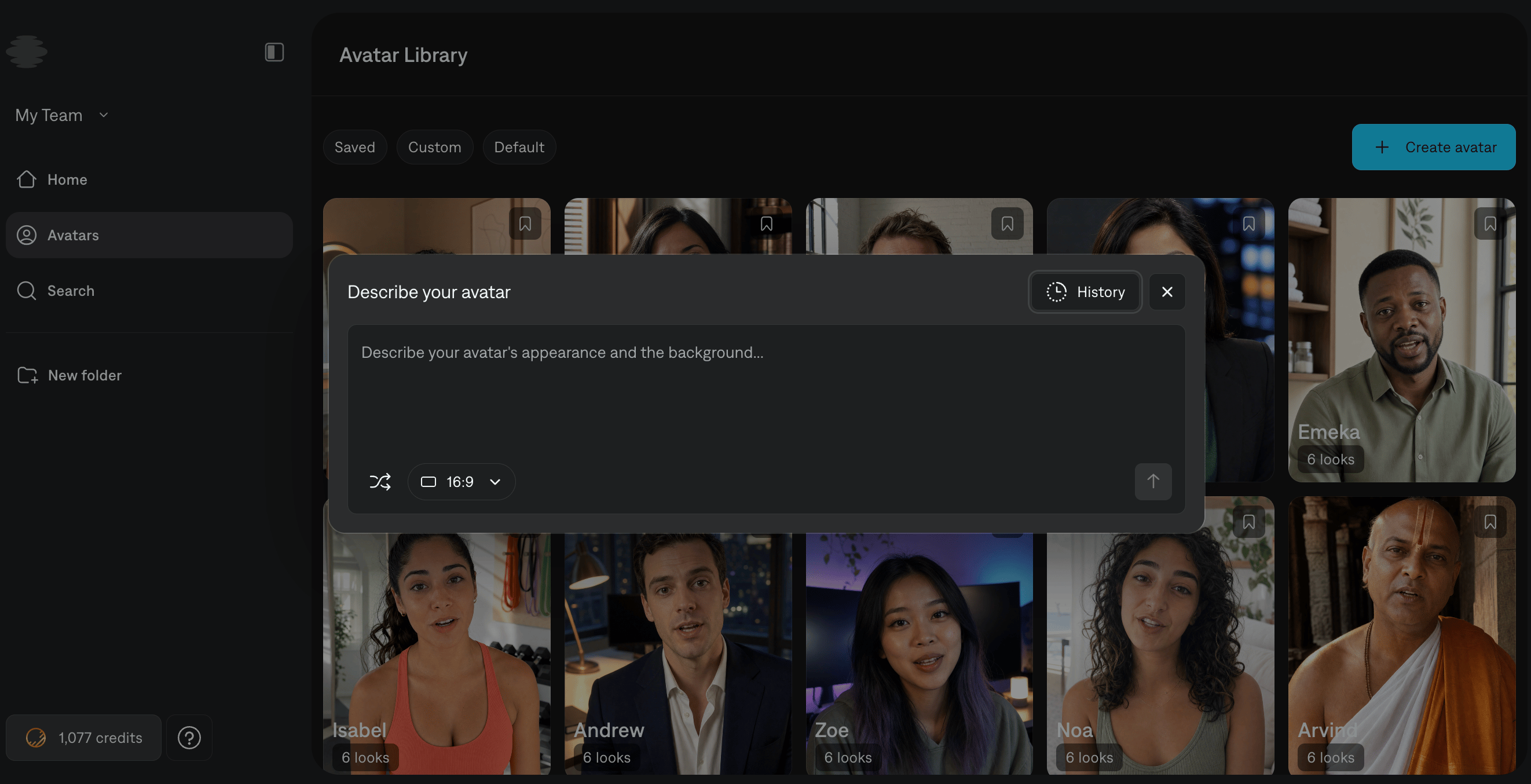
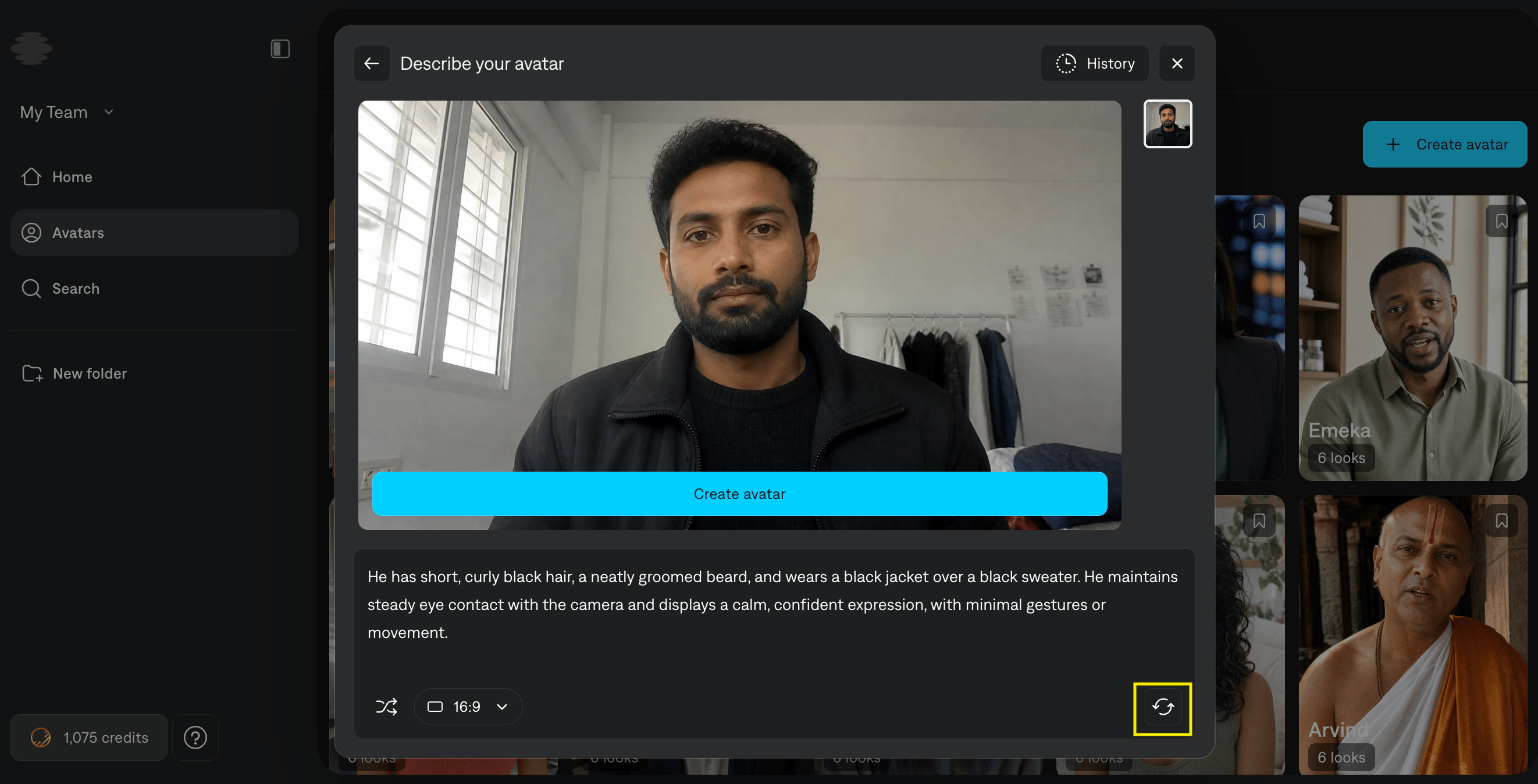
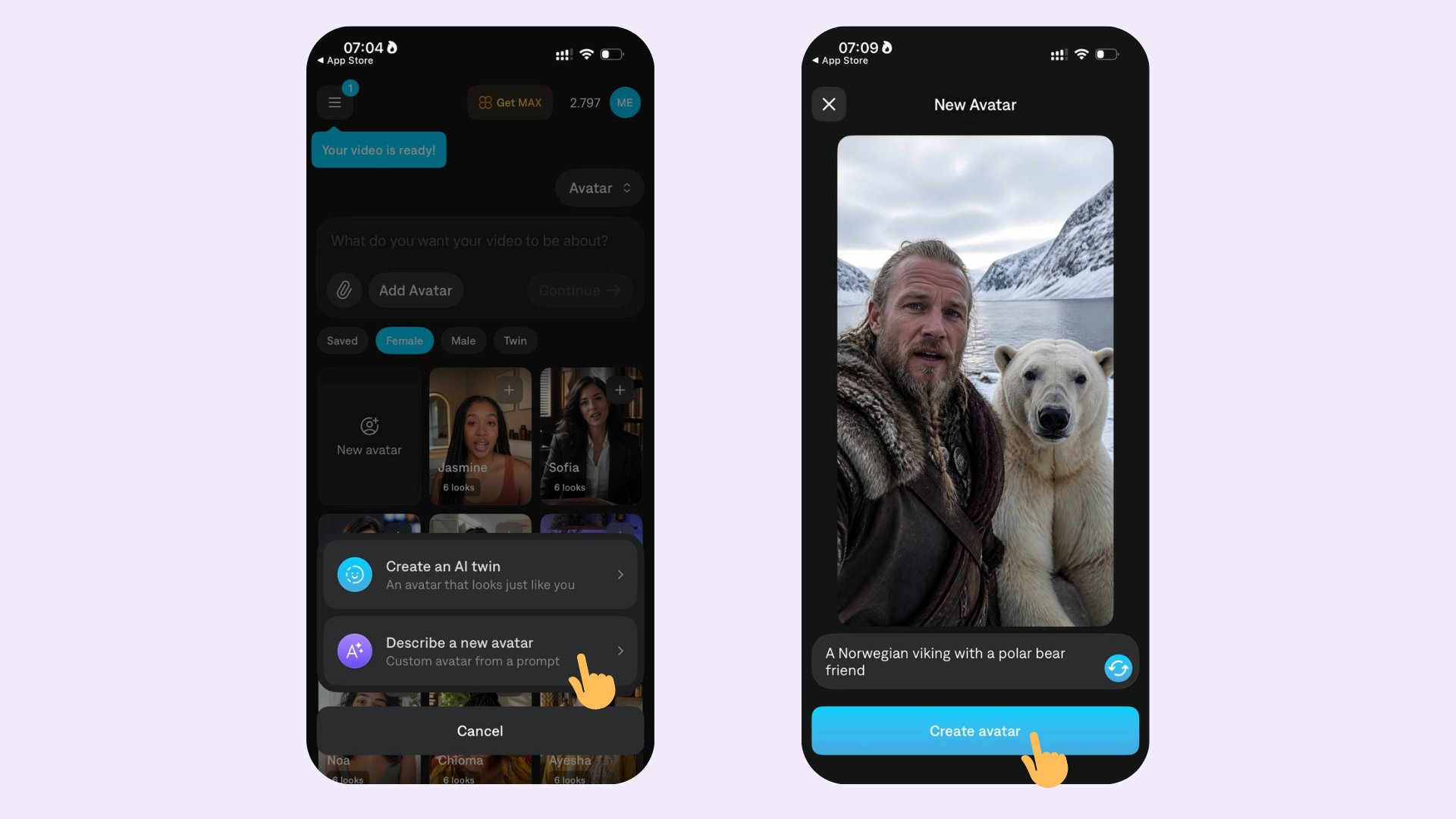
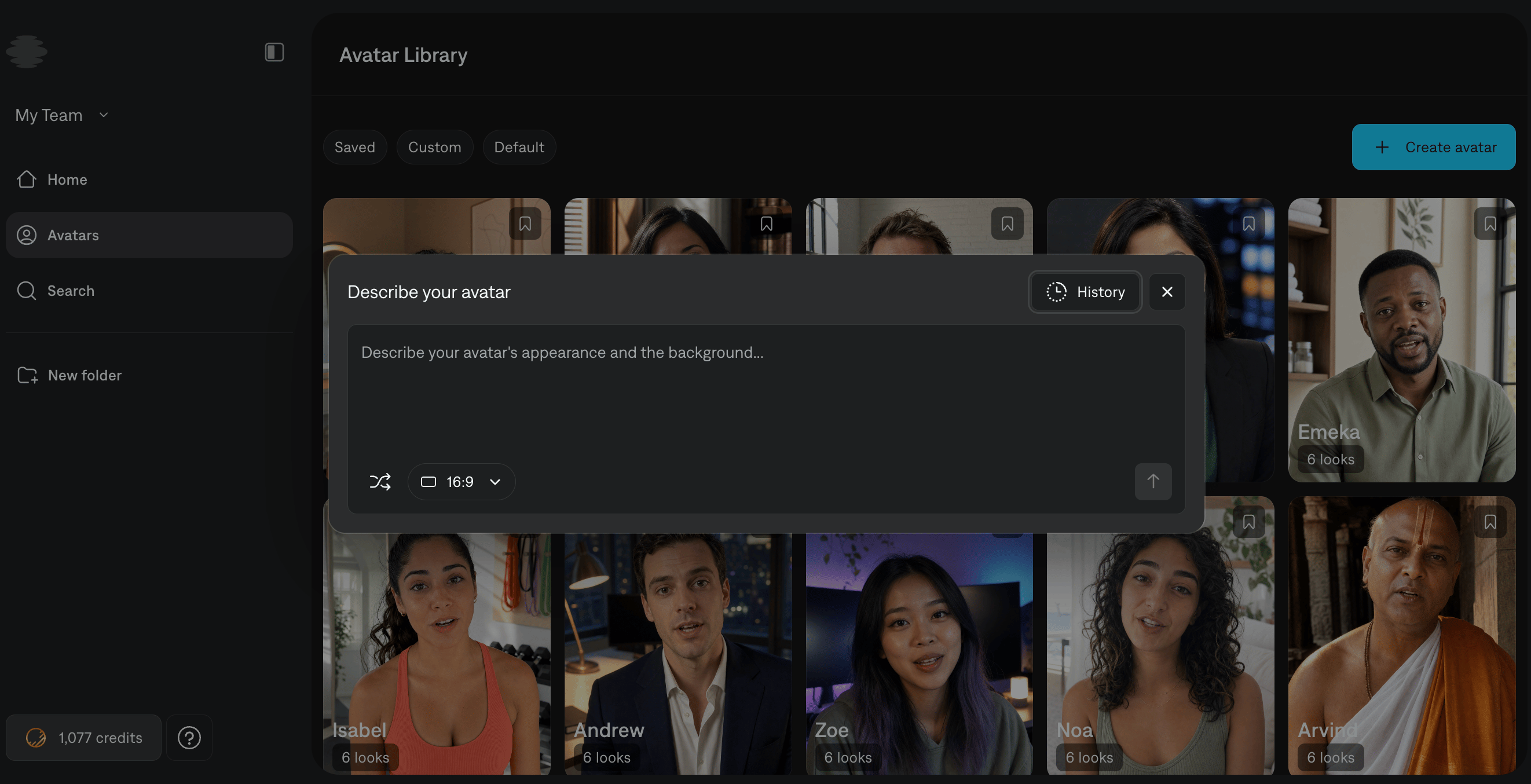
Create an avatar from a prompt
Click Create avatar, then choose Describe your avatar.