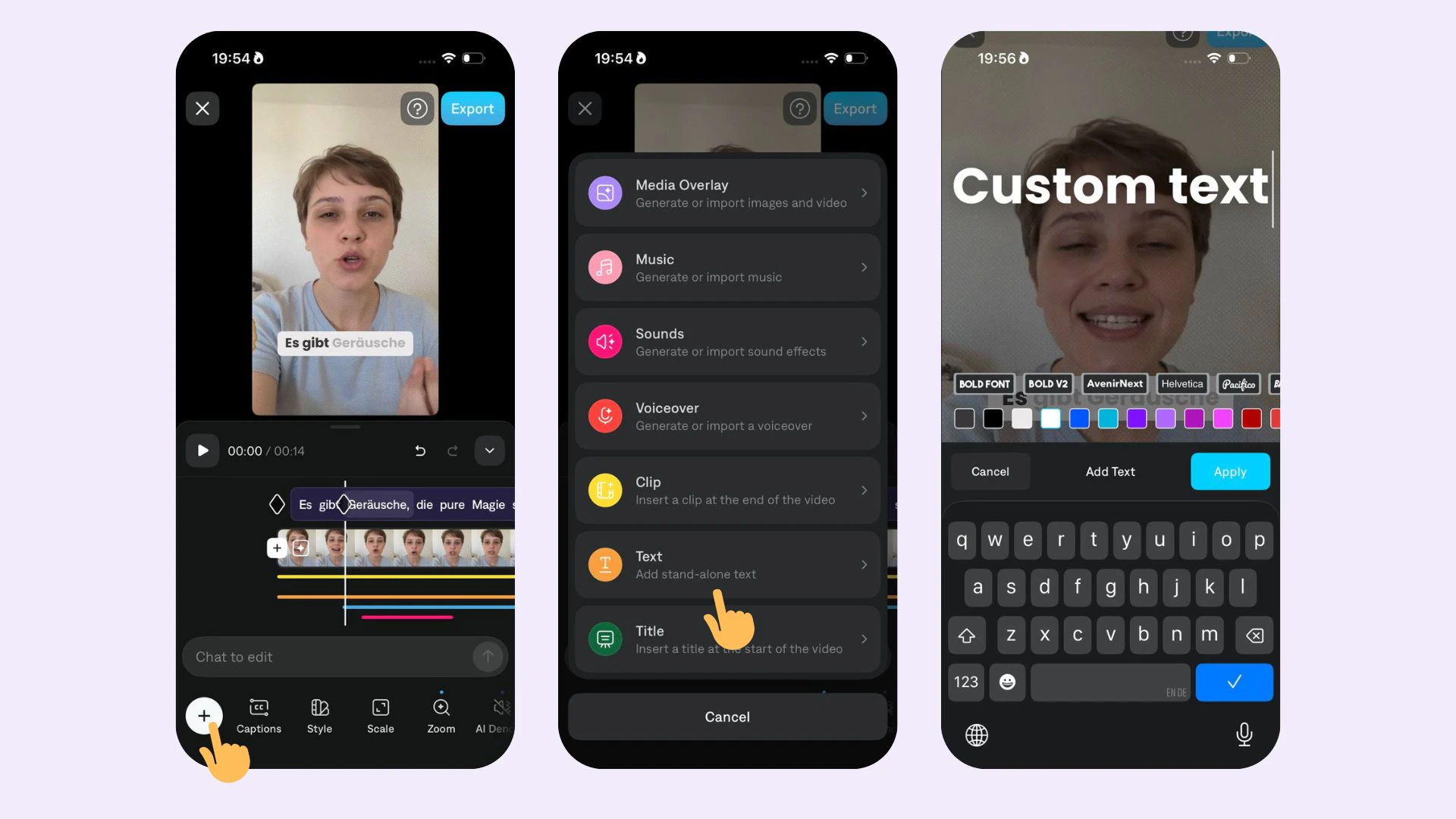
Add Static Text Overlays to Your Videos
How It Works
Add Text
To add text:
- Select Text.
- Select Add
- Type your text
- Select Apply
Edit Text
To edit text, choose from the following options:
- Reposition: Click or use one finger to move to a new location
- Resize: Click on the outer edge or use two fingers to pinch smaller or larger
- Rotate: Click on the outer edge or use two fingers to rotate clockwise or counter-clockwise
- Move on the timeline: Click and drag or use one finger to move earlier or later on the timeline
- Adjust duration: Click or drag either end of the text bar to make it smaller or larger
- Edit spelling, font, or color: Select Edit
- Delete: Select Delete or Delete All
Last modified on July 29, 2026