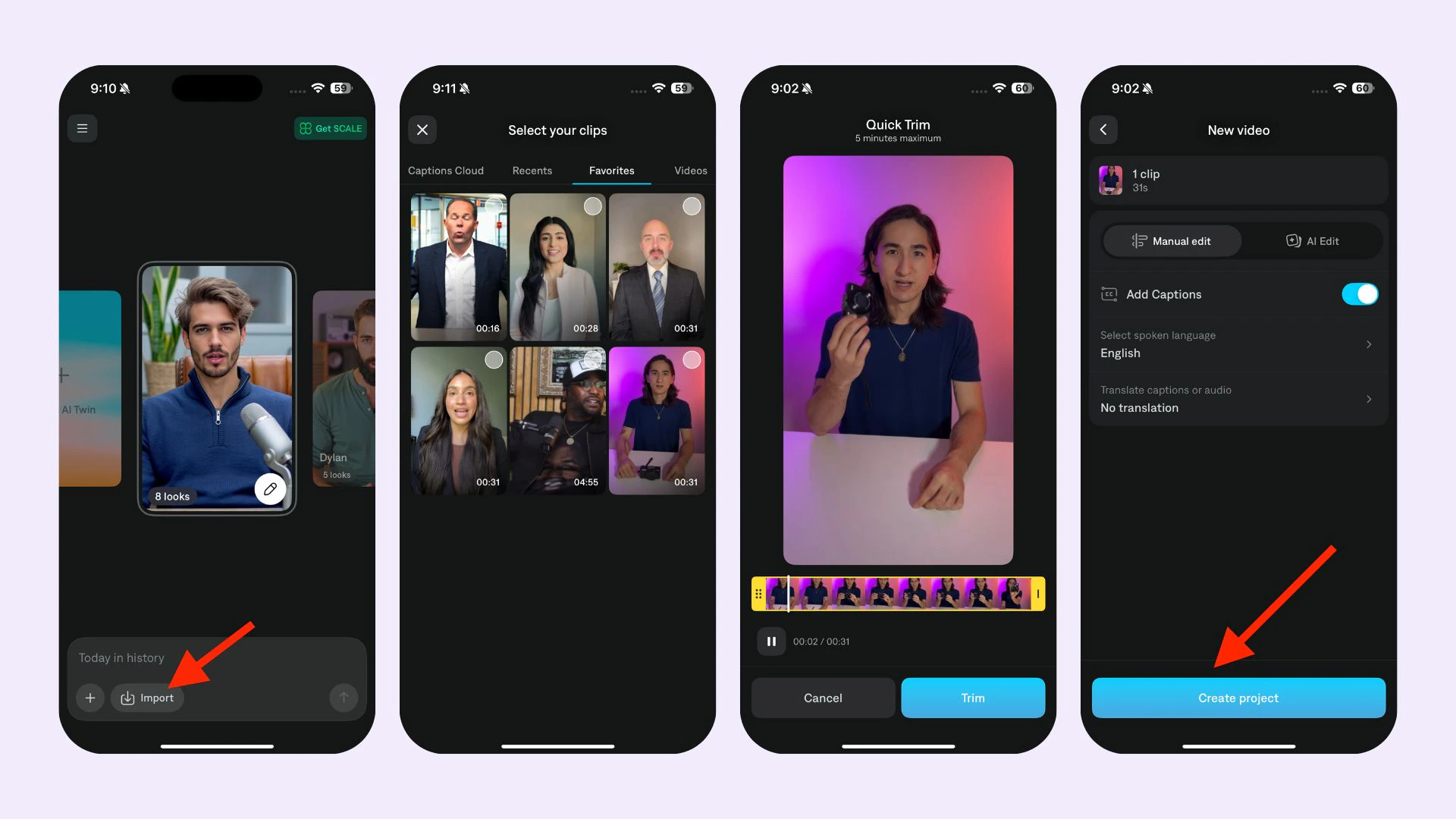
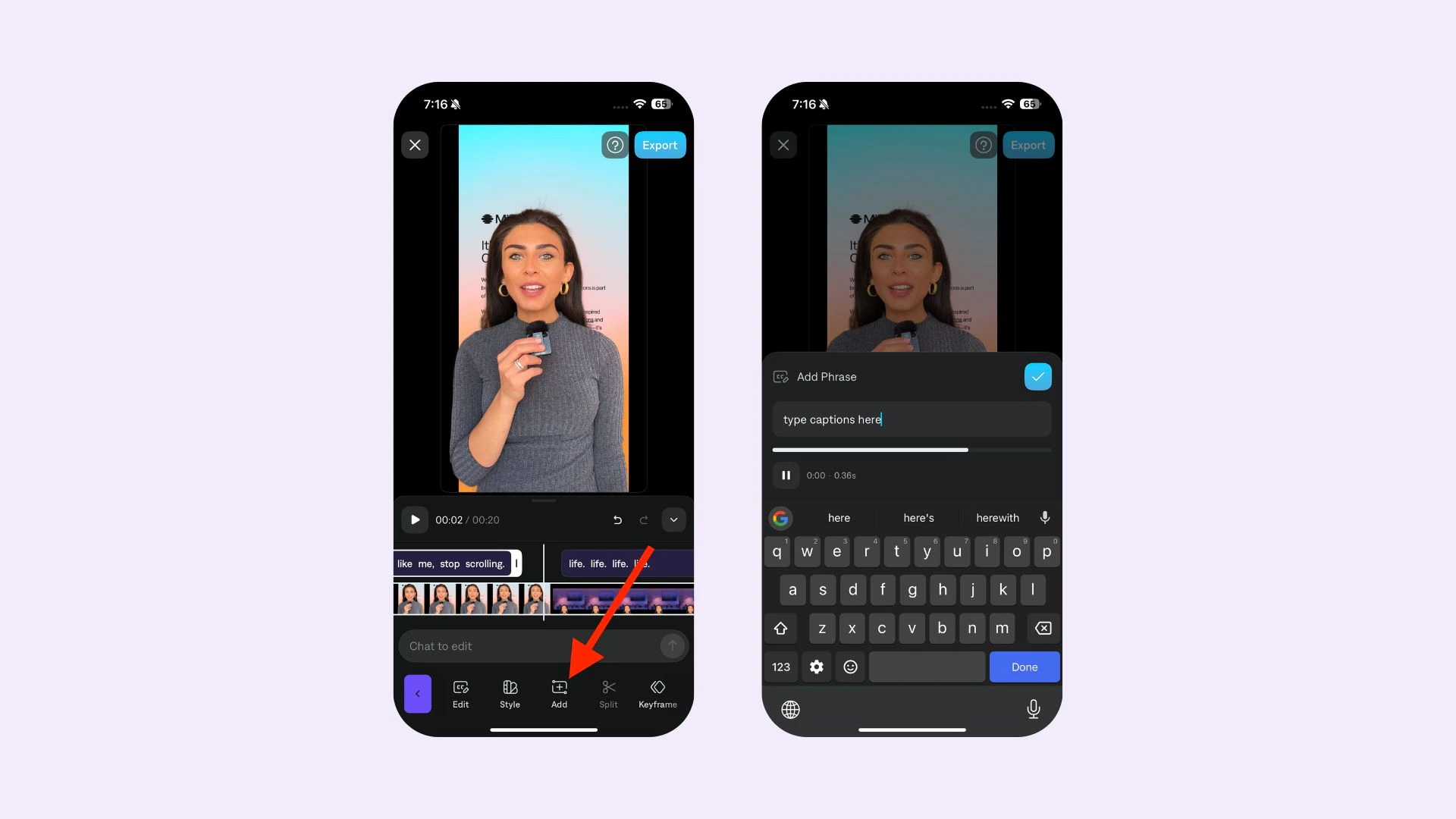
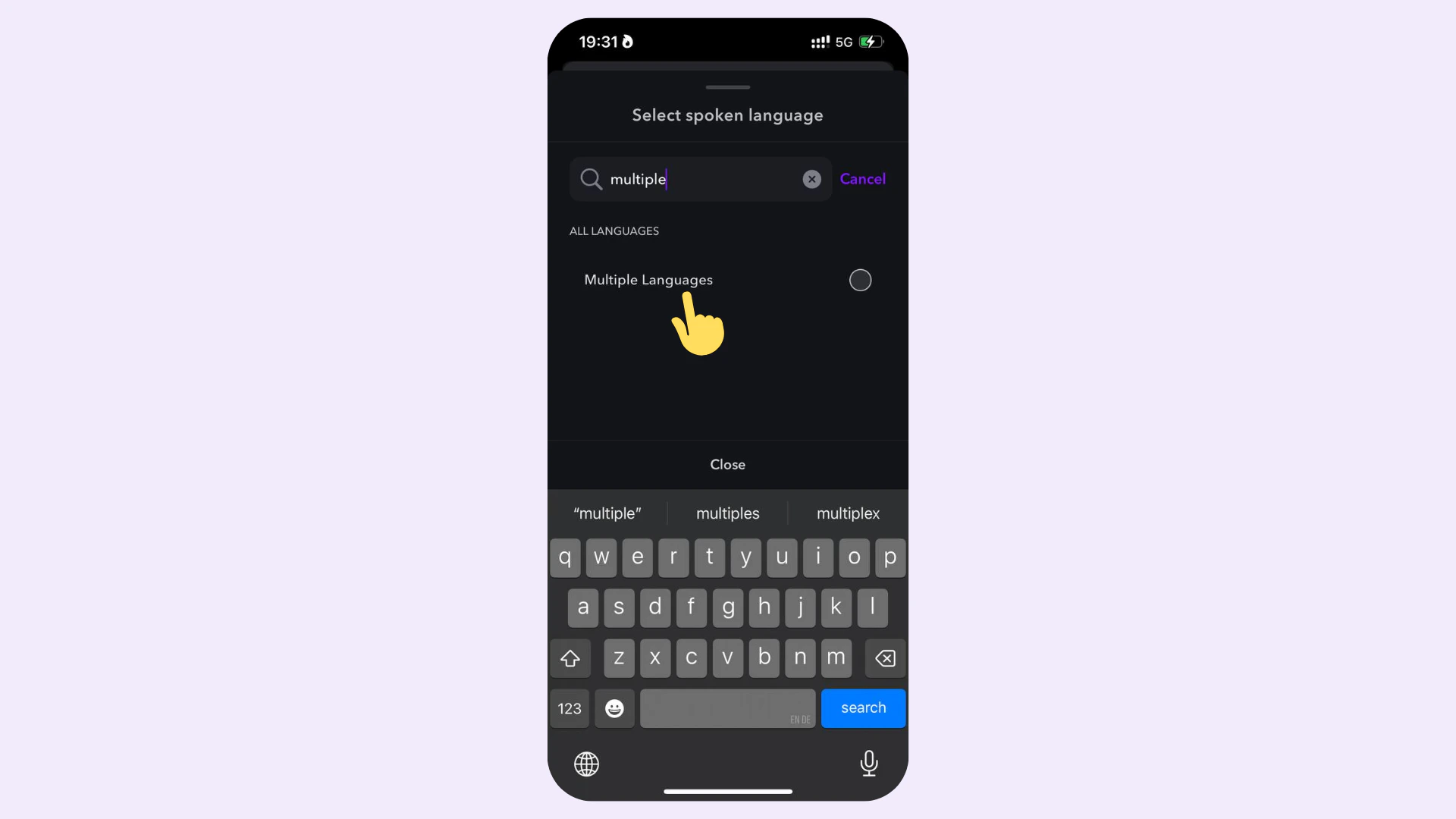
Add captions on iOS or on Captions on Web. Generate captions with AI, add them manually on mobile, or walk through the web editor flow from upload to export.
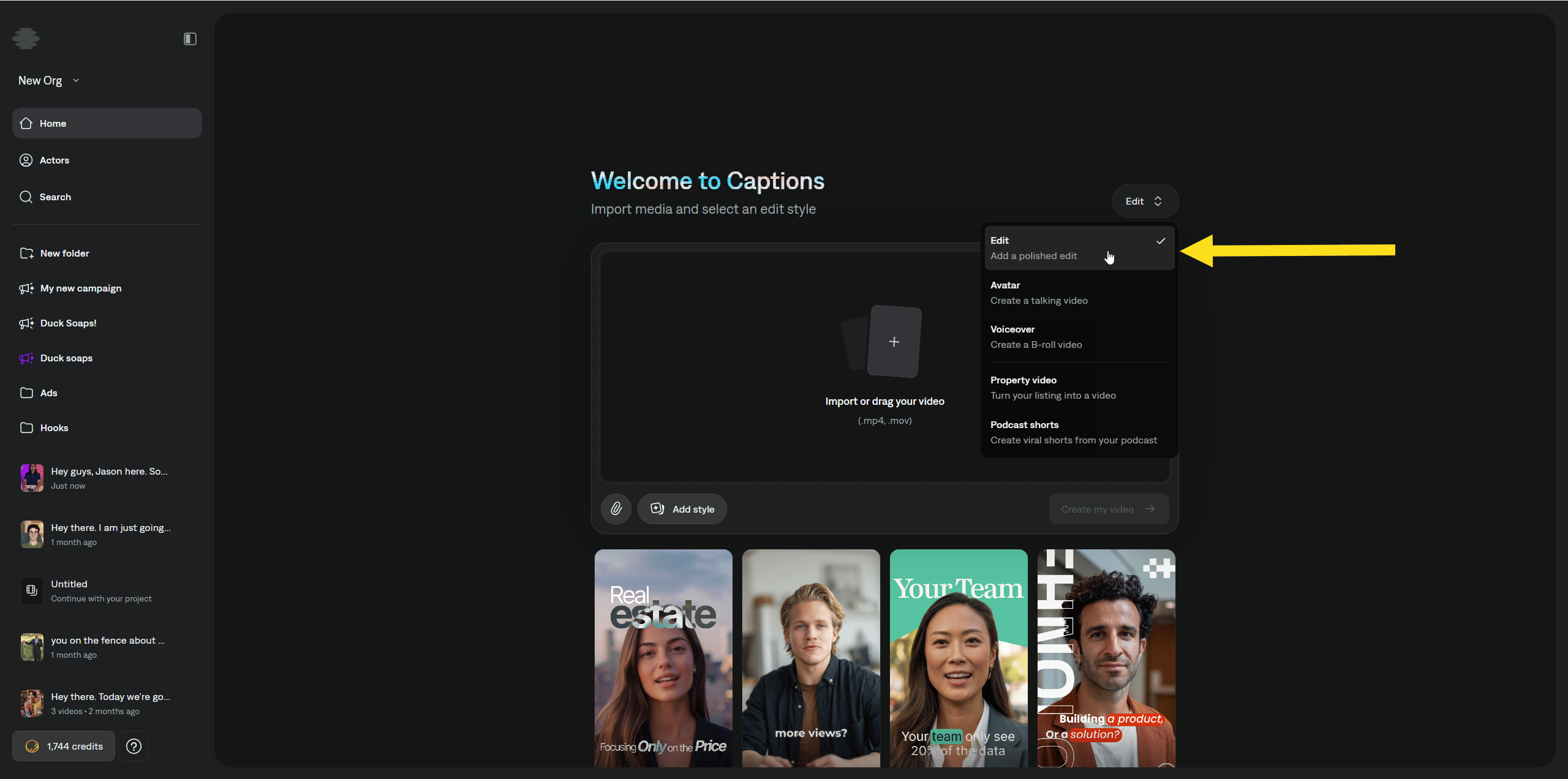
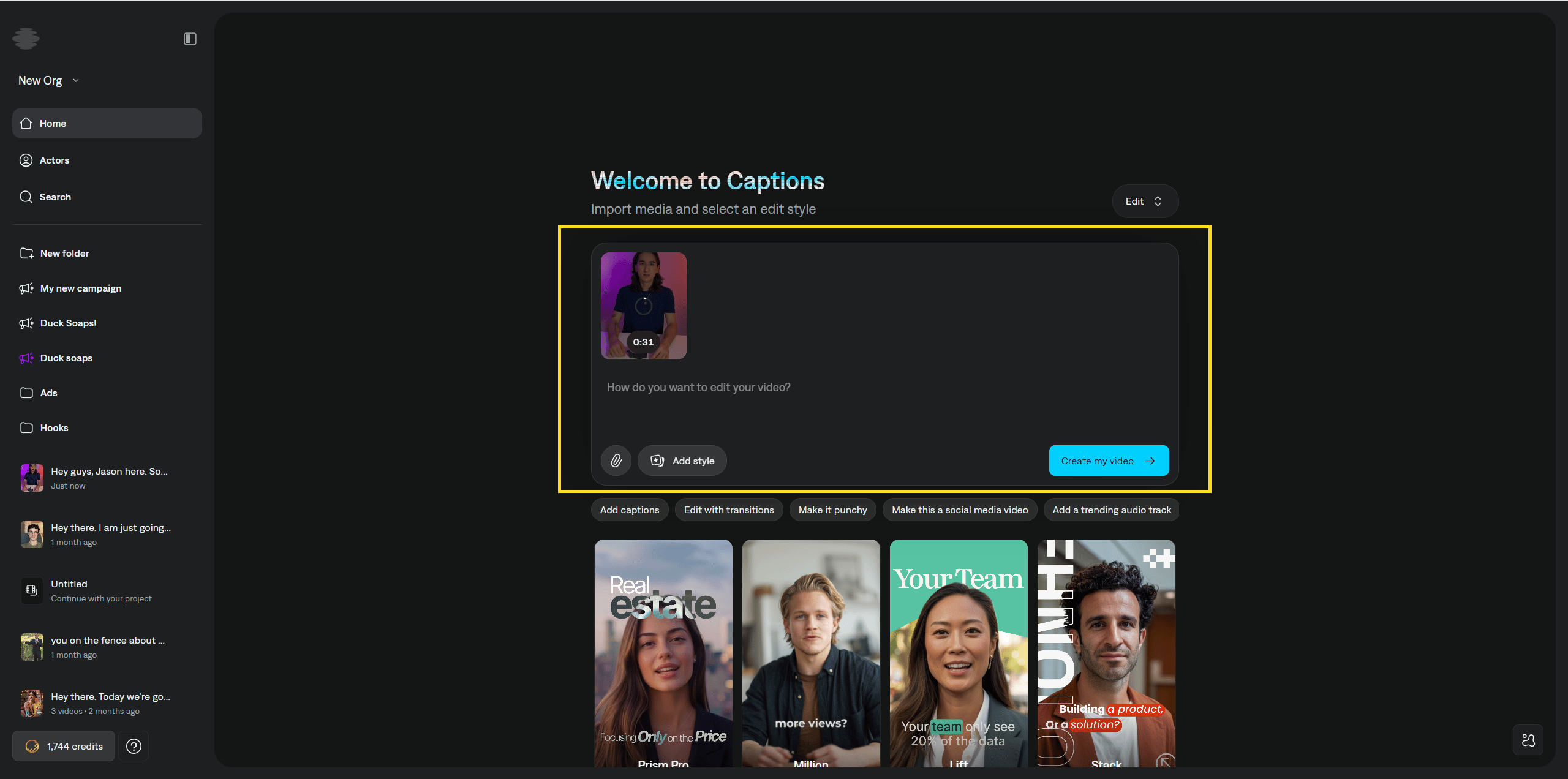
Add professional captions to any video. You start from the Home page, walk through upload and style choices, then create a project you can open to review and refine.
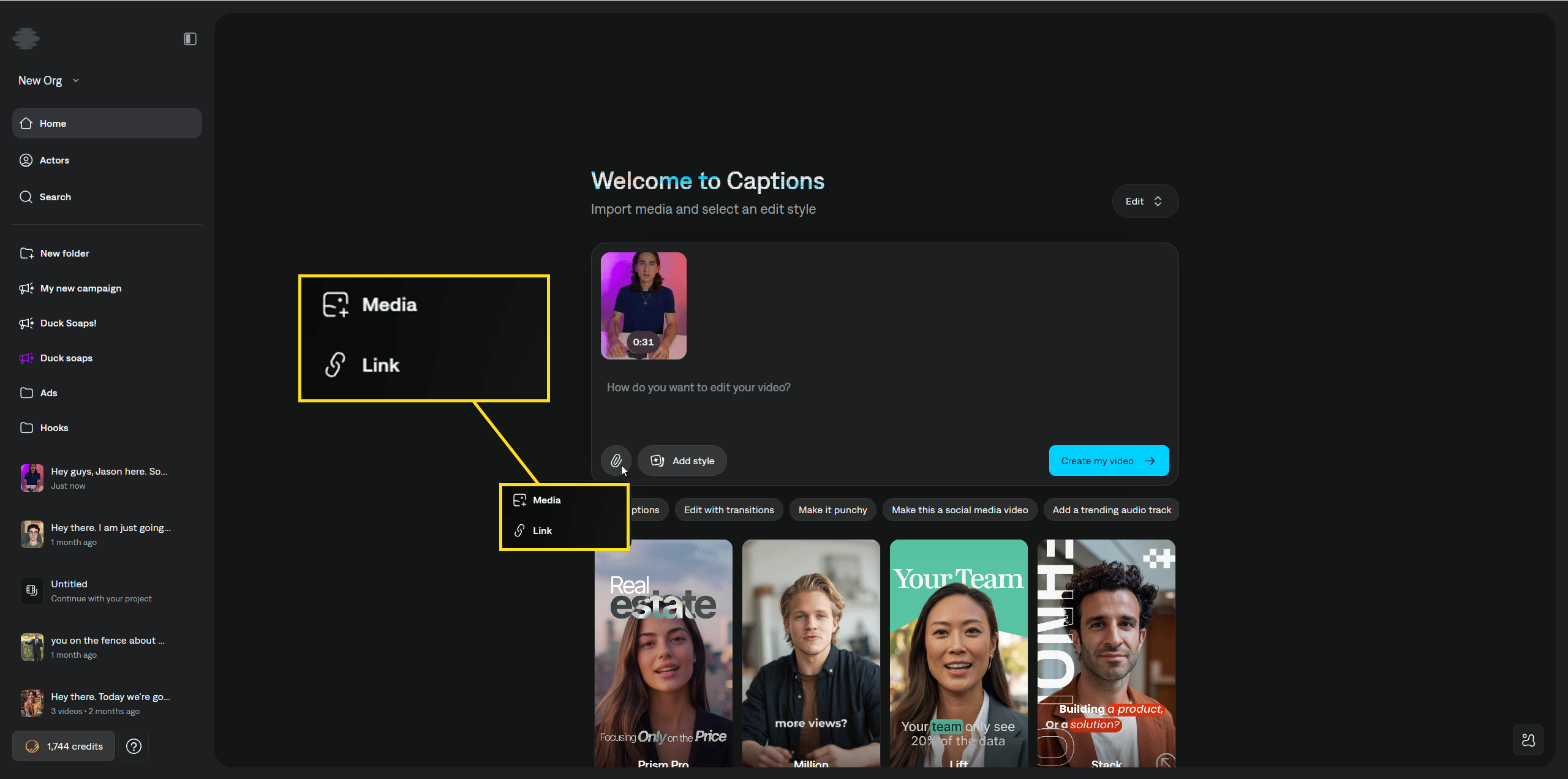
You can manually add media such as images and videos to use in the edit. You can also paste links (for example, links to a product page) as reference for editing the video.
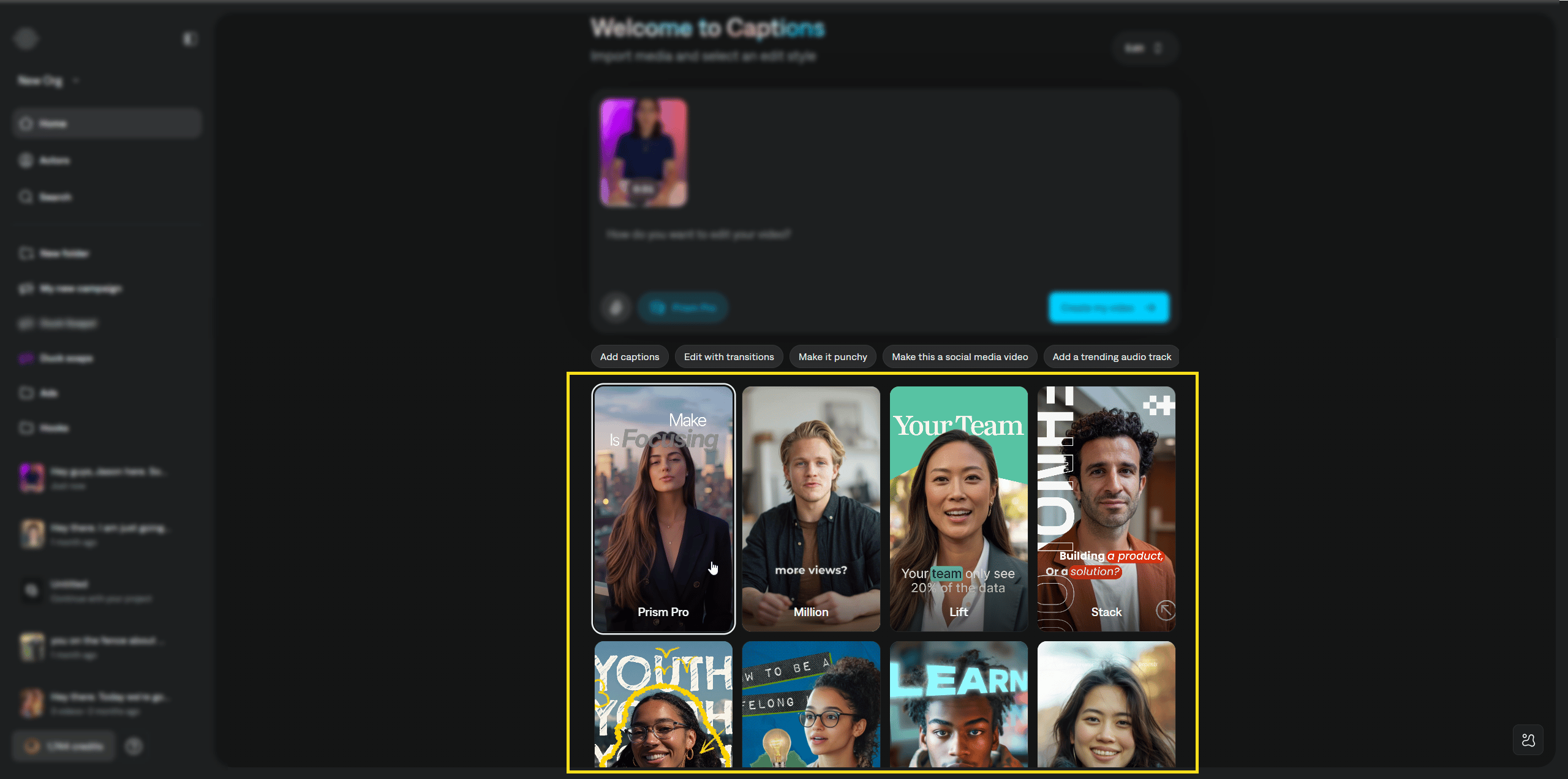
Open the styles library and select an editing style. Right now the available styles are AI Edit styles. They are premium styles and use more credits than a simple captions-only flow. In the future, the product may support a path that only generates simple captions without AI editing.
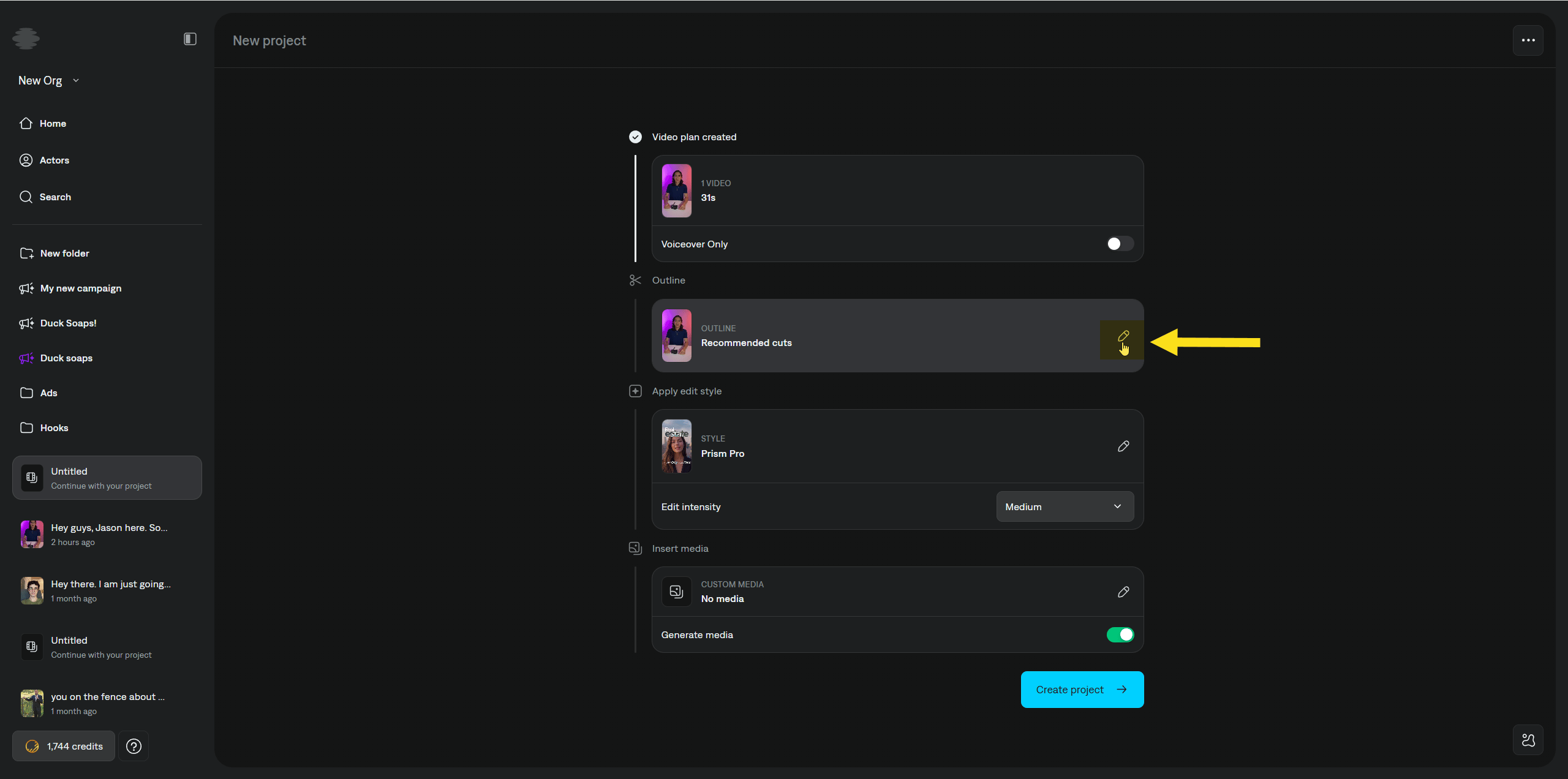
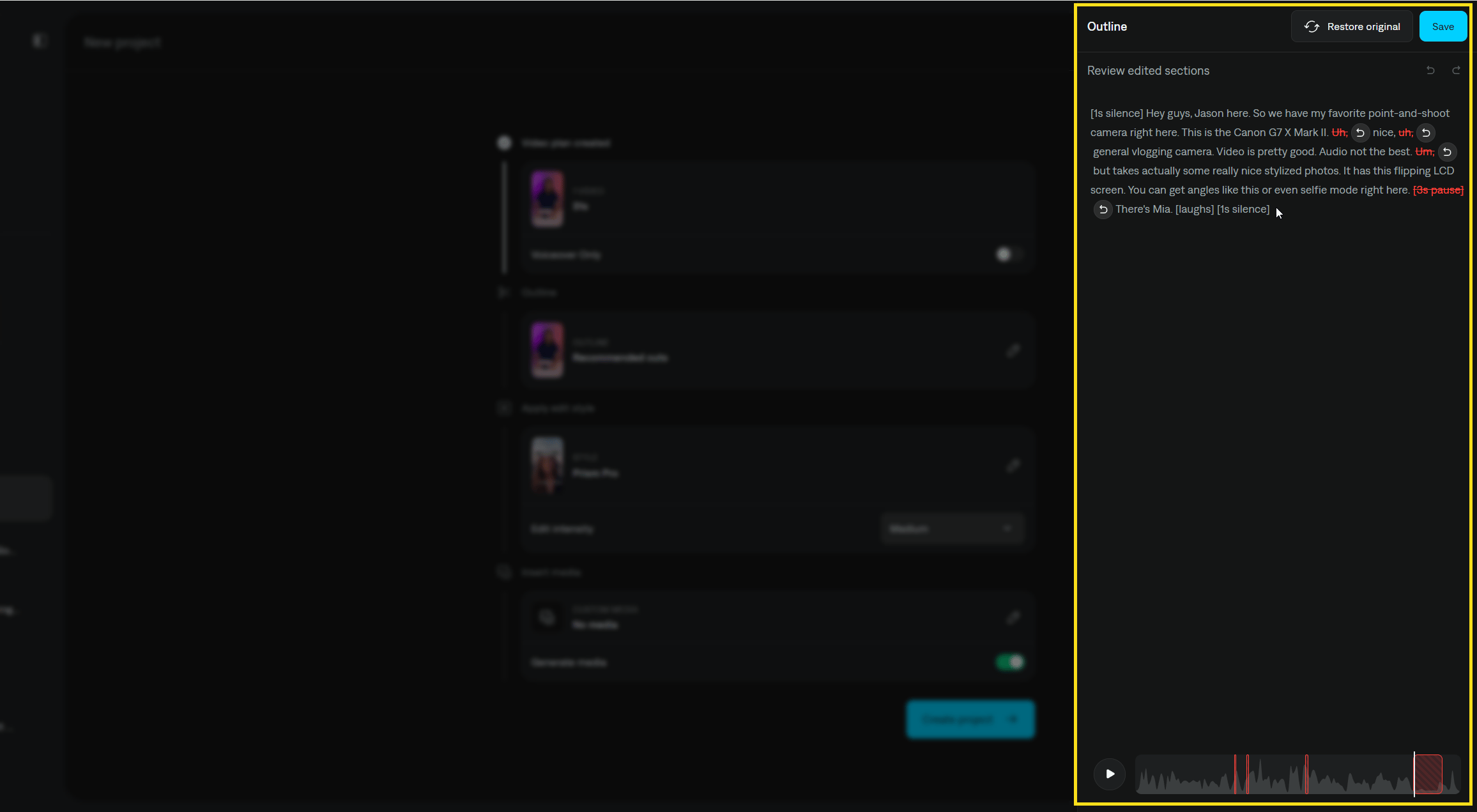
In the Outline section, review recommended cuts. Captions detects pauses such as filler sounds (for example, “um” and “hmm”) and can remove them from both the audio and the outline.
To keep the original audio and outline without those cuts, click Restore original.
To undo cuts one at a time, click Revert on each cut you want to keep.
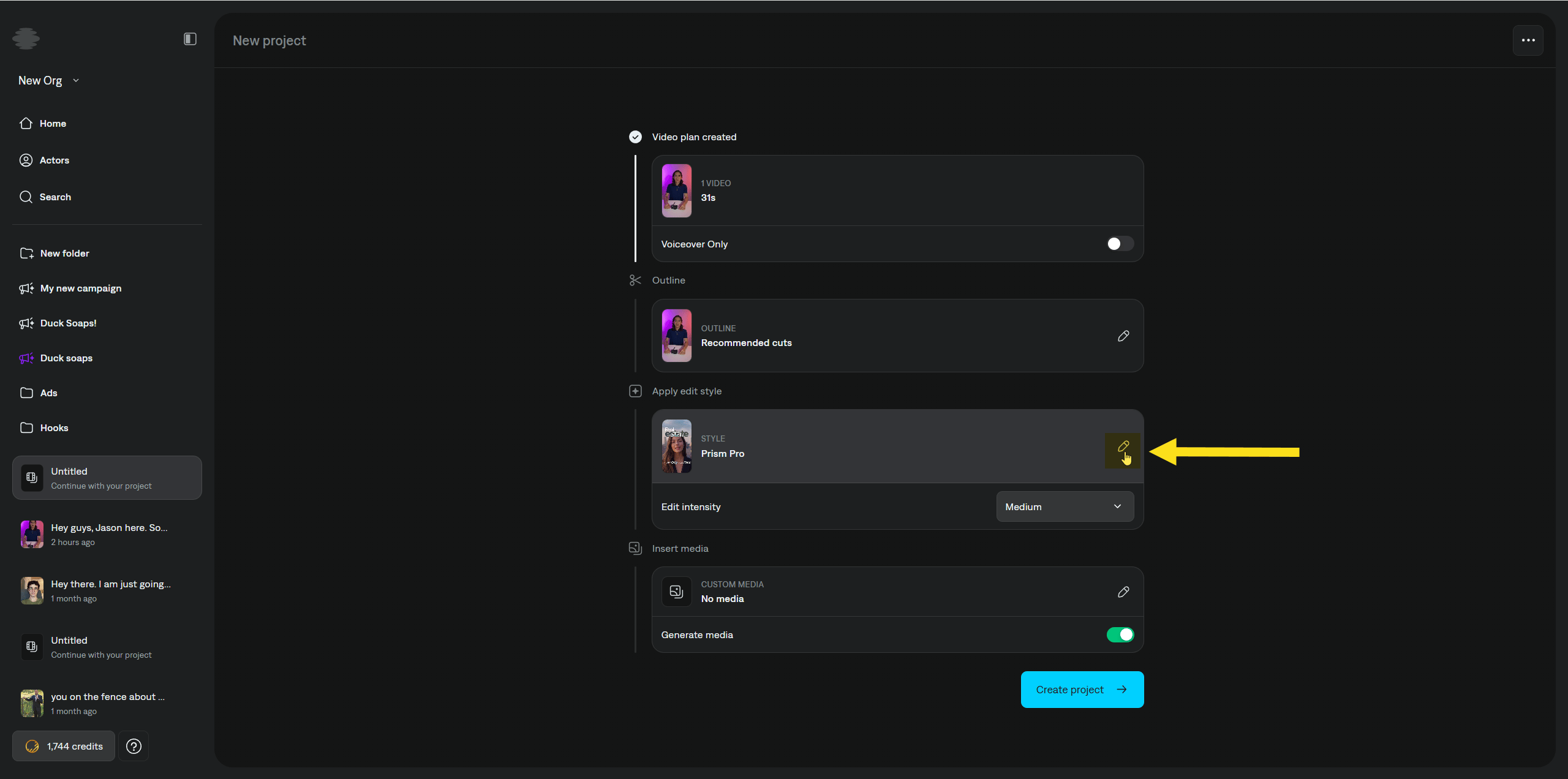
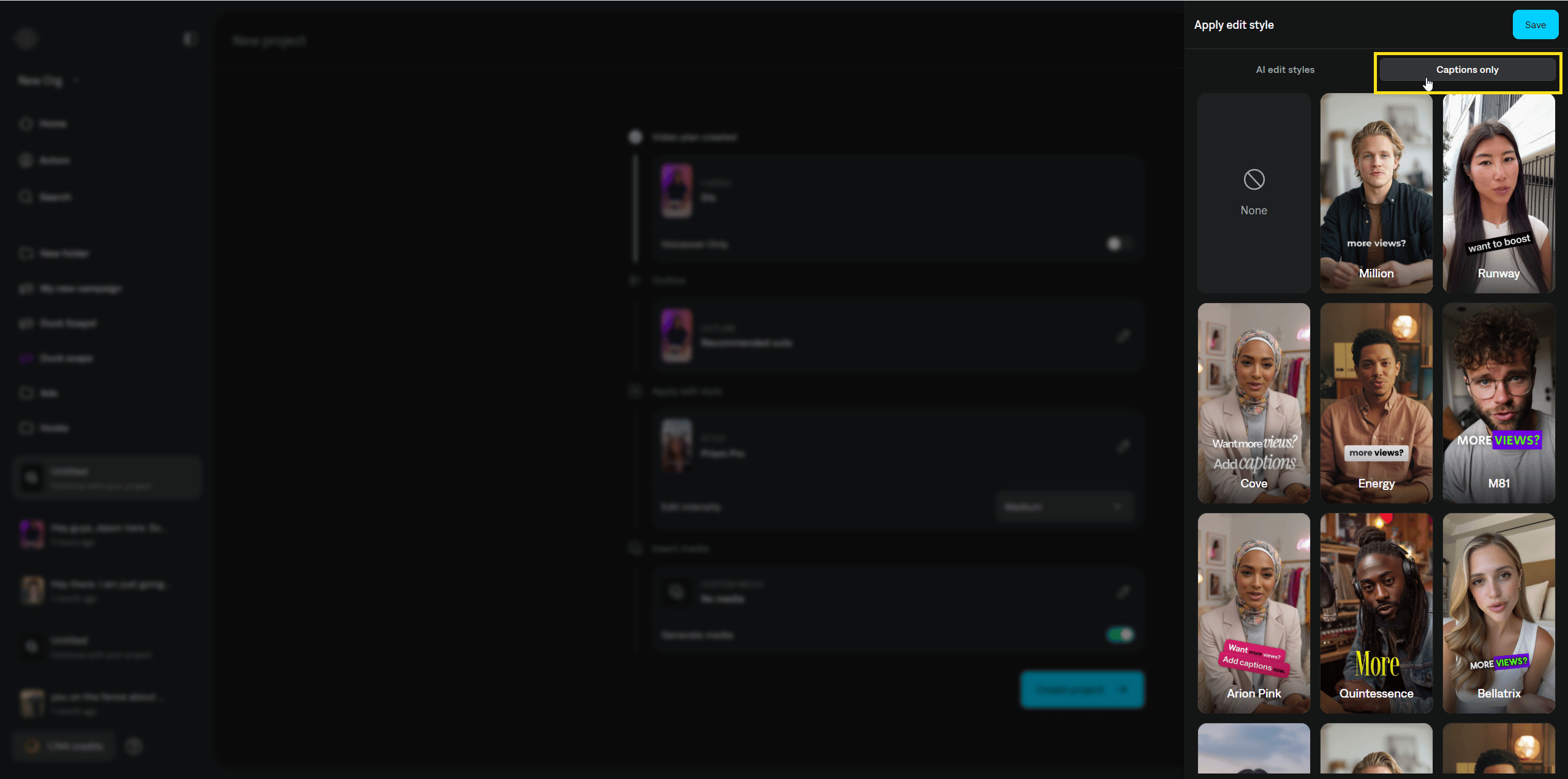
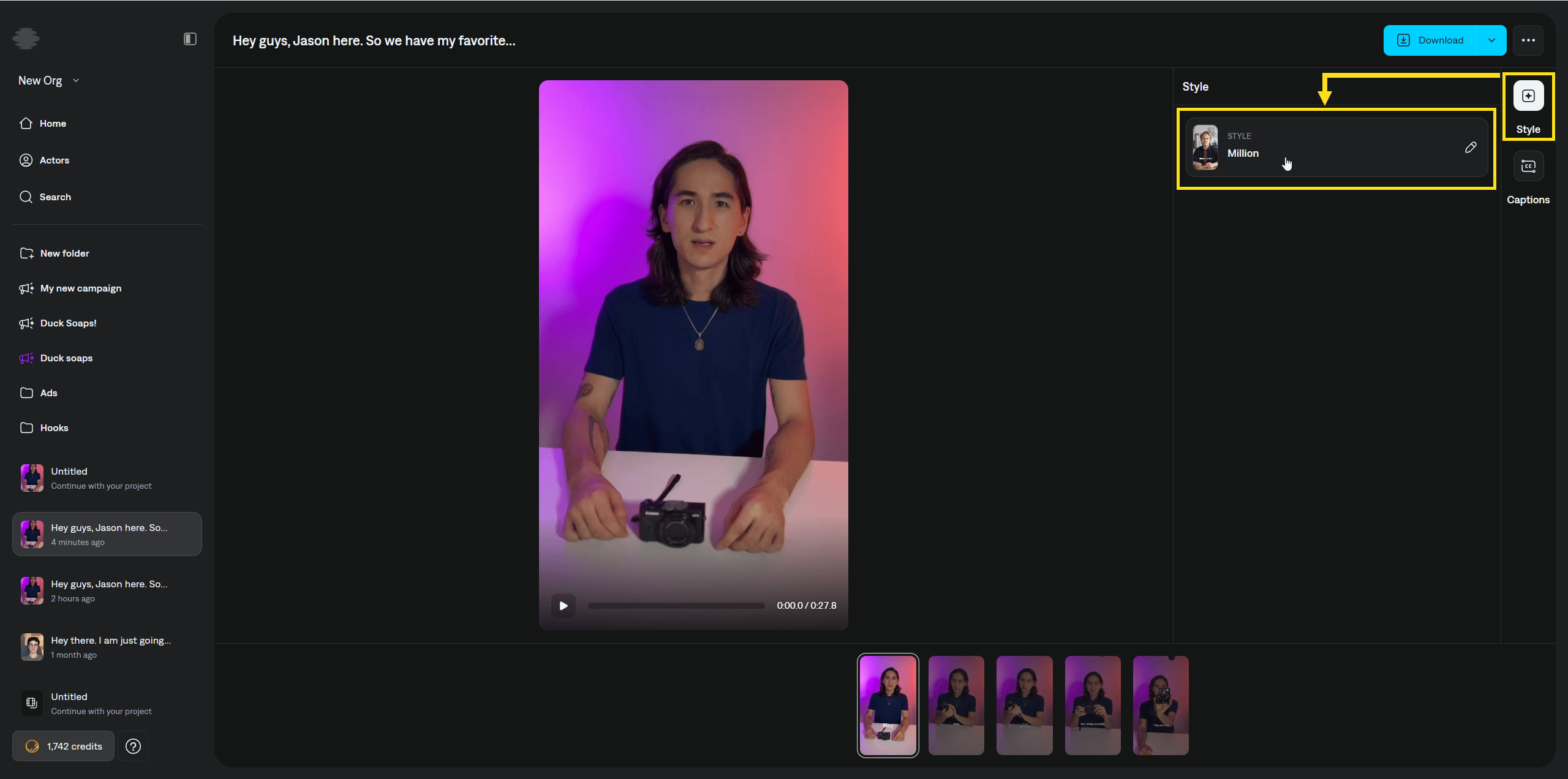
In the Apply edit style section, click the edit icon to open the panel on the right. If you want captions without other editing elements, open Captions only. Pick a template style from that tab, then click Save.
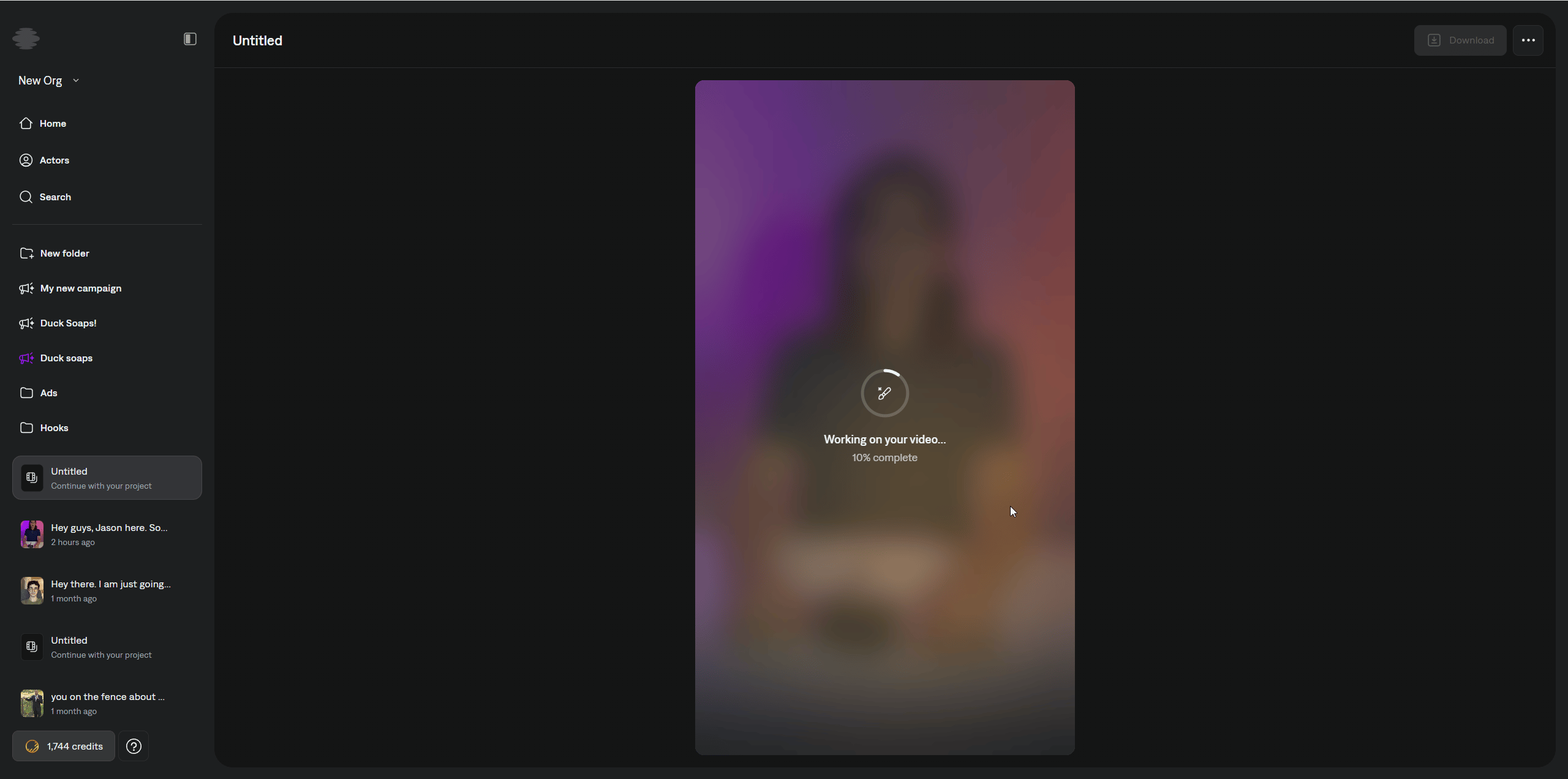
When creation finishes, open the project to review the output.You can change caption wording and timing at any time. For spelling and text edits, see Edit Spelling.To change how captions look, click Style in the right sidebar. Changing caption style costs extra credits. Credit cost varies depending on the style you pick.