

Edit An Individual Word
- iOS
- Web
- Android
To edit an individual word, tap on any word to display all options.
Spelling
Spelling
Tap Edit to edit the spelling of the individual word.
Breaks
Breaks
Tap Breaks to adjust how this particular word appears in relation to the words before and after. Choose from Auto, Line Break, Page Break, or No Break.
Supersize
Supersize
Tap Supersize to enable or disable the Supersize effect. Supersize will make your word larger than the default size of all words.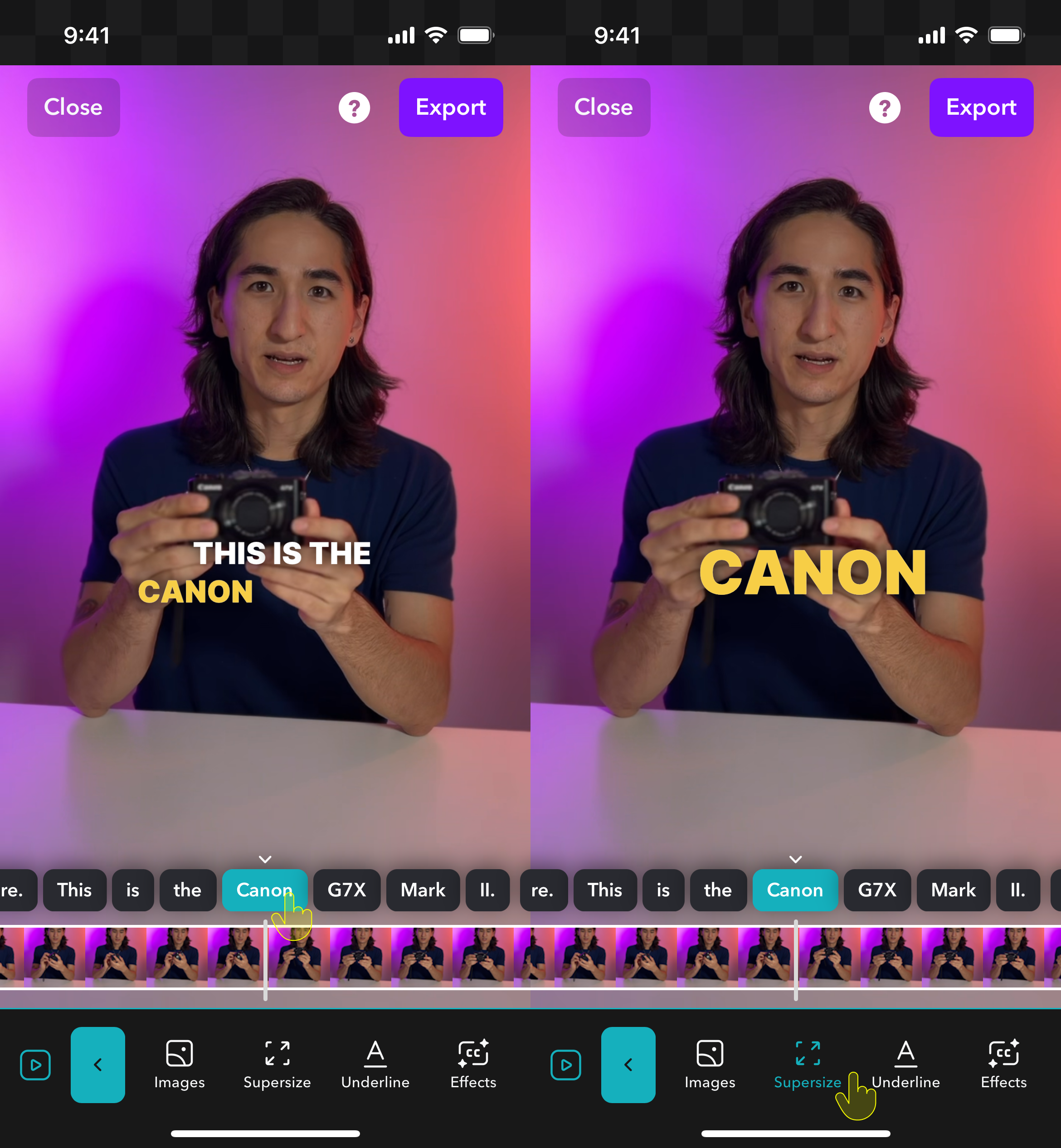
Emphasize
Emphasize
Tap Emphasize to have the word appear with the emphasis color activated.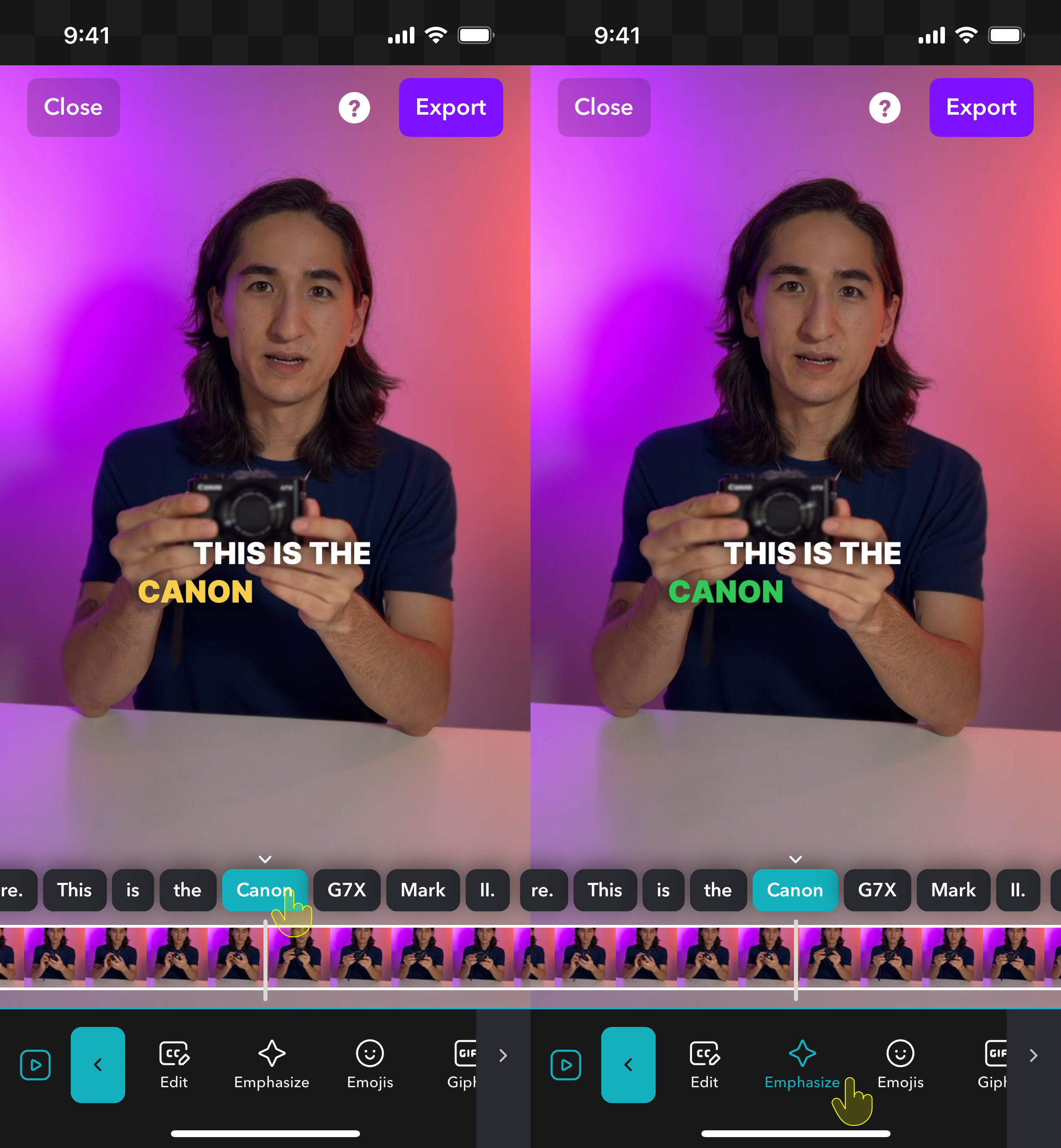
Emojis
Emojis
Tap Emojis to manually apply a standard or animated emoji to appear with the selected word.
Media
Media
Tap Media to:
- Import a photo or video
- Search for a GIF
- Search for a stock photo
Underline
Underline
Tap Underline to apply an underline on the selected word.
Effects
Effects
Tap Effects to apply a background effect on the selected word.
Sounds
Sounds
Tap Sounds to apply a sound effect on the selected word.
Color
Color
Tap Color to apply a color to override the selected word.
Font
Font
Tap Font to apply a font to override the selected word.
Visibility
Visibility
Tap Visibility to show or hide the selected word.
Timing
Timing
Tap Timing to adjust the timing of the selected word.
Delete
Delete
Tap Delete to delete the entire word.