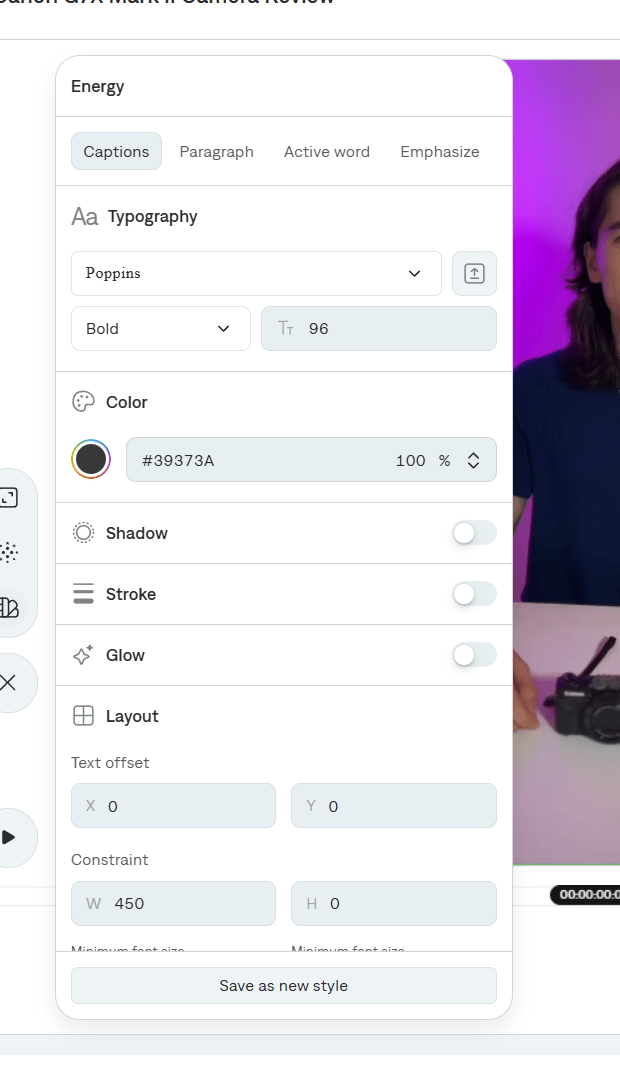
Open Settings → Captions style, then Edit on the template you want to change. The editor has four tabs: Captions, Paragraph, Active word, and Emphasize.
Captions
This tab is the base look of the words.
- Typography. Font, weight, size, and Upload font.
- Color. Hex color and opacity.
- Shadow, Stroke, and Glow. Turn each treatment on and set its color and size.
- Layout. Text offset (X and Y), constraint width and height, minimum font size, and auto size so the line fits.
- Background. Fill color, stroke color, stroke width, corner radius, blur, shadow radius, and padding.
- Transitions. Animation such as Opacity, applied by page, line, or word. You can also turn on auto movement, auto scale, randomize rotation, and emojis.
- AI. Lets Captions vary the treatment with the line.
Paragraph
Controls how speech is broken into lines and how those lines are set.
- Line breaks. Number of lines, break on punctuation or pause, pause length, and character count.
- Alignment. Left, Center, Right, or Random.
- Capitalization. None, Uppercase, Lowercase, or Title case.
- Attributes. Letter spacing, line spacing, and line height.
Active word
Styles the word that is being spoken.
- Active color.
- Upcoming words color.
- Bold and size for the active word.
- Active word background.
Emphasize
Styles words Captions should punch up. AI emphasis chooses those words for you. You can still set treatments for Keywords and Pictorial words:
- Underline
- Color and glow
- Supersize
- Font
- Negative
- Transition
Emphasis transitions include an Immediate animation. Super size can keep the word on one line.
Select Save as new style when the template should be reusable. See Saving a custom style. Closing the editor without saving leaves the project on the template you started from. Last modified on November 5, 2026