1
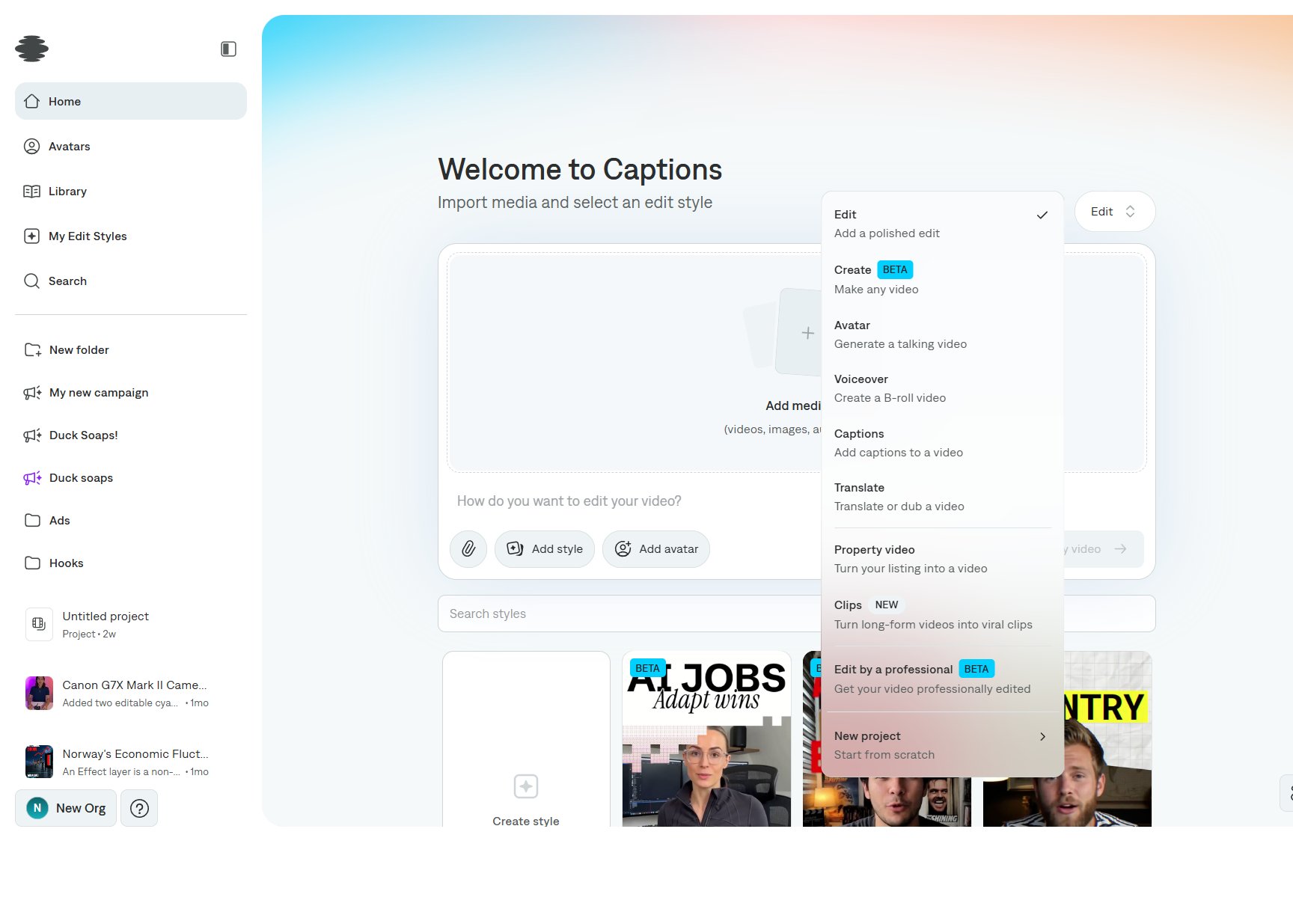
Open Home and stay on Edit
Go to captions.ai/home. The project type in the top right should say Edit, with the subtitle “Import media and select an edit style.”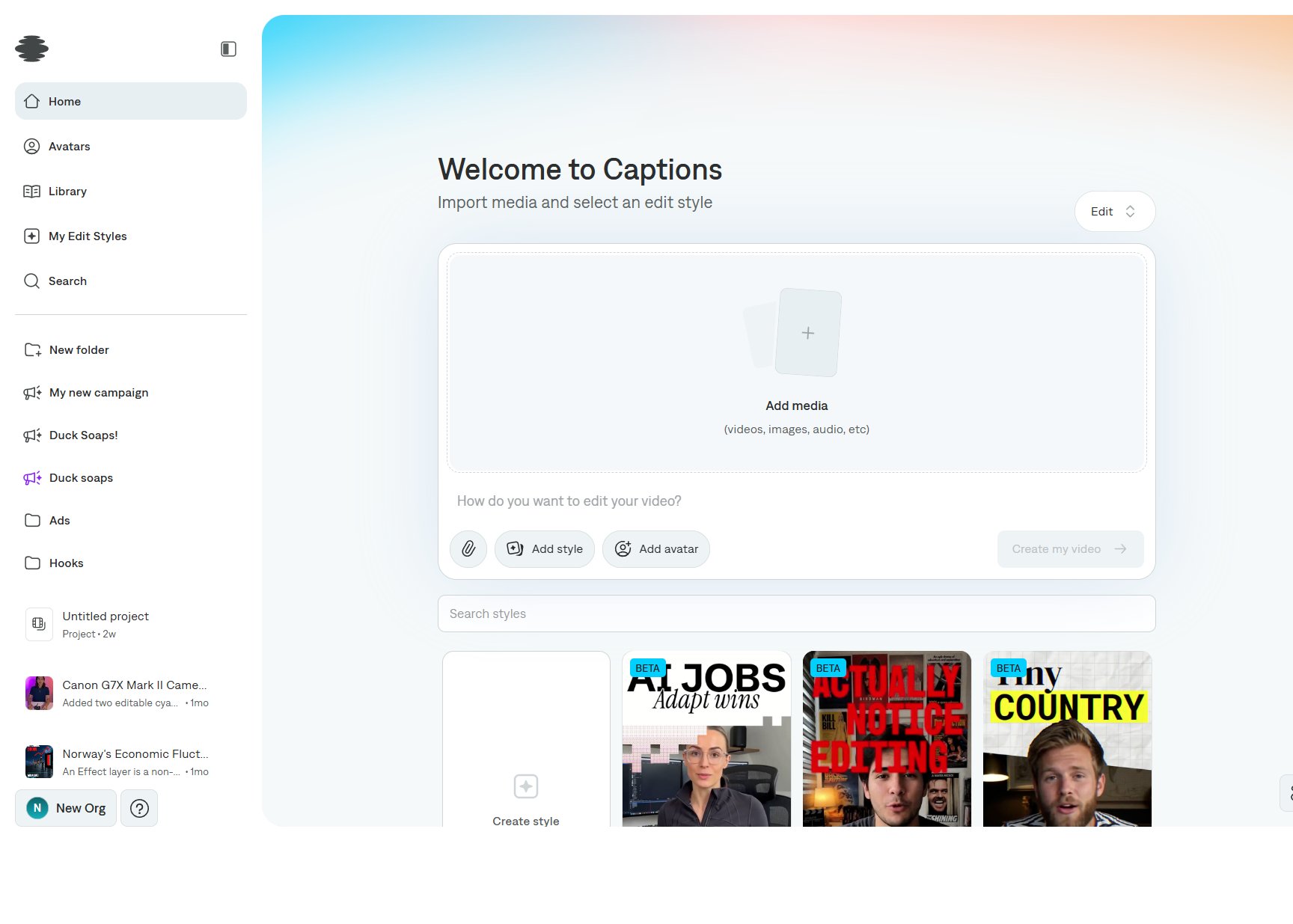
2
Add your footage
Select Add media and choose videos, images, or audio. You can also drop files onto the composer. Use the paperclip if you want to attach a reference image or another file alongside the main footage.
3
Describe the edit
In How do you want to edit your video?, say what should change. Mention pacing, captions, music, or anything the viewer should notice.Example: “Cut the pauses, add energetic captions, and keep the product in frame.”
4
Pick a style
Scroll the style cards under Search styles, or select Add style. Styles marked Beta adapt the treatment to your footage. Add avatar is optional when the edit should include a talking avatar.
5
Create the video
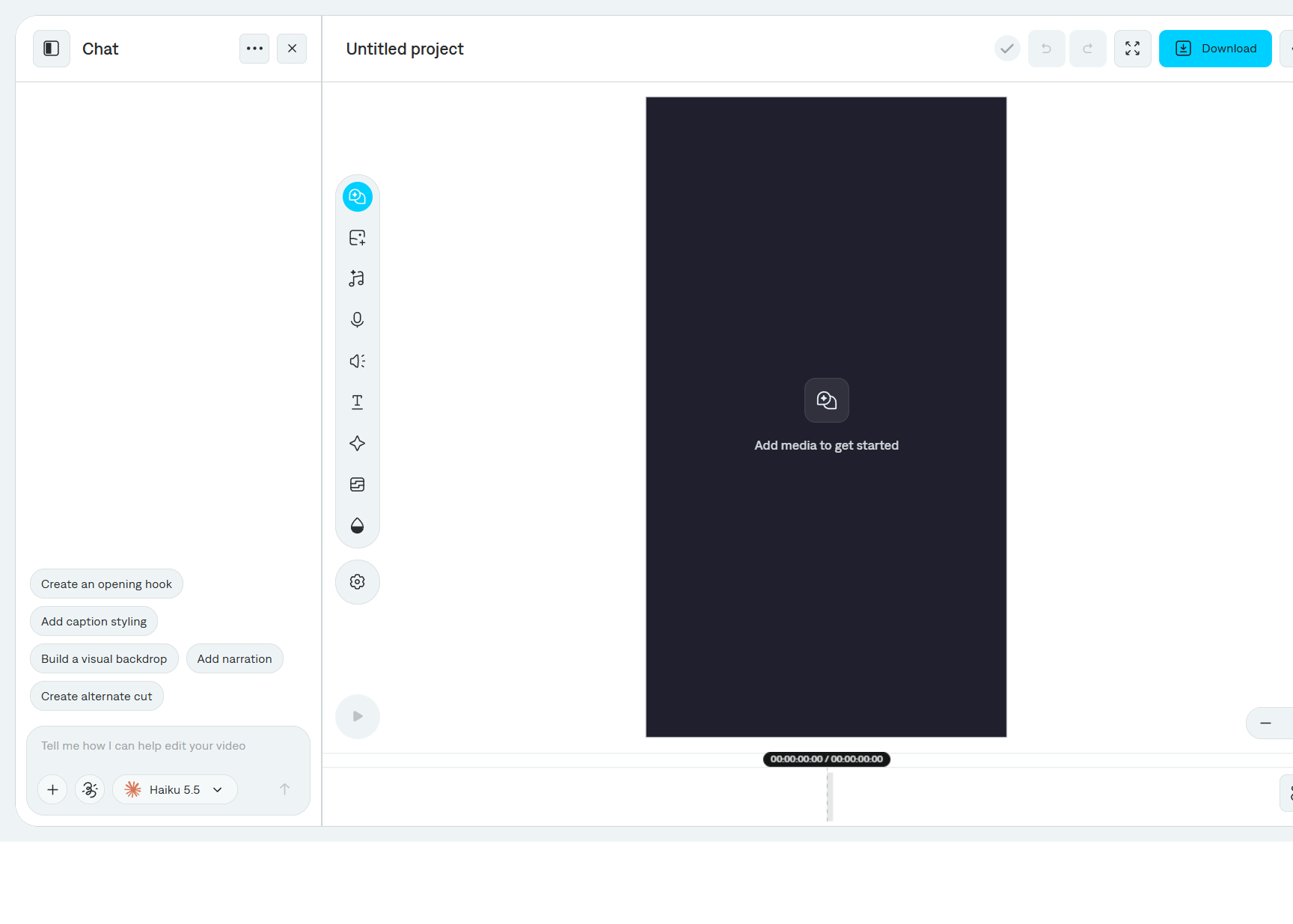
Select Create my video. Captions builds the project and opens it in the editor. You can keep changing it with AI chat or the timeline tools.