1
Stay on Edit
On Home, the project type reads Edit and the page says “Import media and select an edit style.”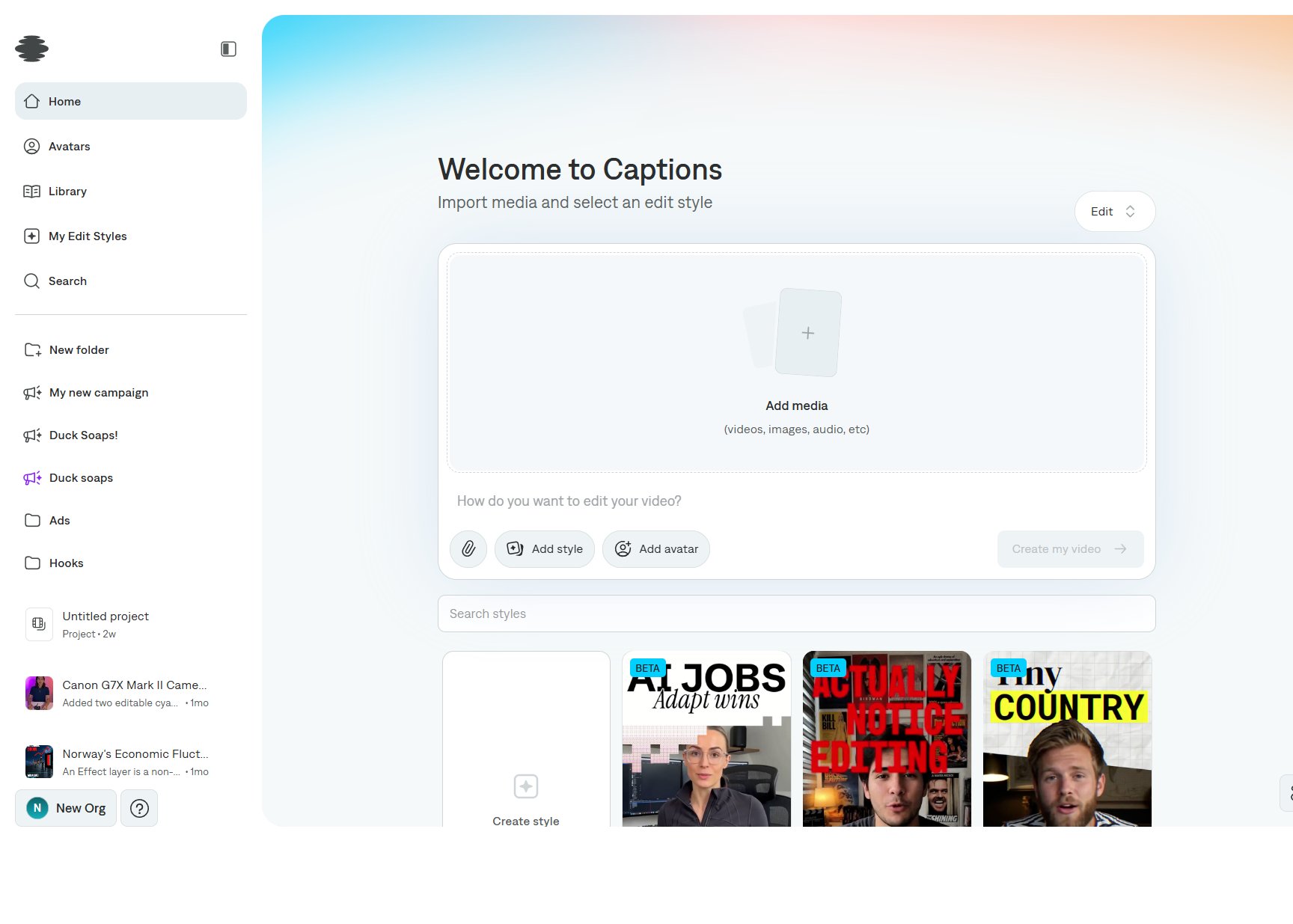
2
Add the footage
Select Add media. Add every clip that should be available to the edit. Attach a reference with the paperclip when you want the cut to follow a specific look.
3
Write the prompt
Answer How do you want to edit your video? Include pacing, captions, music, and anything that must stay on screen.
4
Choose an edit style
Select a card under Search styles, or use Add style. Create style starts a style of your own. Cards marked Beta are exclusive styles that adapt to your footage. Add avatar is optional.
5
Create the project
Select Create my video. The editor opens with the cut on the timeline. Keep going in AI chat, or change layers by hand.
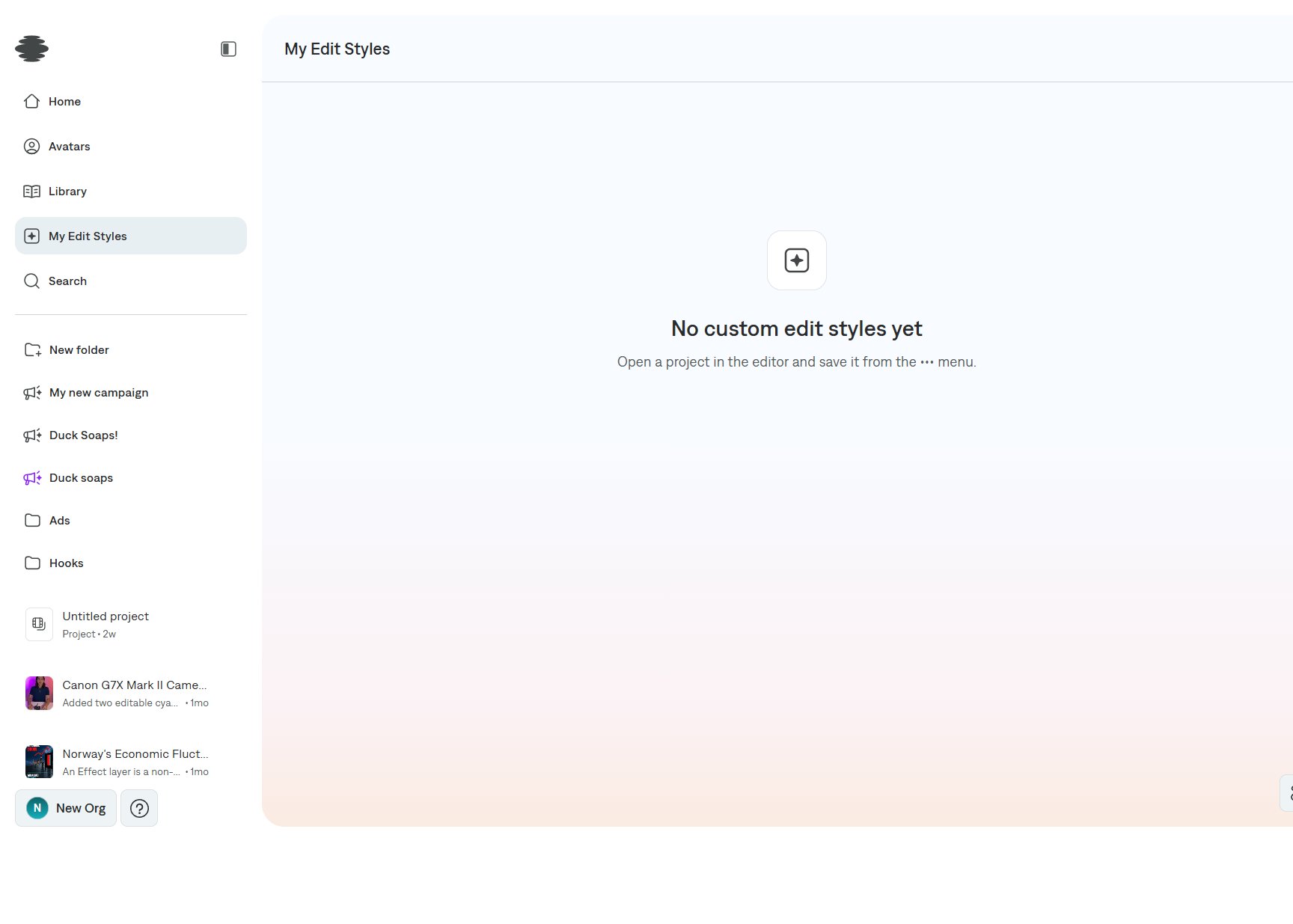
Reuse an edit style
When a project already looks right, open More options → Save edit style. It appears in My Edit Styles and in the Home style picker.