

Home
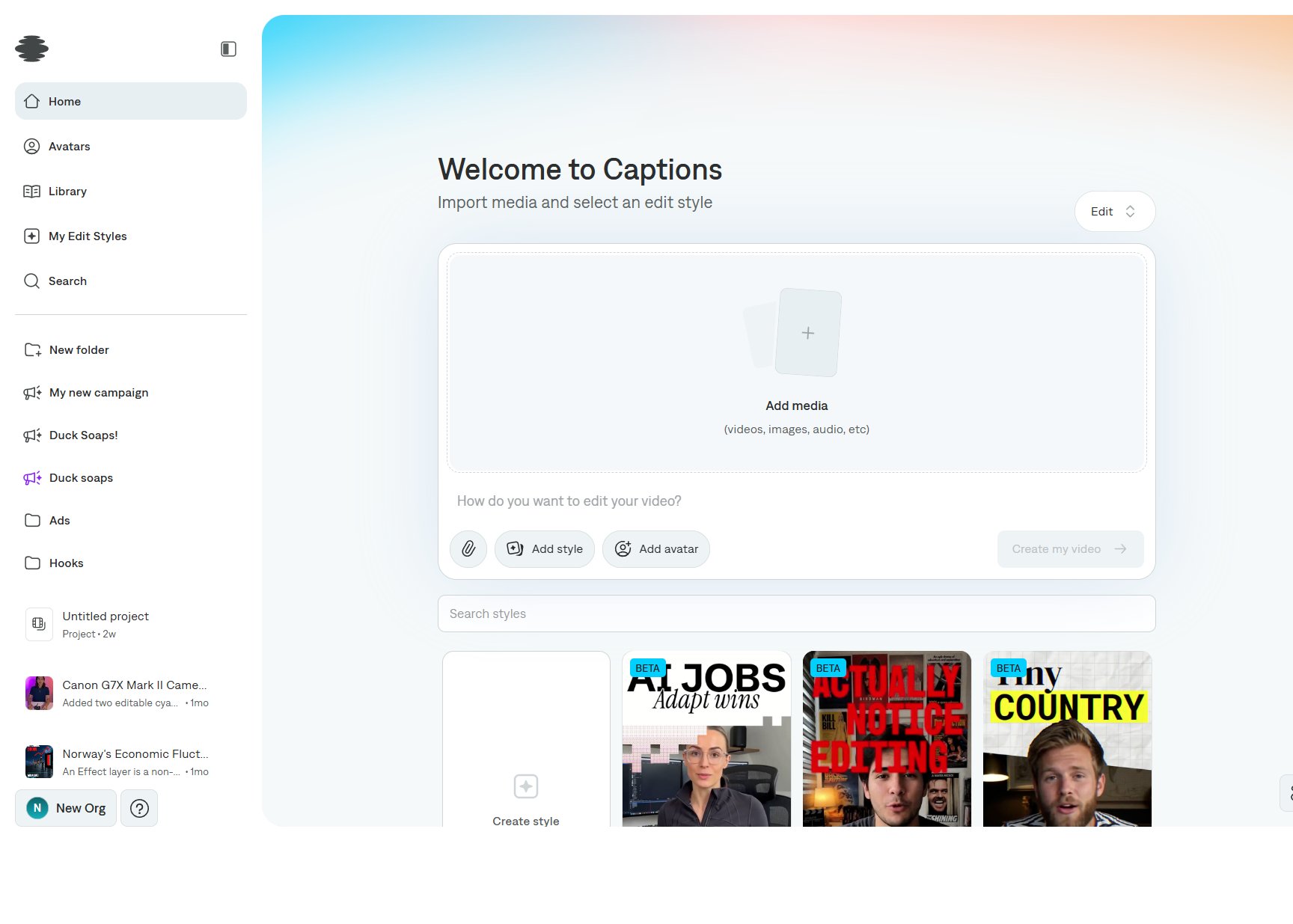
- Sidebar. Home, Avatars, Library, My Edit Styles, Search, folders, and recent projects.
- Project type. The pill in the top right of the composer. It starts on Edit.
- Add media. Drop in videos, images, or audio. The paperclip under the prompt attaches more files.
- Prompt. Describe the result. The placeholder changes with the project type.
- Add style and Add avatar. Optional treatments for Edit and similar types.
- Create my video. Starts the project after the required media and prompt are in place.
- Edit styles. Search styles, or choose Create style. Style cards sit under the prompt. Cards marked Beta are exclusive treatments that adapt to your footage.
Editor
Open a project, or choose New project, to enter the editor.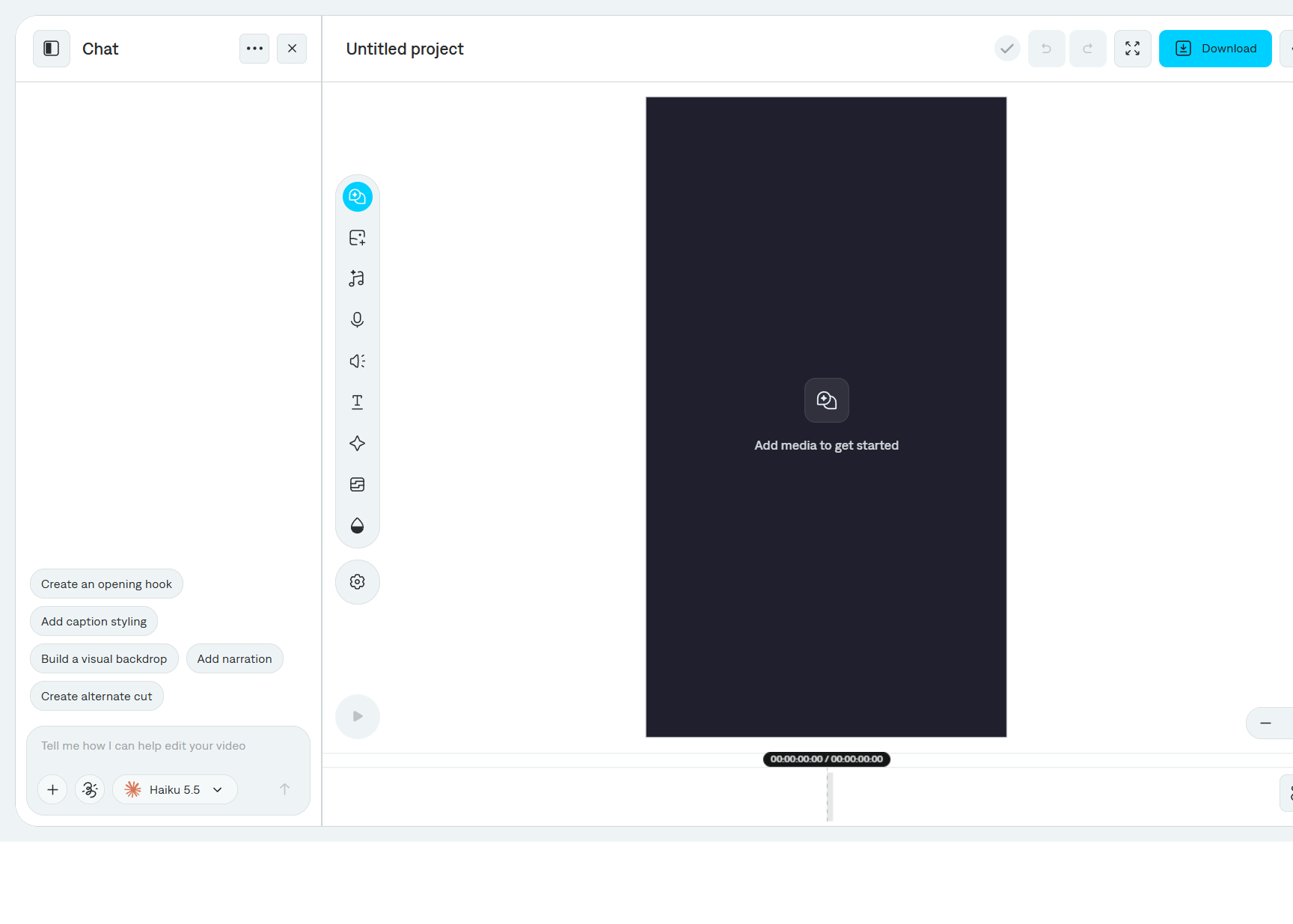
- Chat is the left panel. Describe a change, attach or generate media, add annotations, and pick a model. Suggested prompts appear on a new project, such as creating an opening hook or adding caption styling. See AI chat.
- Preview is the video canvas. Select Add media to get started on an empty project.
- Header. Rename the project from its title. The check mark shows the project is saved. Undo, redo, show preview, Download, and More options sit on the right.
- Tool rail. Chat, Media, Music, Voiceover, Sound, Text, Shape, Effect layer, Color, and Settings.
- Timeline. Layers run along the bottom. Zoom with the slider at the right. Play from the button beside the preview.
More options
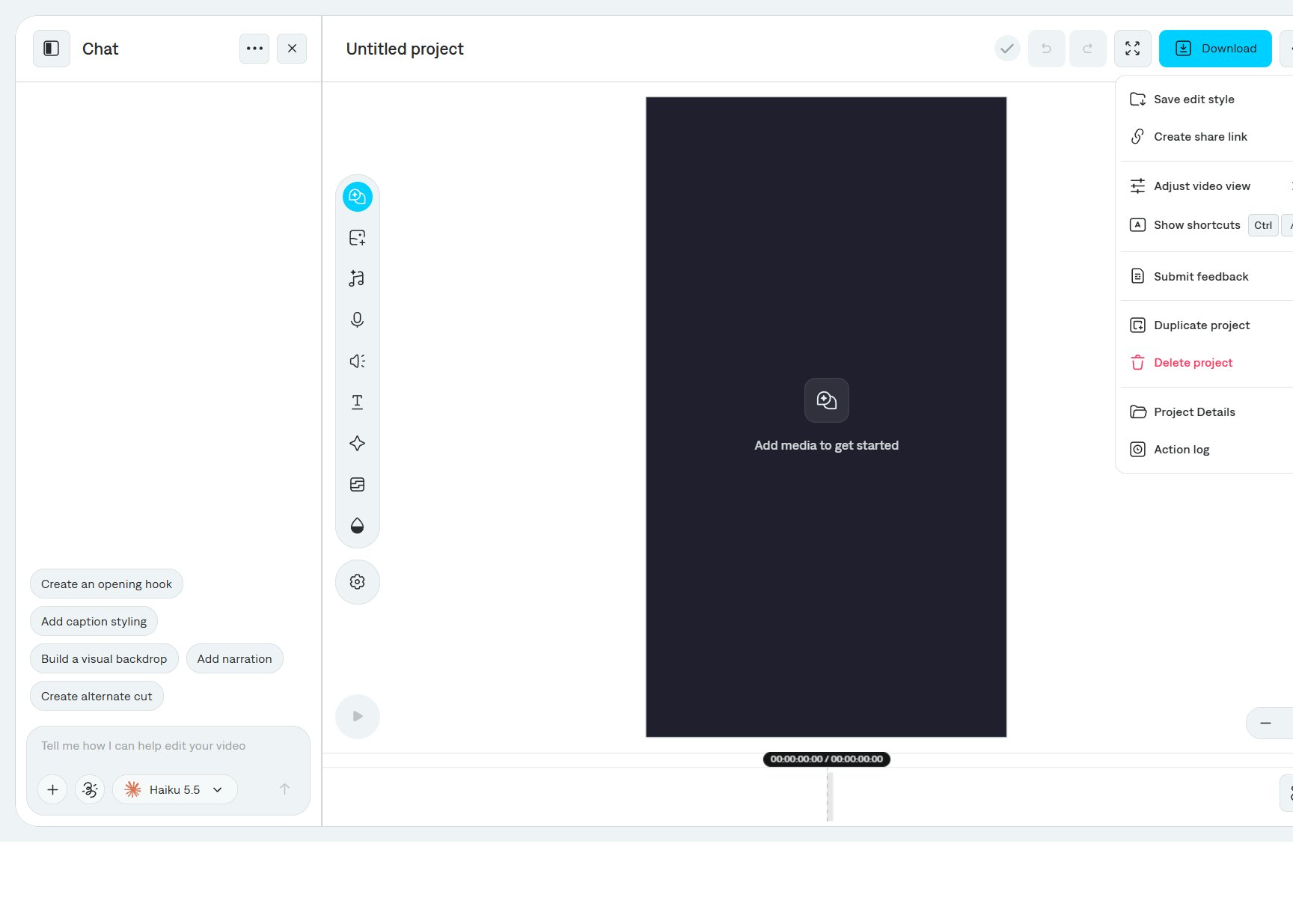
Select a caption phrase or a layer in the timeline to edit it. Tool panels replace Chat until you select Chat again or close the panel.