

How to remove filler words from videos automatically
Make videos better with this simple editing step. Removing filler words makes videos sound more confident and engaging. Here are tips to do it fast.
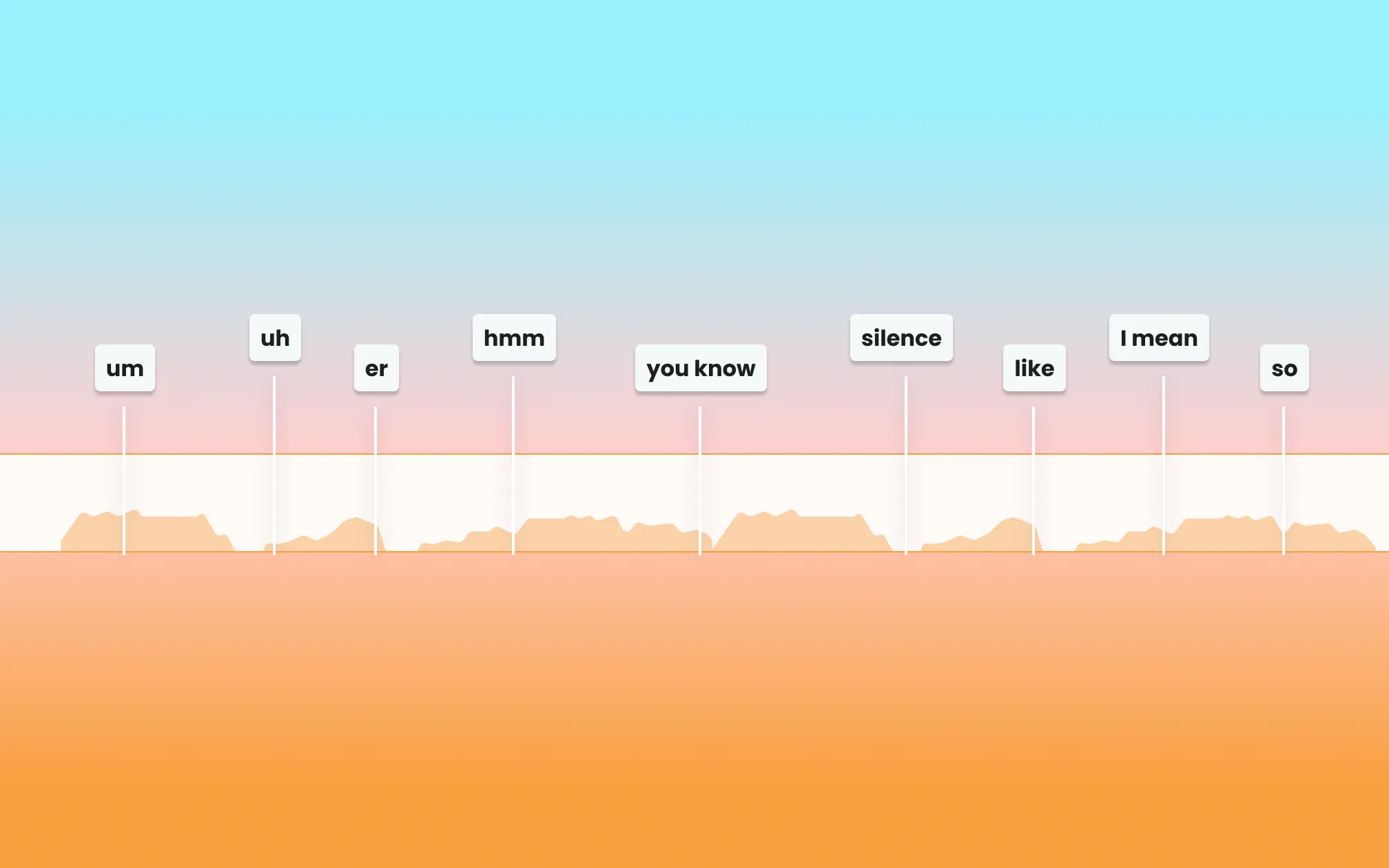
You recorded a great take. You had the right energy, you hit your points, and the lighting was perfect. Then you watch it back… and you count 17 “ums” in four minutes.
Filler words are the gap between how we think we sound, and how we actually sound on camera. When the brain is searching for the next word, the mouth keeps moving to hold the floor. The problem is that on video, that reflex costs you. Filler words distract viewers and can cost watch time.
This guide covers what filler words are, why they matter for video performance, and how to remove them. We’ll share tips for both manual editing and removing filler words with AI.
What are filler words in video?
Filler words are sounds, words, or short phrases that speakers use unconsciously to fill pauses while thinking. In video, they’re anything that appears in your recording that you wouldn’t include in a written version of the same content.
The most common filler words to remove from video are:
- Sounds: “um,” “uh,” “er,” “hmm”
- Verbal placeholders: “like,” “you know,” “I mean,” “right,” “so”
- Transition fillers: “and then,” “so then,” “kind of,” “sort of”
- False starts: repeating the first word of a sentence before finishing the thought
Some of these are more noticeable than others. “Um” and “uh” are the most universally distracting, as they’re sounds rather than words, which means they register as unpolished even when the surrounding content is excellent.
Research in speech processing confirms that filler sounds like “um” and “uh” reduce perceived speaker credibility and professionalism, regardless of the quality of the actual content being delivered.
Why filler words hurt your video performance
The impact isn’t just aesthetic. Filler words affect the metrics that platforms use to distribute your content.
1. Watch time and completion rate
Every “um” and “uh” is a micro-interruption that breaks the viewer’s attention. Individually, each one is small. Across a four-minute video, they create a cumulative drag on engagement. Pacing starts to feel off, and the completion rate starts to drop.
On TikTok, Instagram, and YouTube, completion rate is one of the primary signals the algorithm uses to determine whether to distribute your content further. Lower completion means less distribution and ultimately, fewer views.
2. Credibility
In talking head content particularly, how you sound determines how much the viewer trusts what you’re saying. A speaker who appears hesitant or uncertain (which is how filler words often read) is rated as less credible and less authoritative than a speaker who delivers the same content with clean pacing.
This matters most for creators whose value proposition is expertise, like life coaches and educators.
3. Caption quality
If you’re using an auto-captioning tool, filler words appear in your captions, too, either as transcribed sounds (“um,” “uh”) or as dropped words that the ASR model tried and failed to interpret. Clean audio produces cleaner captions. For more on why captions matter for video performance, see our full guide on adding captions to videos.
What is the difference between removing filler words and removing silence?
These are related but distinct operations, and most tools treat them separately.
Silence removal targets gaps in the audio where there is no speech at all; things like pauses between sentences, dead air while the speaker thinks, delays before the next take begins. Silence removal tools work purely on audio volume: if the waveform drops below a threshold for longer than a set duration, that segment is removed.
Filler word removal targets specific sounds and words within continuous speech. The audio level doesn’t drop significantly (“um” is spoken at roughly the same volume as the words around it) so silence removal doesn’t catch it. Filler word removal requires speech recognition to identify the specific sound or word before it can be removed.
In practice: silence removal is a quick pass that tightens the overall pacing; filler word removal is the more specific operation that cleans up within-sentence hesitation.
How do you manually remove filler words from video?
The manual approach works in any timeline editor: Premiere Pro, Final Cut Pro, DaVinci Resolve.
The process: find the filler word on the audio waveform, make a cut immediately before and after it, delete the segment, and ripple delete to close the gap. To smooth the cut, either add a 2-4 frame crossfade or cover the edit point with B-roll so the viewer’s eye is elsewhere when the splice happens.
It works, but it’s slow. A four-minute talking-head video with 20 filler words requires 20 individual locate-cut-delete sequences. For creators posting consistently, this is the most time-consuming part of the editing workflow and the most common reason people stop posting at the pace they want to.
Does removing filler words make edits sound choppy?
It can, especially if the cuts aren’t smoothed. When you remove a filler word that occurs mid-breath, the audio on either side of the cut point may not join naturally, so the two clips meet at slightly mismatched audio phases, which creates a brief “click” or unnatural transition.
Three ways to prevent this:
- Short crossfades. Apply a 2-4 frame audio crossfade at every cut point. This blends the audio waveforms at the transition and eliminates clicks without creating an audible dissolve.
- B-roll cutaways. Covering a cut point with B-roll footage means the viewer’s eye is on the cutaway when the audio edit happens.
- J-cuts and L-cuts. Rather than cutting the audio and video at the same frame, offset them slightly. A J-cut starts the audio from the next clip slightly before the video switches. An L-cut does the reverse. For a deeper explanation of these techniques, see our video editing tips guide.
AI tools like Captions handle this process automatically; the audio crossfades and smoothing are applied at every removal point without manual adjustment.
How do AI tools remove filler words from video?
AI filler word removal works through a different mechanism than manual editing. It improves both speed and the quality of outputs, because it’s more precise.
The AI uses automatic speech recognition to transcribe your audio and identify filler sounds and words. Then, it maps the timestamps back to your video and cuts the filler segments automatically. It’s like making hundreds of manual razor cuts, executed in seconds.
The sophistication of this approach varies by tool. Basic implementations use simple pattern matching: they find the word “like” and remove it. This can create problems when “like” is used intentionally (“I like this product”). More advanced tools use contextual models that distinguish between intentional word use and times the word was used as filler.
What makes AI filler removal better than manual:
- Speed: A 10-minute video is cleaned in under a minute, rather than 20-30 minutes.
- Consistency: The AI doesn’t miss any filler words or lose focus.
- Adjustable thresholds: Most tools let you set how aggressively to remove fillers, catching every “um” or only the most disruptive ones.
- Preserved audio quality: AI removal operates at the clip level so the original recording quality is maintained.

What is the best tool to remove filler words from video?
| Tool | Filler word removal | How it works | Best for |
|---|---|---|---|
| Captions | Automatic (part of AI Edit) | AI detection; removes fillers, long pauses, and bad takes in one pass | Talk-to-camera creators, full editing workflow in one tool |
| Descript | Automatic (transcript-based) | Edit by deleting words from the transcript; filler detection built-in | Podcasters, long-form interview content |
| Gling | Automatic | AI detects and removes silences and filler words; desktop-only | YouTubers editing long-form content |
| Cleanvoice AI | Automatic | Audio-focused; removes fillers, stutters, mouth sounds | Podcast audio cleanup |
| VEED.io | Automatic | Browser-based; transcript editing with filler detection | Teams, quick browser-based edits |
| Opus Clip | Automatic | AI clip generation with filler removal built-in | Repurposing long-form to short clips |
How to remove filler words with Captions
For creators producing talking-head videos, Captions has the most integrated workflow: you record, the AI cleans up, you caption and format, you post. All without jumping between tools.
Here’s how filler word removal works in Captions specifically:
- Step 1: Upload or record your video in Captions
- Step 2: Pick your editing plan. Once your video loads, you’ll see a toggle that says “Trim filler and silences.” Make sure to toggle that on before continuing your edit plan.
- Step 3: Refine with prompts. If you want to adjust anything (keep a specific pause, restore a cut, change the pacing) describe it in plain language and Captions executes it. Auto-captions are generated from the cleaned audio; the filler words are already gone, so nothing incorrect appears in the caption text.
- Step 4: Export or share. Export in the right format for your platform and post.
The entire process (from raw talking head footage to polished, captioned, formatted video) happens within Captions.
How do you stop saying filler words when you’re recording audio?
Removing filler words in post is the practical solution. Reducing them at the recording stage is the long-term one. Here’s what works to make your original audio cleaner:
- Use a teleprompter. The primary reason people use filler words on camera is that they’re searching for the next word while speaking. A teleprompter eliminates the search since the next word is always visible. Captions’ built-in teleprompter scrolls your script at your speaking pace, so you maintain eye contact with the camera while always knowing what comes next.
- Pause instead of filling. The discomfort of silence on camera is what drives filler words. In practice, a one-second pause reads as confident and deliberate; “um” reads as uncertain. Training yourself to pause rather than fill takes repetition but produces cleaner raw footage and better delivery.
- Script your hook and key points. You don’t need to script every word, but scripting the hook (the first line) and key points means you always know where you’re going. The parts of a recording where filler words cluster most are transitions between topics and moments where the speaker has lost track of their next point.
- Review your raw footage. Watch one of your unedited recordings and count your filler words. Most people are surprised by the number, but that awareness alone reduces frequency significantly in subsequent recordings.

Start making better videos in Captions
Frequently asked questions
Does removing filler words affect audio quality?
Not if you do it right. Precise edits are not noticeable at all. For more precise editing, try a tool like AI filler word removal. It operates at the clip level, cutting frames from the timeline rather than processing the audio signal. The original recording quality is preserved in the clips on either side of the cut.
How do you remove filler words from a podcast?
The process is the same for any kind of video, including podcasts. For audio-only podcasts, Cleanvoice AI and Adobe Podcast Enhance are strong options.
How many filler words is too many?
There’s no hard threshold, but it’s the cumulative effect that matters. A single “um” in a sentence is barely noticeable; one every 10-15 seconds across a five-minute video creates a persistent drag on pacing and credibility.
As a rough guideline: if you’re averaging more than one filler word per minute in your final video, it’s worth removing them. Behavioral science research puts the average at 5-9 filler words per minute for most speakers (that’s one every 7-12 seconds), which is why the removal step is so consistently impactful.