
Turn gaming sessions into clips that stop the scroll
Your best plays are buried in hours of footage. Captions finds them, frames your gameplay and your reaction together, and clears the overlays so every clip is ready to post.
Get better gaming clips, faster
Find the moments worth sharing
Captions identifies your biggest plays, momentum shifts, and standout reactions across a full session, then turns them into clips ready to share.
Gameplay and reaction, both in frame
Captions handles facecam layouts intelligently, keeping the play and your reaction to it on screen together, so the clip lands the same way it did live.
Clear the overlay clutter
Stream overlays, HUD elements, sub and donation alerts, webcam borders, chat boxes. Captions removes hardcoded on-screen elements from your source footage by fully removing them rather than blurring them, so a VOD becomes a clean clip.
Ready to post
Every clip is automatically finished with captions, titles, and intelligent edits, in 16:9 or 9:16. Review, export, and post in a few clicks.
Create gaming clips in three steps
1. Upload your gameplay
Upload a recording or paste a public video link, including Twitch VODs. Captions handles sessions up to three hours or 10GB.
2. Generate your clips
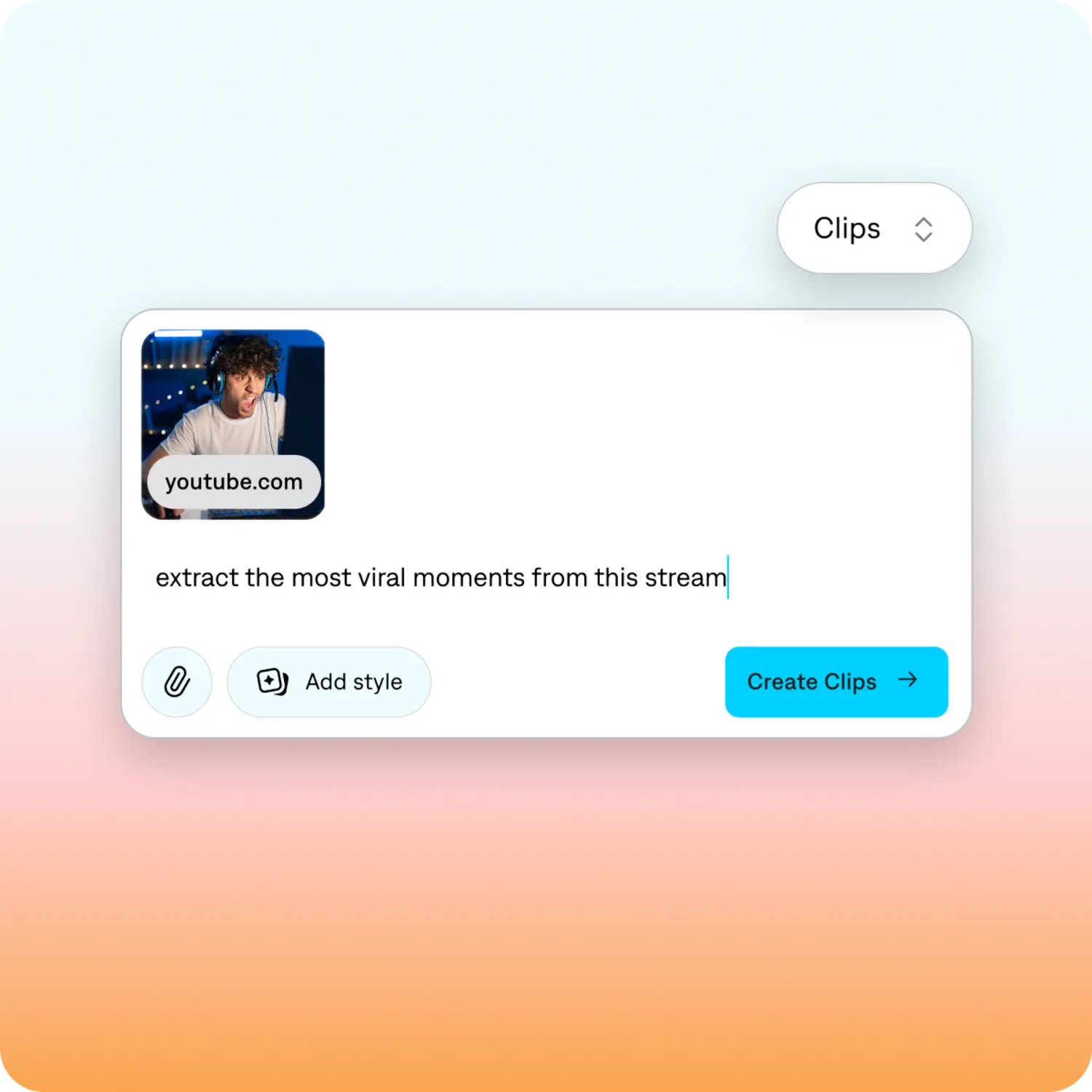
Captions finds the most shareable plays and standout reactions, then turns those moments into 30 or more ranked clips.
3. Export and share
Review your clips, make quick edits if needed, then export in 16:9 or 9:16 for every platform you post on.
More ways to clip
Podcast clips
Webinar clips
Pull the strongest takeaways out of a recording, slides still readable.
Sports clips
Turn full games into highlight clips that follow the play.
Frequently asked questions
What is an AI gaming clip generator?
An AI gaming clip generator analyzes your gameplay to identify standout moments, then automatically turns them into polished clips ready to share. Captions also frames gameplay and facecam layouts so every clip is easy to watch. It is part of Clips, which turns any long video into ready-to-post clips.
How do I make gaming clips automatically?
Upload your recording or paste a public video link, then let Captions identify your best moments or guide it with a prompt. You will get 30 or more ranked clips to review, edit, and export in minutes.
Can I clip a Twitch VOD?
Yes. Paste a public Twitch VOD link and Captions will analyze the full stream, up to three hours or 10GB, then generate clips from it.
Does Captions work with facecam videos?
Yes. Captions supports gameplay recordings with facecams, framing both your gameplay and your reactions so each clip stays engaging and easy to follow.
Can Captions remove my stream overlay?
Yes. Captions removes hardcoded on-screen elements from source footage, including stream overlays, HUD, alerts, and chat boxes, rather than blurring them.
How long can my recording be, and how many clips will I get?
Captions supports recordings up to three hours long or 10GB. From a single session you can generate 30 or more clips, exported in 16:9 or 9:16. A one-hour recording typically finishes in 15 to 20 minutes.