
Turn game footage into highlight clips
Full-game recordings are hard to share and harder to watch. Captions finds the plays that matter, follows the action, and turns them into highlight clips ready for your team's feed or an athlete's reel.
From full games to shareable clips
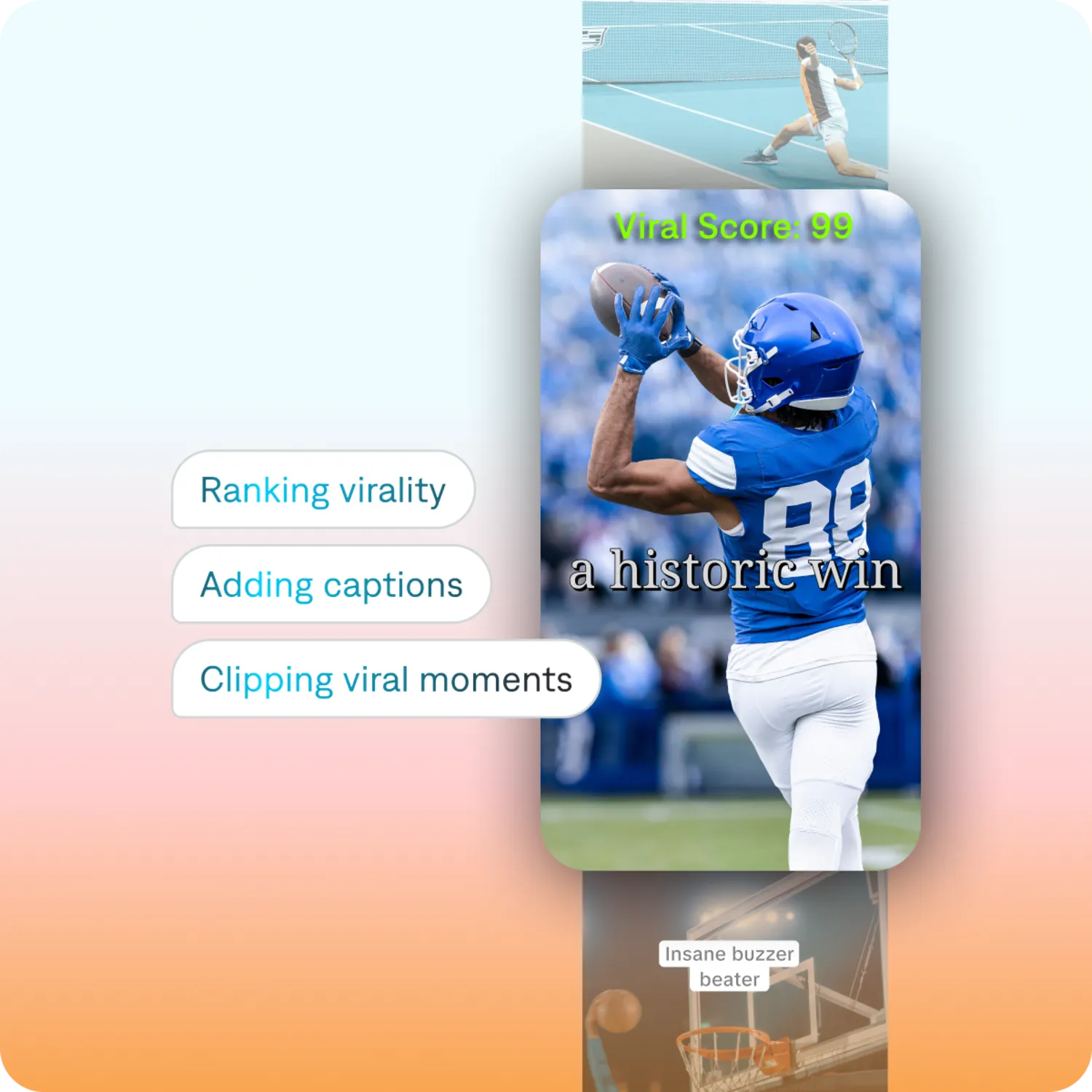
Find the biggest plays
Captions identifies scoring plays, momentum swings, and turning points across a full game, then turns them into clips ready to share.
Follow the play, not just the frame
Wide, fixed-camera game film loses the play the moment you crop it. Captions tracks the action across the field so the moment stays centered from first touch to finish.
Built for the footage you own
Club and youth games, practices, tournaments, coaching film, recruiting reels. Captions is built for the long, unglamorous recordings teams and families actually have, and turns them into something worth posting.
Ready for every platform
Every clip is automatically edited, captioned, and formatted in 16:9 or 9:16 for wherever you publish, whether that is a team account, a recruiting reel, or a group chat.
Turn game footage into clips in three steps
1. Upload your game footage
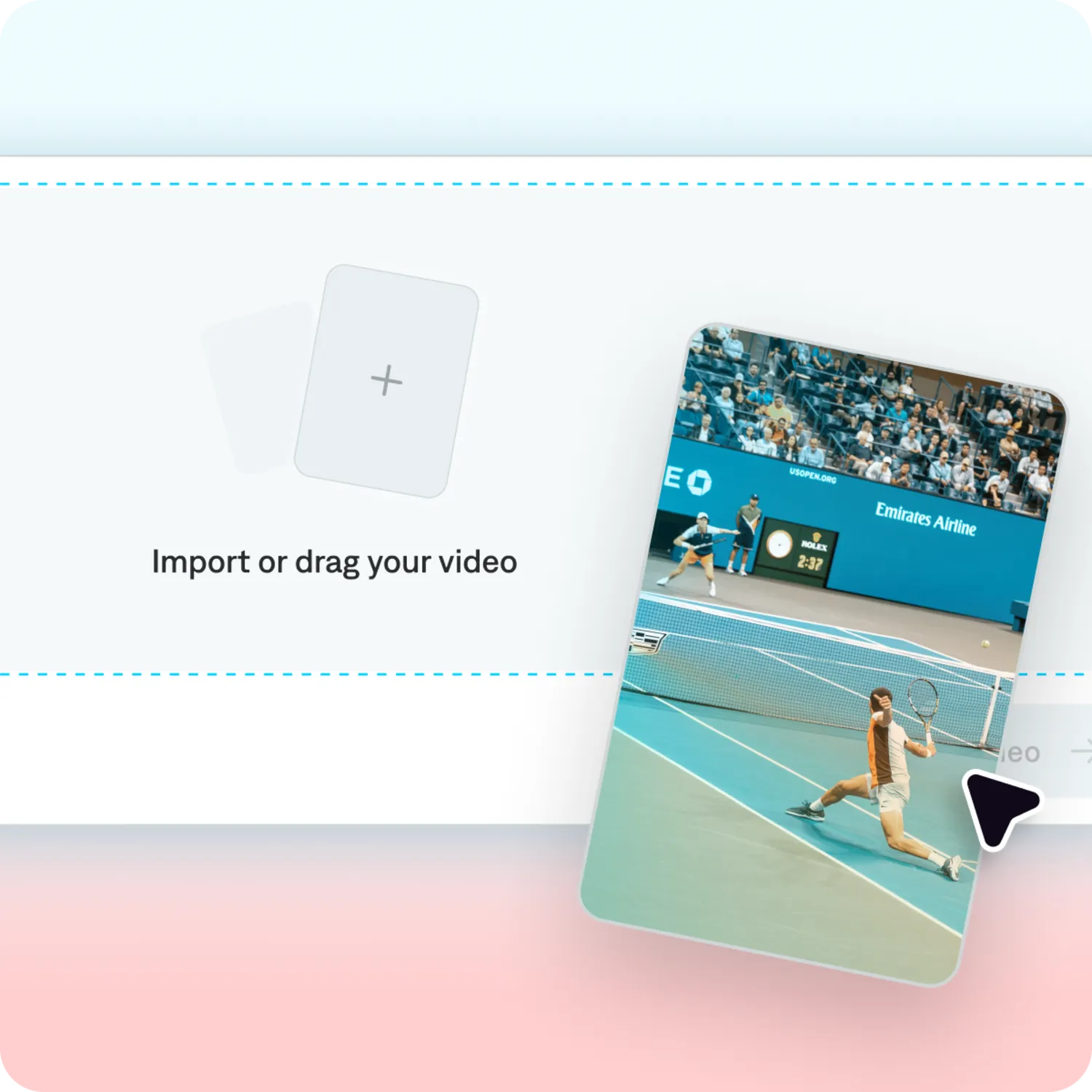
Upload a recording or paste a public video link. Captions handles full games up to three hours or 10GB, so there is no need to trim first.
2. Generate your clips
Captions finds the best plays and turning points and turns them into 30 or more ranked clips, or you can guide it with a prompt to focus on one player or one period.
3. Review and share
Make final edits if needed, then export in 16:9 or 9:16 for team accounts, recruiting reels, or wherever you post.
More ways to clip
Podcast clips
Webinar clips
Pull the strongest takeaways out of a recording, slides still readable.
Gaming clips
Find your best plays in hours of footage, overlays removed.
Clip the best plays from your last game
Upload your game footage and see what Captions pulls out of it.
Frequently asked questions
What is an AI sports clip generator?
An AI sports clip generator analyzes game footage to identify key plays and turning points, then automatically turns them into polished highlight clips. Captions also reframes each clip to keep the action centered from start to finish. It is part of Clips, which turns any long video into ready-to-post clips.
How do I turn game footage into highlight clips?
Upload your footage or paste a public video link, then let Captions find the most shareable moments automatically or guide it with a prompt to focus on one player or one period. You will get 30 or more highlight clips ready to review and share.
Whose footage can I clip?
Captions is built for footage you own or have permission to use, including club and youth games, practices, tournaments, coaching film, and your own team recordings.
Can I use this for coaching film or recruiting reels?
Yes. Prompt Captions to focus on a single player or a specific stretch of the game, and it will pull those moments into clips you can export as a reel or share with a coaching staff.
Does Captions keep the action in frame?
Yes. Captions tracks the action throughout each clip, so wide fixed-camera game film still works when it is cropped to vertical.
How long can my footage be, and how many clips will I get?
Captions supports footage up to three hours long or 10GB, which covers most full games. From a single recording you can generate 30 or more clips, exported in 16:9 or 9:16. An hour of footage typically finishes in 15 to 20 minutes.