
Turn webinars into engaging, edited clips
You already did the hard part. Captions finds the strongest takeaways in your recording and turns them into clips that keep working long after the live session ends, with your slides still readable.
Make every webinar go further
Share your biggest takeaways
Every webinar is packed with insights worth sharing. Captions finds the strongest moments across the full recording, then turns them into polished clips that are ready to post across your channels.
Keep your slides front and center
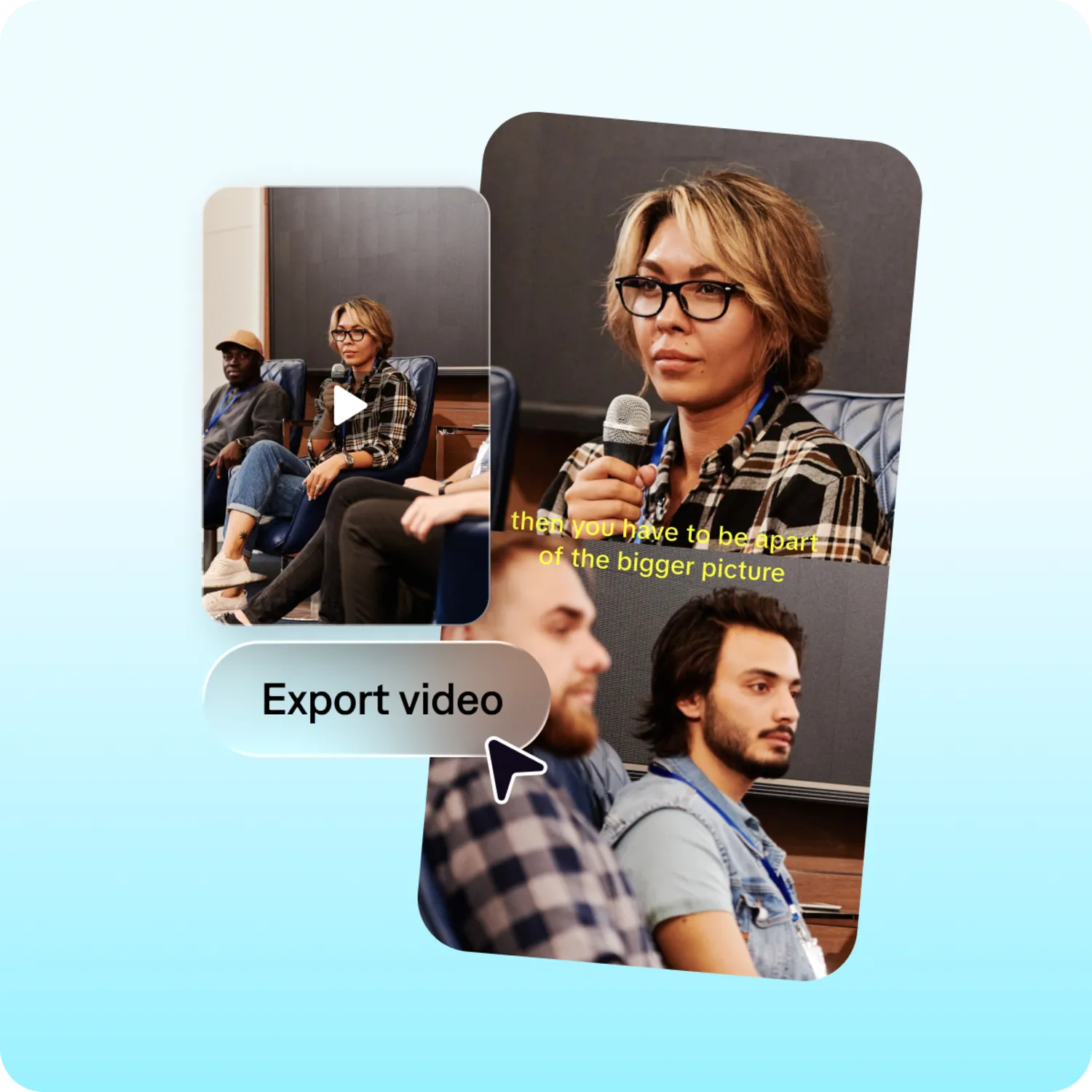
Slides should not disappear in the edit. Captions reframes every clip to keep your presentation readable while the speaker stays in frame, so the point still lands at 9:16.
Make every idea easy to follow
Every clip is automatically edited with captions, titles, and layouts that make complex ideas easy to understand without the surrounding context of the full session.
Leave the webinar platform behind
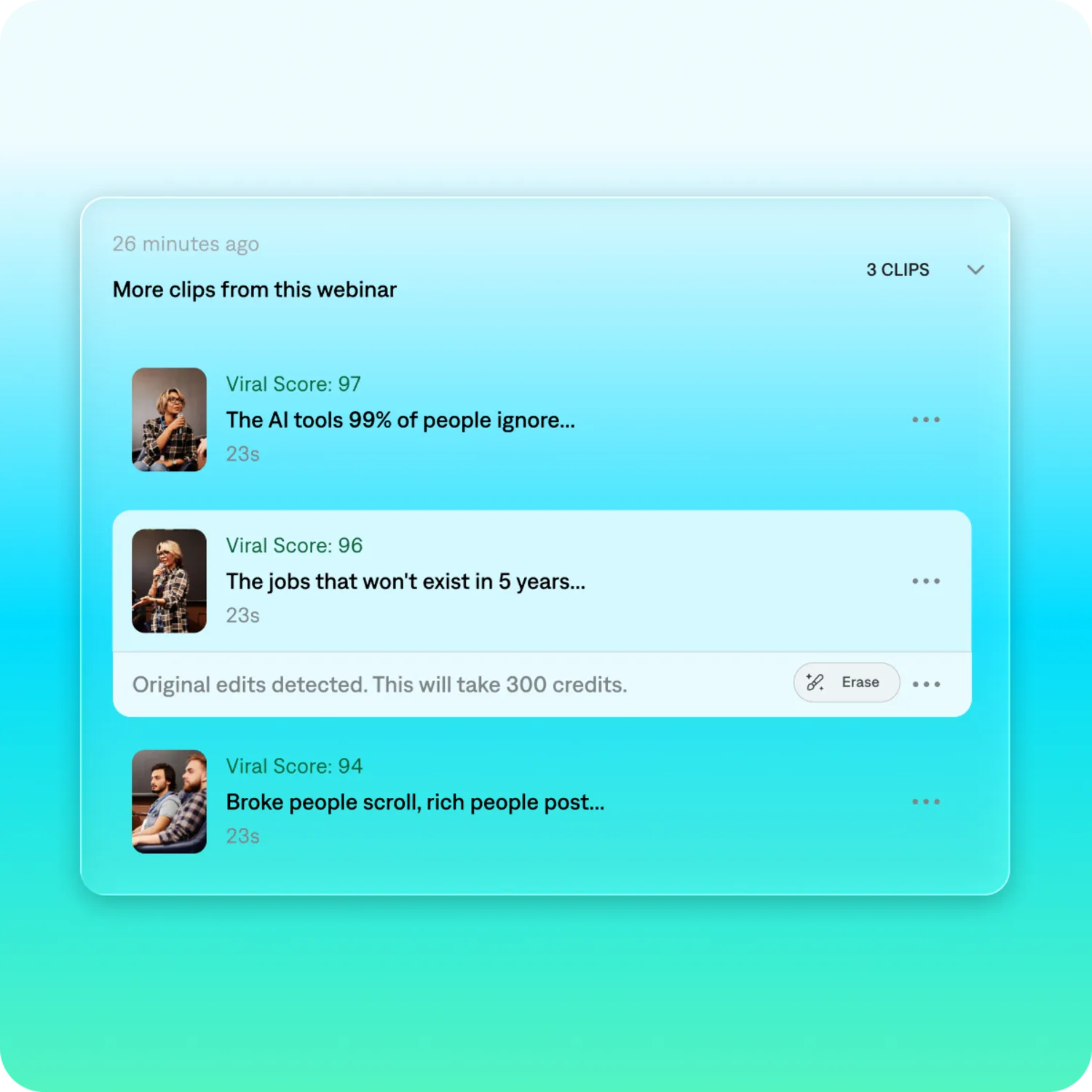
Captions removes hardcoded on-screen elements from your recording, including platform chrome, registration banners, poll and Q and A overlays, and old lower thirds, so your clip looks like content rather than a screen recording.
Clip your webinar in three steps
1. Upload your webinar
Upload a recording or paste a public video link. Captions handles sessions up to three hours or 10GB, so there is no need to trim first.
2. Get your clips
Captions identifies your strongest takeaways and turns them into a collection of 30 or more ranked clips, so you can see which ideas travel best.
3. Share everywhere
Review your clips, make any final edits, then export in 16:9 or 9:16 for LinkedIn, YouTube, or wherever your audience is.
More ways to clip
Podcast clips
Gaming clips
Find your best plays in hours of footage, overlays removed.
Sports clips
Turn full games into highlight clips that follow the play.
Get more from the webinar you already ran
Upload a recording and see what Captions pulls out of it.
Frequently asked questions
What is an AI webinar clip generator?
An AI webinar clip generator analyzes your recording to identify key moments, then automatically turns them into polished clips ready to share across social platforms. Captions also keeps presenters and slides in frame, making every clip easy to follow. It is part of Clips, which turns any long video into ready-to-post clips.
How do I turn a webinar into short clips?
Upload your recording or paste a public video link, then let Captions identify the strongest takeaways automatically or guide it with a prompt. You will get 30 or more clips to review and share.
Will my slides stay readable?
Yes. Captions reframes webinar recordings to keep slides, screen shares, and other on-screen content clear while keeping the presenter visible, including in vertical 9:16 crops.
Does Captions automatically add captions and titles?
Yes. Every clip is automatically edited with captions, titles, and layouts designed to make your content clear and easy to follow. If your recording already has burned-in subtitles, Captions detects them and will not add a second set.
How long can my webinar be, and how many clips will I get?
Captions supports recordings up to three hours long or 10GB. From a single session you can generate 30 or more clips, exported in 16:9 or 9:16. A one-hour webinar typically finishes in 15 to 20 minutes.
Does it work with Zoom, Teams, and Webex recordings?
Yes. Zoom, Teams, and Webex recordings work as long as the session exports as a single video file, which is how most cloud recordings save. Download the recording and upload it to Captions, or paste a public video link.